Most organizations use SharePoint for document storage and collaboration. That much is common knowledge. What gets overlooked is SharePoint’s robust task management infrastructure—a system designed from the ground up to coordinate workflows, track project statuses, and keep distributed teams aligned on deliverables.
This article demonstrates how to build, customize, and extend task management systems in SharePoint. You’ll find step-by-step configuration guides, real-world implementation examples from different departments, and a comparison of built-in versus third-party solutions.
The material applies to both cloud-based SharePoint Online and on-premises installations, though the available tools differ significantly between these environments. We’ll address both scenarios and explain which solutions work best for each.
What Is Task Management in SharePoint
SharePoint entered the market as an enterprise collaboration platform, not merely a file repository. Its architecture was built to support business process management, status tracking, and team coordination across organizational boundaries. Task management sits at the core of these capabilities.
At its foundation, SharePoint task management relies on customizable task lists. These lists function as structured databases where each task becomes a list item with associated metadata: assignees, due dates, priorities, completion percentages, and custom fields specific to your processes. The flexibility here matters—you can adapt these lists to track software development sprints, marketing campaign milestones, HR onboarding checklists, or IT support tickets.
💡Learn more about SharePoint:
- How to Use SharePoint: Steps, Setup, and Best Practices
- SharePoint Data Explained: Usage, Management and Best Practices
- How to Create and Manage a SharePoint Document Library
Can SharePoint be used for task management?
Yes, and effectively. SharePoint handles task management through its built-in lists combined with integration points across the Microsoft 365 ecosystem. Tasks created in SharePoint Lists can trigger notifications in Teams, appear in Outlook calendars, and sync with Microsoft Planner for visual Kanban-style tracking.
The basic workflow follows a predictable pattern: create tasks with relevant details, assign them to team members, track status changes as work progresses, and generate reports on completion rates. Several elements make this practical:
- Task creation with structured fields. Each task captures a title, assignee (or multiple assignees), priority level, due date, and completion percentage. Additional custom fields can track project codes, budget categories, client names, or any other data point your process requires.
- Status tracking. Tasks move through defined states—typically “Not Started,” “In Progress,” and “Completed,” though you can customize these labels. Status changes can happen manually or automatically based on rules you configure.
- Collaboration features. Team members add comments directly on tasks, attach supporting documents, and reference related items. This keeps all context centralized rather than scattered across email threads.
- Progress monitoring. Managers view completion rates, identify bottlenecks, and spot overdue items through filtered views and dashboards. Power BI integration enables more sophisticated analytics when needed.
SharePoint centralizes task data while maintaining visibility for all stakeholders. Security controls ensure people see only what their permissions allow, which matters for organizations handling sensitive projects or client information.
The platform scales well. Small teams might run everything from a single task list on a team site. Large enterprises deploy department-specific lists that roll up into consolidated reporting structures. Both approaches work because SharePoint’s list infrastructure handles thousands of items without performance degradation.
Built-in approaches for task management
Microsoft provides three distinct paths for implementing task management within the SharePoint and Microsoft 365 environment. Each serves different needs and technical contexts.
- Classic SharePoint task list. This option has existed since early SharePoint versions and remains available in both on-premises installations and SharePoint Online. The classic task list includes a “Project Tasks” template that provides Gantt chart views and supports hierarchical subtasks—parent tasks can contain nested child tasks, which helps when breaking down complex projects into manageable components. The interface looks dated by modern standards, but it’s reliable and works consistently across environments.
- Microsoft Lists in SharePoint Online. This is the modern replacement for classic lists, available exclusively in cloud-based SharePoint Online. Microsoft Lists offers a cleaner interface, better mobile support, and flexible view options including board view (a Kanban-style layout with drag-and-drop functionality) and calendar view for deadline visualization. The catch: Microsoft Lists doesn’t natively support hierarchical subtasks. If you need parent-child task relationships, you’ll need to model them using lookup columns or stick with the classic task list. This limitation matters for project managers accustomed to working with task hierarchies.
- The new Microsoft Planner. Microsoft has unified Planner, Project for the web, and To Do under a single “new Microsoft Planner” brand. This consolidated platform provides Kanban boards, people view (to see who’s assigned what), goals tracking, and sprint planning. Organizations with Planner Premium subscriptions gain access to advanced features like task dependencies, baseline comparisons, and critical path analysis—capabilities that approach traditional project management software. Files attached to Planner tasks get stored in the associated SharePoint document library, creating a natural integration between the two systems.
| Feature | Classic SharePoint Task List | Microsoft Lists | The New Microsoft Planner |
| Availability | On-premises + SharePoint Online | SharePoint Online only | Cloud service only |
| Interface | Traditional, dated look | Modern, clean UI | Visual Kanban interface |
| Hierarchical Subtasks | ✓ Yes (native support) | ✗ No (requires lookup columns) | Premium feature |
| Board View | ✗ No | ✓ Yes (drag-and-drop) | ✓ Yes (primary view) |
| Calendar View | ✓ Yes | ✓ Yes | Limited |
| Gantt Charts | ✓ Yes (Project Tasks template) | ✗ No | Premium feature |
| Best For | Complex hierarchies, on-premises | Modern UI, visual management | Team collaboration, agile workflows |
| Mobile Support | Basic | Excellent | Excellent |
Planner excels at visual task management and quick team coordination, particularly when embedded in Microsoft Teams channels. SharePoint handles the heavy lifting of document storage, custom workflows, and detailed reporting. Many organizations use both: Planner for day-to-day task execution, SharePoint for data persistence and compliance.
❗ The key differentiator for deployment planning: Microsoft Lists and Planner are cloud services exclusively. They don’t exist in SharePoint Server 2016, 2019, or Subscription Edition on-premises installations. Organizations running on-premises infrastructure need to use classic task lists or implement third-party web parts to achieve similar functionality.
💡Learn more Planner:
- Microsoft Planner Premium: Boost Productivity & Collaboration
- Trello vs Microsoft Planner: Which is Better for Teams?
- Explore Microsoft Planner 2024: What’s New for Task Management
- MS Planner vs Project: Which Is Right for Your Team?
Benefits of SharePoint task management
Several factors explain why organizations across sectors consistently choose SharePoint for coordinating team tasks and project work:
- Data centralization. All project artifacts—tasks, documents, discussions, decisions—exist in one accessible location. This eliminates the problem of information scattered across email, chat platforms, and various file shares. Team members know where to look, and new project participants can get up to speed by reviewing the SharePoint site rather than requesting context from busy colleagues.
- Security and compliance. SharePoint enforces corporate access policies. You control who sees what through permission levels and security groups. Audit logs track who modified which tasks and when. Retention policies ensure task data persists for regulatory requirements. This matters significantly in industries like healthcare, finance, and government contracting where data governance isn’t optional.
- Scalability across organizational sizes. A five-person team can manage their work from a simple task list without needing IT intervention. A 5,000-person enterprise can deploy standardized task management templates across divisions while maintaining centralized visibility for executives. The underlying platform handles both scenarios using the same core capabilities.
- Customization for specific processes. No two organizations work identically. SharePoint lets you modify task lists to match your actual workflows rather than forcing your processes to conform to rigid software constraints. Add custom fields, create specialized views, configure approval flows, integrate with line-of-business systems. The flexibility accommodates diverse operational requirements.
- Microsoft 365 integration. SharePoint task management doesn’t operate in isolation. It connects with Teams for real-time collaboration, Outlook for calendar integration and email notifications, Power Automate for workflow automation, and Power BI for analytics. This interconnection creates a cohesive work environment where task management feeds into broader productivity systems.
Organizations across sectors rely on SharePoint task management beyond traditional IT projects. HR departments track recruitment pipelines and onboarding sequences. Marketing teams coordinate campaign launches and content publication schedules. Customer service groups manage support tickets and issue resolution. The platform’s versatility makes it suitable for any structured work requiring coordination and accountability.
How Do Tasks Work in SharePoint?
Each task in SharePoint is fundamentally a list item—a row in a structured database with columns representing different attributes. This database approach provides filtering, sorting, and relationship capabilities that simple to-do list applications can’t match.
Task attributes and functionality
SharePoint tasks offer several key capabilities that distinguish them from basic to-do lists and enable more sophisticated project coordination:
- Multiple assignees. The Person or Group column type allows multiple selections, so you can assign a single task to several team members simultaneously. This proves useful for work requiring collaboration between departments or individuals with complementary skills. All assignees receive notifications (if configured) and the task appears in each person’s filtered views.
- Status progression. Tasks typically include a status field with values like “Not Started,” “In Progress,” “Completed,” and sometimes “Deferred” or “Waiting on Someone Else.” You control these values through column settings. Status changes can trigger automated actions—for instance, when a task status changes to “Completed,” a Power Automate flow might notify the project manager and log the completion date for reporting purposes.
- Parent-child relationships for subtasks. Here’s where things get specific. The classic Tasks list template supports true hierarchical subtasks. You can create a parent task like “Launch Product Website” and nest child tasks underneath it: “Design homepage mockup,” “Develop responsive layout,” “Write product descriptions,” “Set up analytics tracking.” This hierarchy displays in Gantt chart views and lets you track overall progress as child tasks complete.
However, as mentioned, Microsoft Lists doesn’t provide native subtask hierarchy. If you’re using the modern Lists experience and need parent-child relationships, you have two options: model the relationship using a lookup column (where child tasks reference their parent task via a linked field) or use Planner Premium for dependency management. This distinction matters when choosing between classic and modern approaches—project managers who rely heavily on task breakdown structures should carefully evaluate which platform meets their needs.
- Deadline tracking and completion percentages. Due date fields enable calendar views and overdue task identification. The “% Complete” field (available in classic task lists) provides granular progress tracking. Managers can quickly scan which tasks are on track, which need attention, and which have stalled.
- Data integration and reporting. SharePoint task lists connect to multiple data sources and reporting tools. Export task data to Excel for pivot table analysis. Connect Power BI to SharePoint lists for real-time dashboards showing team workload, completion trends, and deadline adherence. Build custom web parts that display task summaries on executive dashboards. The structured data format makes these integrations straightforward.
- Workload assessment. Filter views by assignee to see how many tasks each team member currently owns. This prevents overallocation and helps balance work distribution. Managers spot when someone’s task list grows unsustainably while others have capacity, enabling proactive rebalancing before deadlines slip.
When properly configured with appropriate fields, views, and automation rules, SharePoint becomes more than a task list—it functions as a project management system that enforces process consistency while adapting to how your teams actually work. The difference between basic task tracking and effective project coordination often comes down to thoughtful configuration rather than software features.
Practical Examples of Task Management in SharePoint
Seeing how different departments implement SharePoint task management clarifies its versatility. The examples below represent real-world patterns used across organizations of various sizes.
Project management
Technology companies and professional services firms frequently use SharePoint as their central project coordination platform. The pattern works like this:
Create a dedicated task list for each major project or client engagement. Configure the list with custom columns for project phase, client name, billable hours, and risk level. Each task captures a specific deliverable—”Complete requirements documentation,” “Deploy staging environment,” “Conduct user acceptance testing.”
Assignees update task status as work progresses. Automated reminders trigger when tasks approach their due dates or remain unchanged for a specified period. Power BI dashboards aggregate data across all project task lists, giving portfolio managers visibility into resource allocation, budget burn rates, and schedule risks.
The SharePoint site serves as a single source of truth. Project documents live in document libraries on the same site as the task list. Meeting notes reference specific tasks through hyperlinks. New team members joining mid-project can review completed tasks to understand what’s already been delivered.
Integration with Microsoft Teams enables quick status discussions without switching contexts. The project team posts questions about specific tasks in relevant Teams channels, and SharePoint stores the definitive task status and documentation.
Marketing and content projects
Marketing departments manage complex editorial calendars, campaign launches, and content production workflows. SharePoint task lists help coordinate the many moving pieces.
A content production team might maintain a task list where each task represents a single piece of content—blog posts, videos, whitepapers, social media campaigns. Custom fields capture content type, target publication date, associated product line, and current production stage.
The board view visualization displays tasks across columns representing workflow stages: “Idea,” “Outline Approved,” “Draft Complete,” “In Review,” “Design/Video Production,” “Final Approval,” “Published.” Team members drag tasks across columns as work progresses. This provides instant visual status that’s easier to grasp than scanning rows in a traditional list view.
Tasks include attachments for content briefs, draft documents, design assets, and final files. Everything related to a specific piece of content stays connected to its task, eliminating the “where did we save that file?” problem.
Calendar view shows publication deadlines across the month or quarter, helping editors identify scheduling conflicts and plan resource allocation. Automated workflows send reminders to writers when drafts are due and notify designers when content is ready for visual treatment.
HR and internal processes
Human resources teams manage repetitive processes that benefit from structured task management. Employee onboarding provides a clear example.
HR creates a task list template for new hire onboarding. When someone joins the company, HR generates a new task list from the template, automatically creating all required onboarding tasks: IT equipment setup, access provisioning, benefits enrollment, first-week training sessions, 30-day check-ins.
Tasks get assigned to appropriate parties—some to HR staff, some to the hiring manager, some to IT, and some to the new employee themselves. Everyone sees only the tasks relevant to them (controlled through SharePoint permissions or filtered views).
Power Automate workflows trigger task creation based on the employee start date, ensuring preparation tasks get assigned to IT and facilities teams before the employee’s first day. Reminder notifications keep the process moving without HR manually tracking every detail.
The same pattern applies to offboarding, performance reviews, training program completion, and workplace investigations. Any repeatable HR process benefits from standardized task lists that enforce consistency and provide audit trails.
IT and user support
IT departments often use SharePoint as an internal ticketing system, particularly in organizations where purchasing dedicated helpdesk software isn’t justified by ticket volume.
Users submit requests by creating tasks in a shared IT support list. The task form captures issue description, affected systems, urgency level, and contact information. Incoming tasks appear in a queue visible to the IT team.
IT staff filter the view by priority and category, claiming tasks as they begin work. Status updates keep requesters informed—users can check their submitted tasks to see current progress without sending “what’s the status?” emails.
Categories organize tickets by type: hardware issues, software problems, access requests, network connectivity. This enables reporting on common issues and helps IT leadership identify where to focus improvement efforts or additional training.
A dashboard web part on the IT team’s homepage shows current ticket counts by category and age, highlighting overdue items that need escalation. Integration with Power Automate sends escalation notifications to the IT manager when high-priority tickets remain unresolved beyond defined timeframes.
These examples share common threads: structured task data, role-appropriate views, automated notifications, and integration with related documents and systems. The specific fields and workflows differ by use case, but the underlying pattern of using SharePoint lists as a coordination mechanism remains consistent.
How to Create a Task Management in SharePoint
Building a functional task management system in SharePoint requires more than creating a list and adding items. Effective implementations involve thoughtful configuration of fields, views, and automation. The steps below walk through this process.
Step 1: Create a list
SharePoint Online users have two primary options: create a Microsoft List from scratch or use a template.
Creating from a template. Navigate to the SharePoint site where you want the task list. Click “New” and select “List.”
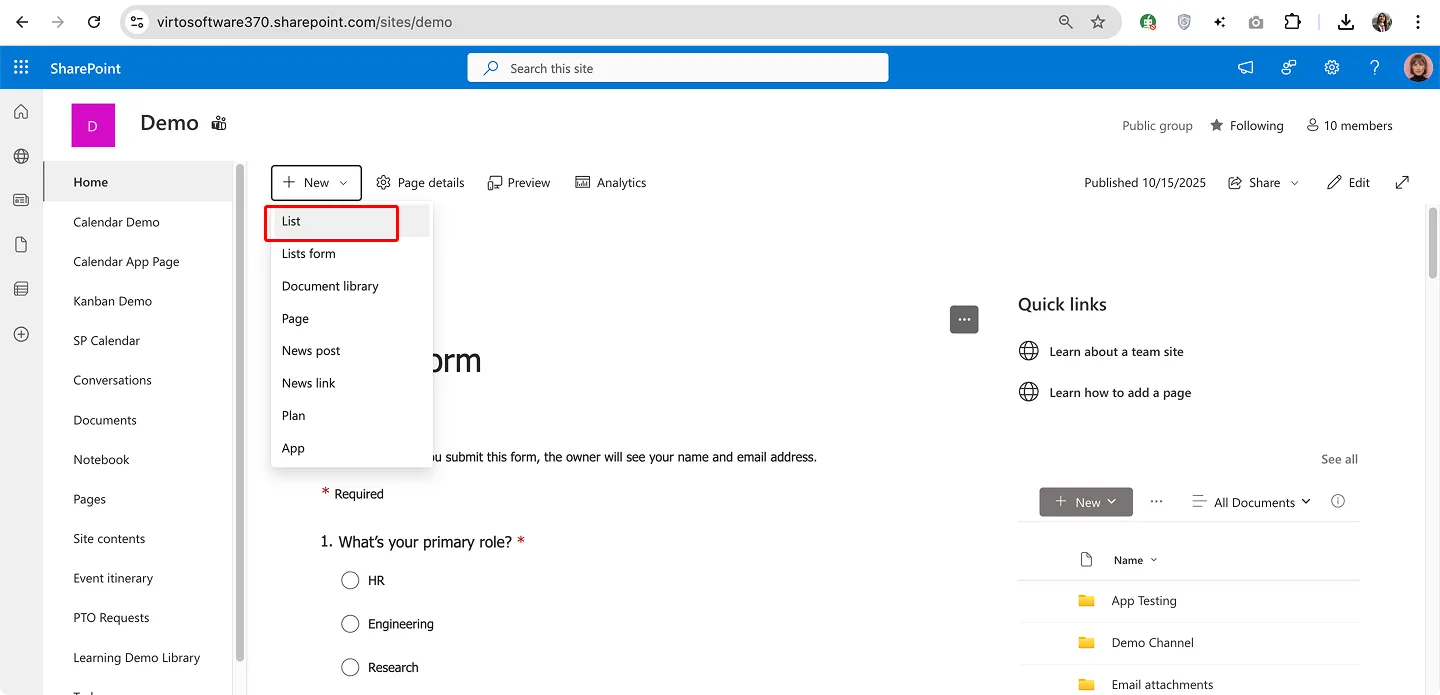
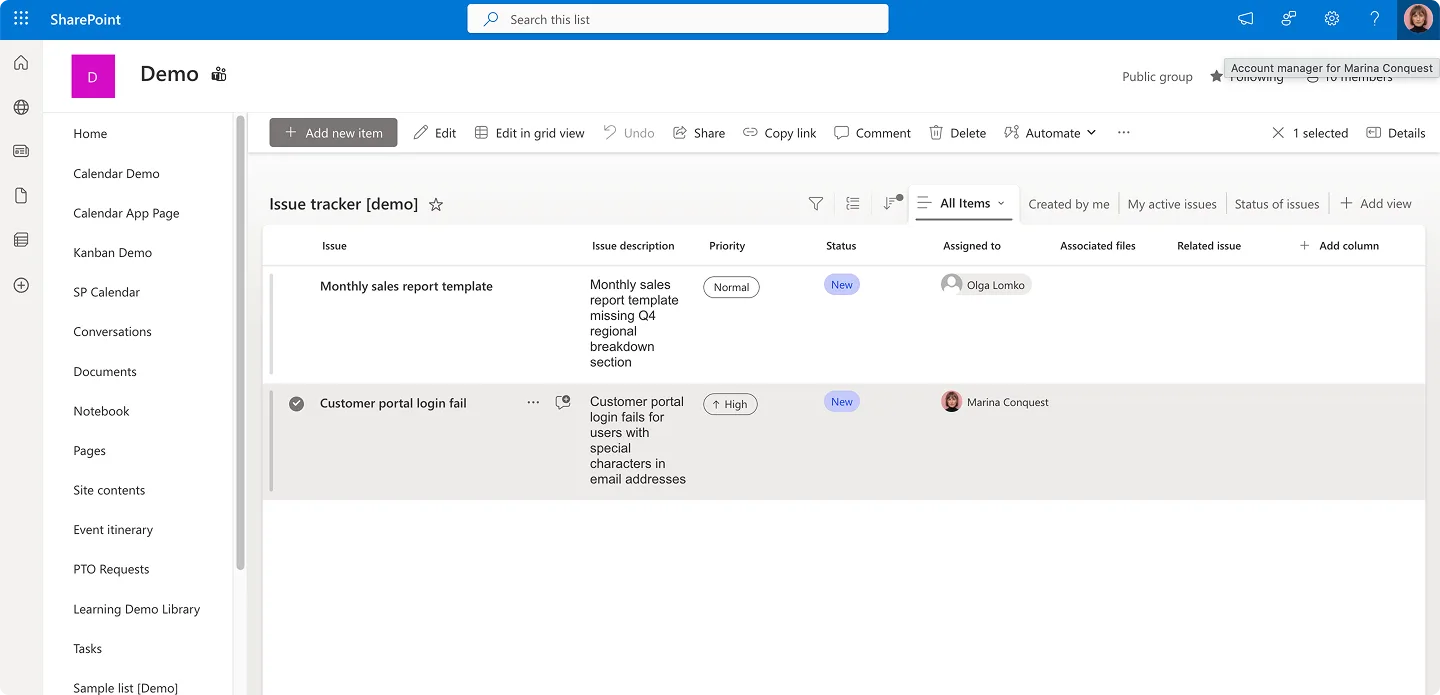
SharePoint offers several templates including a task-focused template that includes common fields like title, assignee, due date, priority, and status. Select the template, name your list, and SharePoint generates it with pre-configured columns.
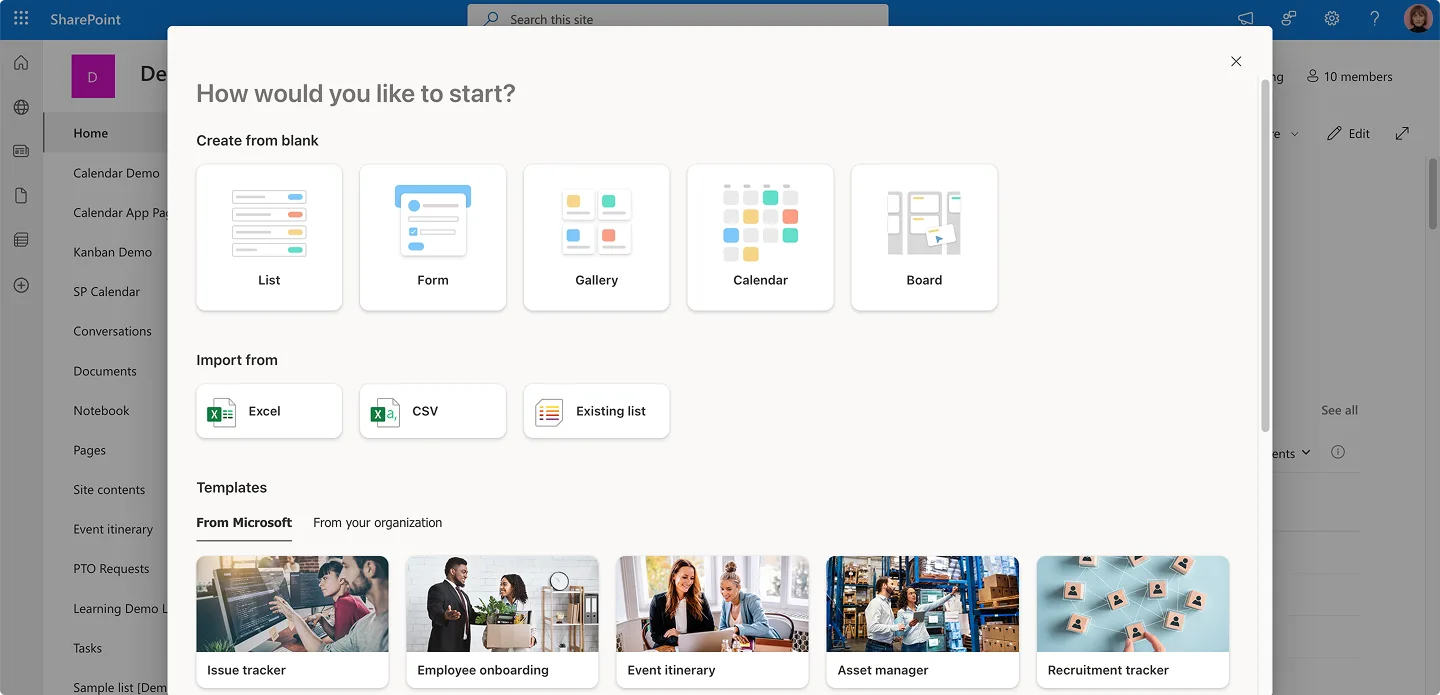
Creating from scratch. If templates don’t match your needs, create a blank list and add columns manually. This approach gives complete control over which fields exist and how they’re configured.
Essential fields to include:
- Title (automatically included): Brief task description
- Assigned To (Person or Group type, allow multiple selections): Who’s responsible
- Due Date (Date type): Deadline for completion
- Priority (Choice type: High, Normal, Low): Relative importance
- Status (Choice type: Not Started, In Progress, Completed, Deferred): Current state
- % Complete (Number type, 0-100): Progress indicator
- Description (Multiple lines of text): Detailed task information
- Category or Project (Choice type or lookup): Organizational grouping
Consider adding custom fields relevant to your specific context—client names, cost codes, team identifiers, approval status, risk ratings, or whatever dimensions your reporting and filtering require.
📌 On-premises SharePoint users follow a similar process but work with the classic list interface. Navigate to Site Contents, click “Add an app,” and select “Tasks” to create a task list. The classic interface looks different but provides comparable functionality for field configuration.
Step 2: Configure visualization
Raw data in list form serves its purpose, but visual representations help teams understand status at a glance and identify patterns that might not be obvious in tabular layouts.
Create filtered views. Views are saved configurations showing specific subsets of tasks with chosen columns and sort orders. Useful views include:
- My Tasks: Filters to show only items assigned to the current user
- Overdue Tasks: Shows tasks where due date has passed and status isn’t “Completed”
- High Priority: Filters for priority equals “High”
- This Week: Due dates fall within current week
- By Project: Groups tasks by project or category field
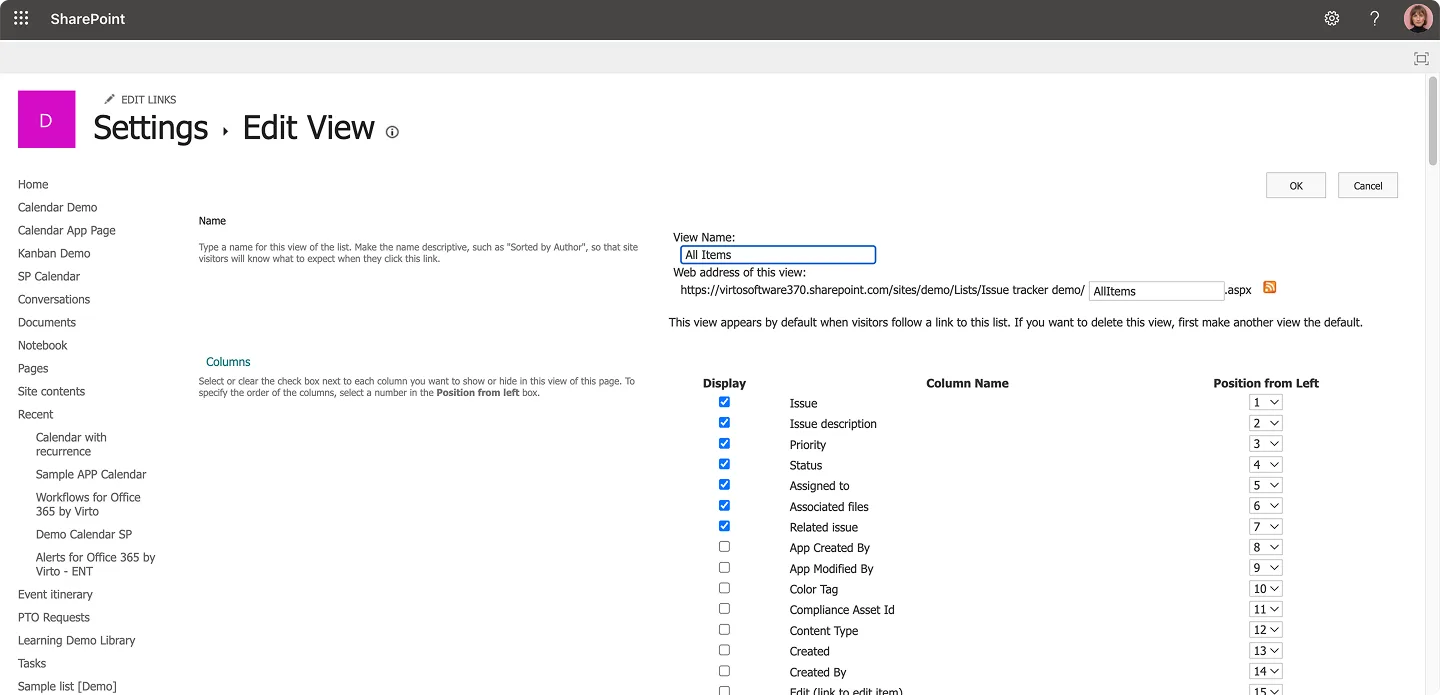
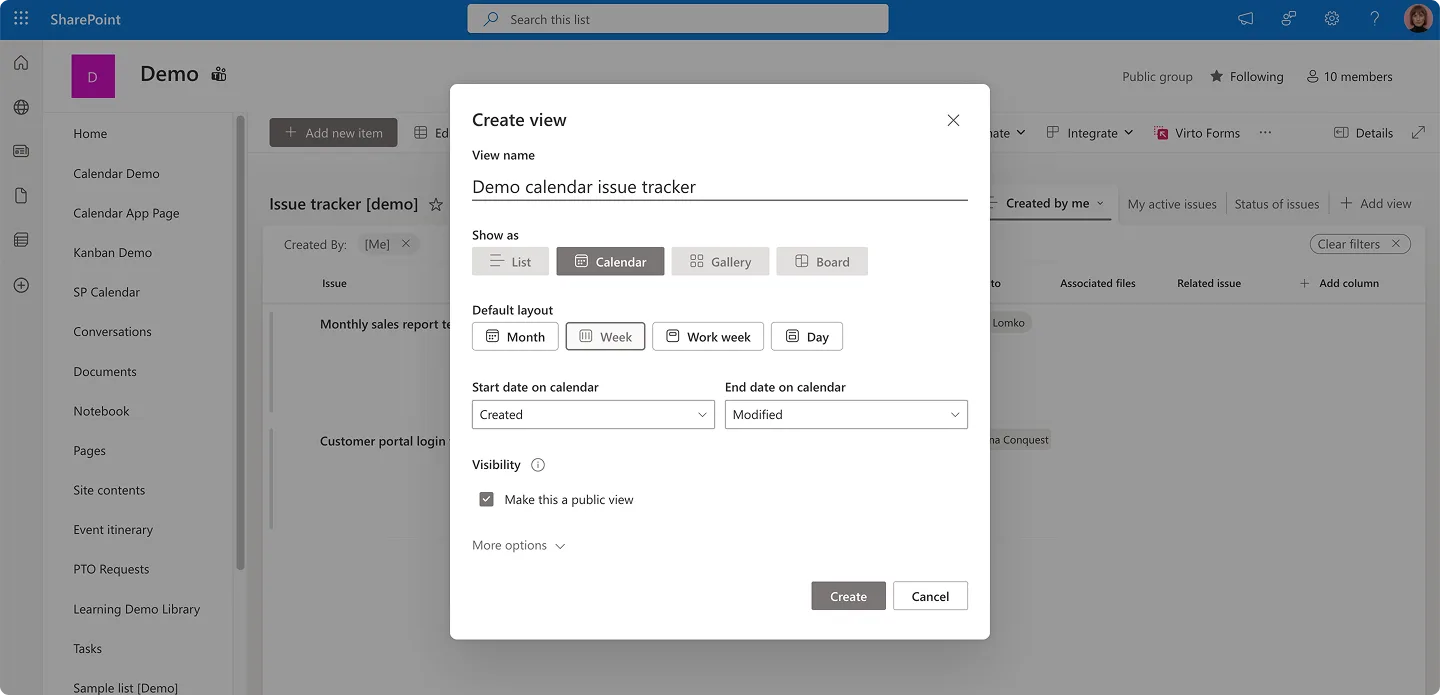
To create views in Microsoft Lists, click “View options” (or “All items”) and select “Create new view” or “Edit current view”.
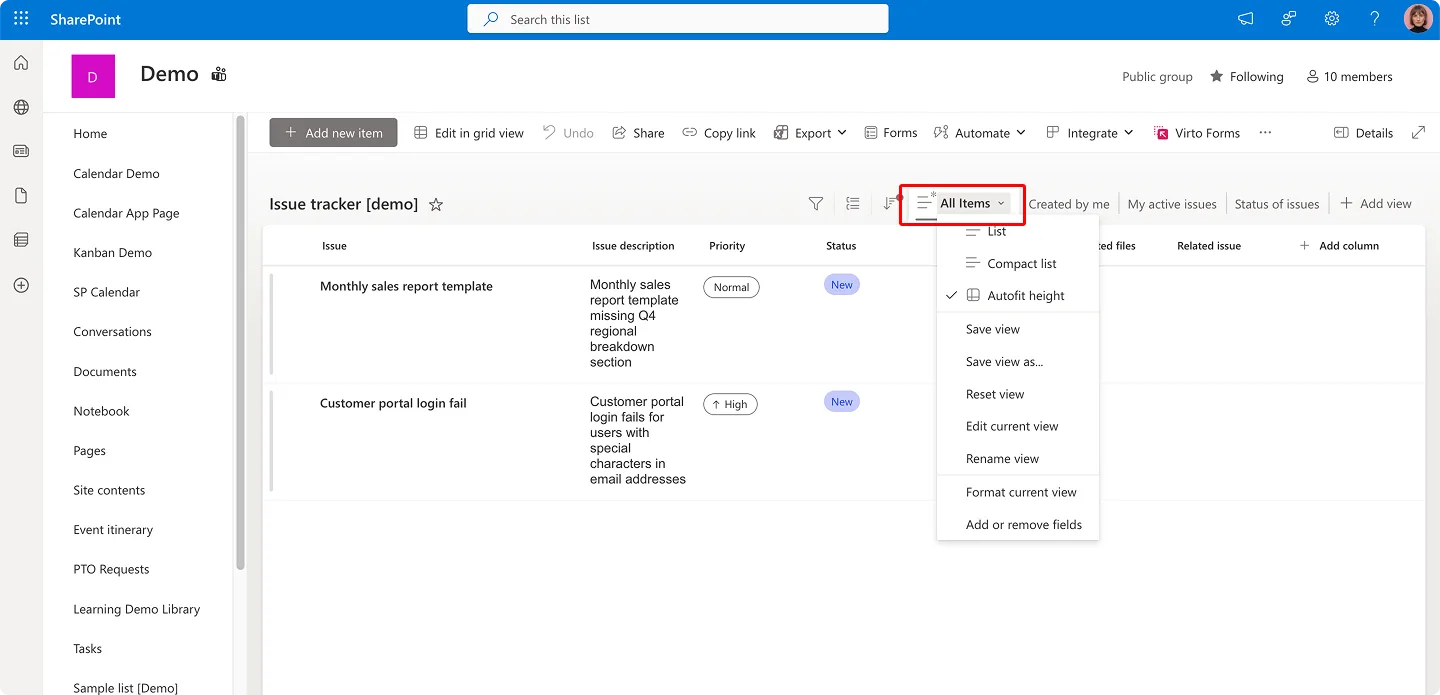
Choose columns to display, set filter conditions, define sort order, and name the view. Users can switch between views using the dropdown selector.
Alternatively, click “+ Add view” at the top of the interface.
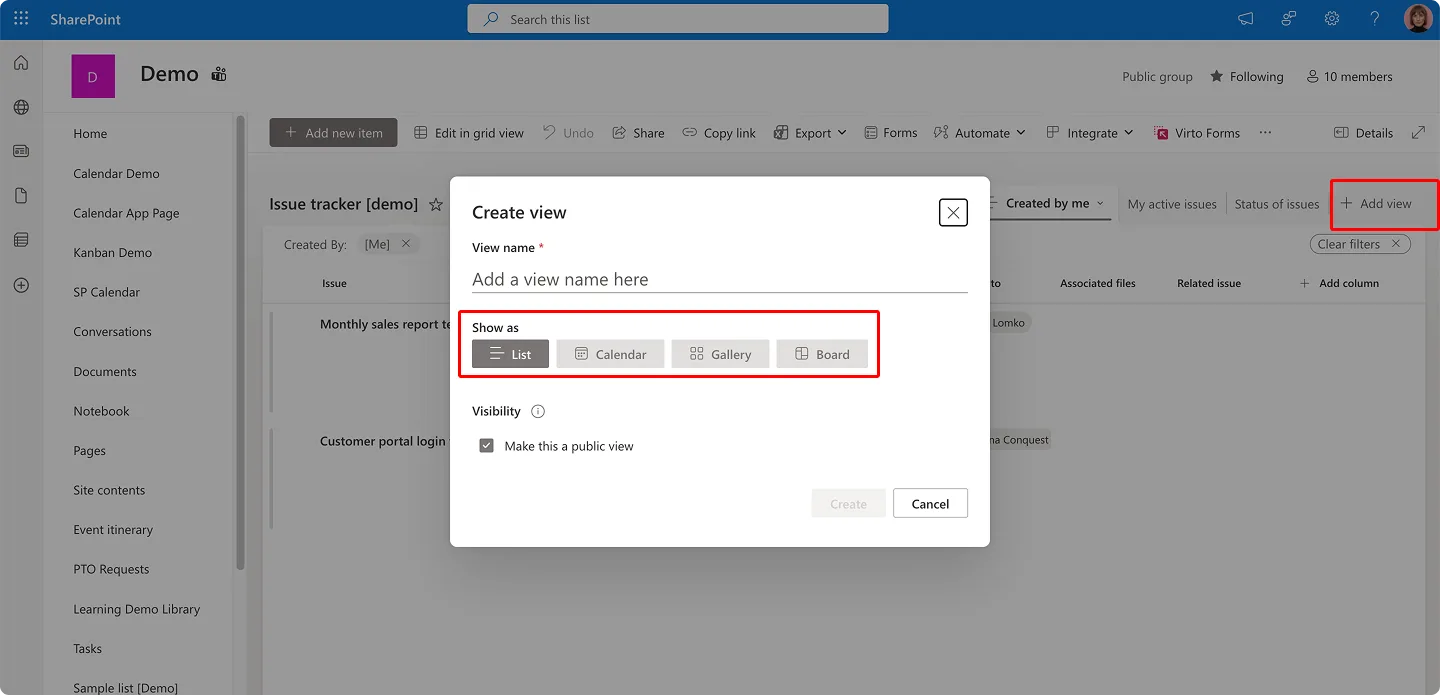
Configure board view. Microsoft Lists in SharePoint Online includes a Kanban-style board view that displays tasks as cards organized across columns. To set this up:
- Click “View options” and select “Create new view,” then choose “Board.” Otherwise, navigate to “Status of issues” on top of the list. Select which field determines the columns (typically Status). Tasks appear as cards in columns representing each status value. Team members drag cards between columns to update status—a more intuitive interaction than editing the status field in a form.
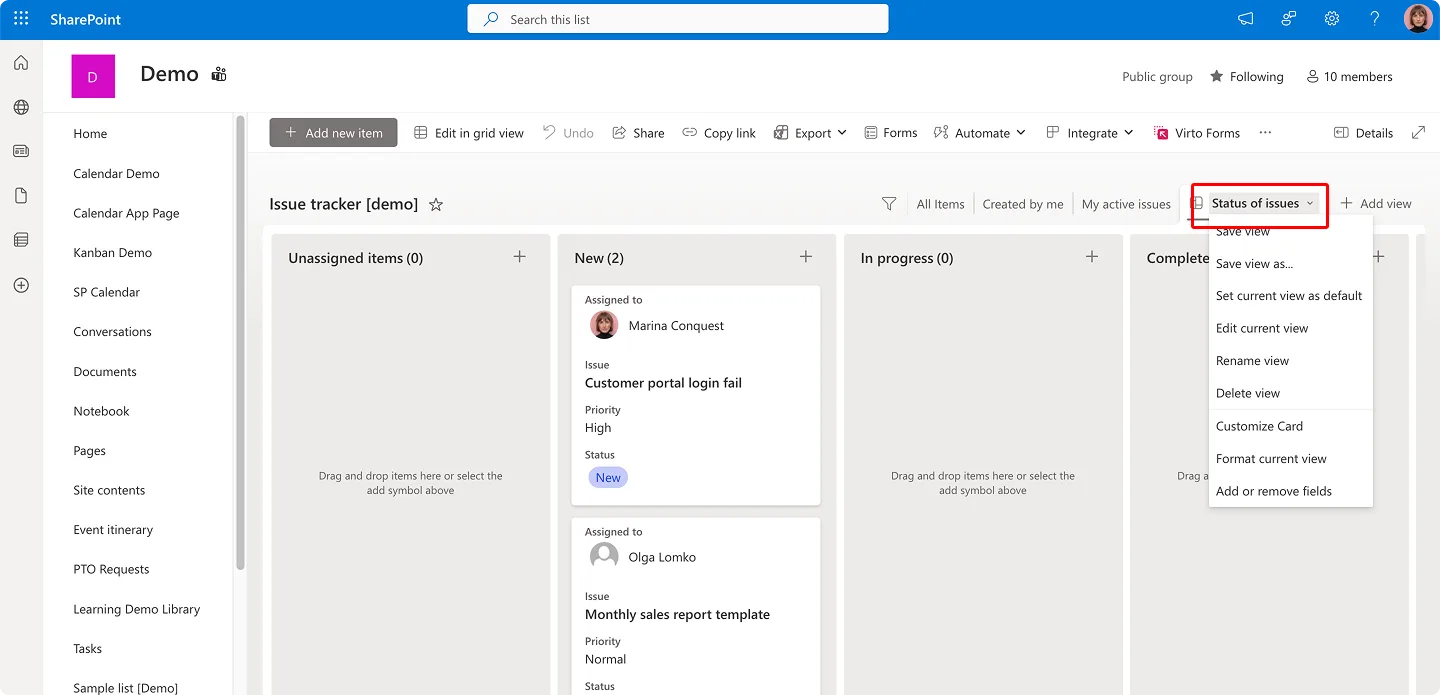
- Customize card appearance by choosing which fields display on each card. Showing assignee, due date, and priority directly on the card provides context without clicking into task details.
Set up calendar view. For deadline-focused work, calendar view displays tasks on a traditional calendar interface. Click “View options,” create a new view, and select “Calendar.” Choose the date field to use (typically Due Date) and select which fields to show in the calendar tooltip. This view helps identify deadline clustering and schedule conflicts.
📌 Note for on-premises users: Board view and the modern Microsoft Lists interface don’t exist in SharePoint Server installations. Classic SharePoint provides datasheet view (Excel-like editing), Gantt chart view (for project timelines), and standard list views. Third-party web parts like Virto Kanban Board become necessary if you need visual Kanban functionality in on-premises environments.
Step 3: Automation and notifications
Manual task management doesn’t scale. Automation handles routine communications and status updates, freeing team members to focus on actual work rather than administrative overhead.
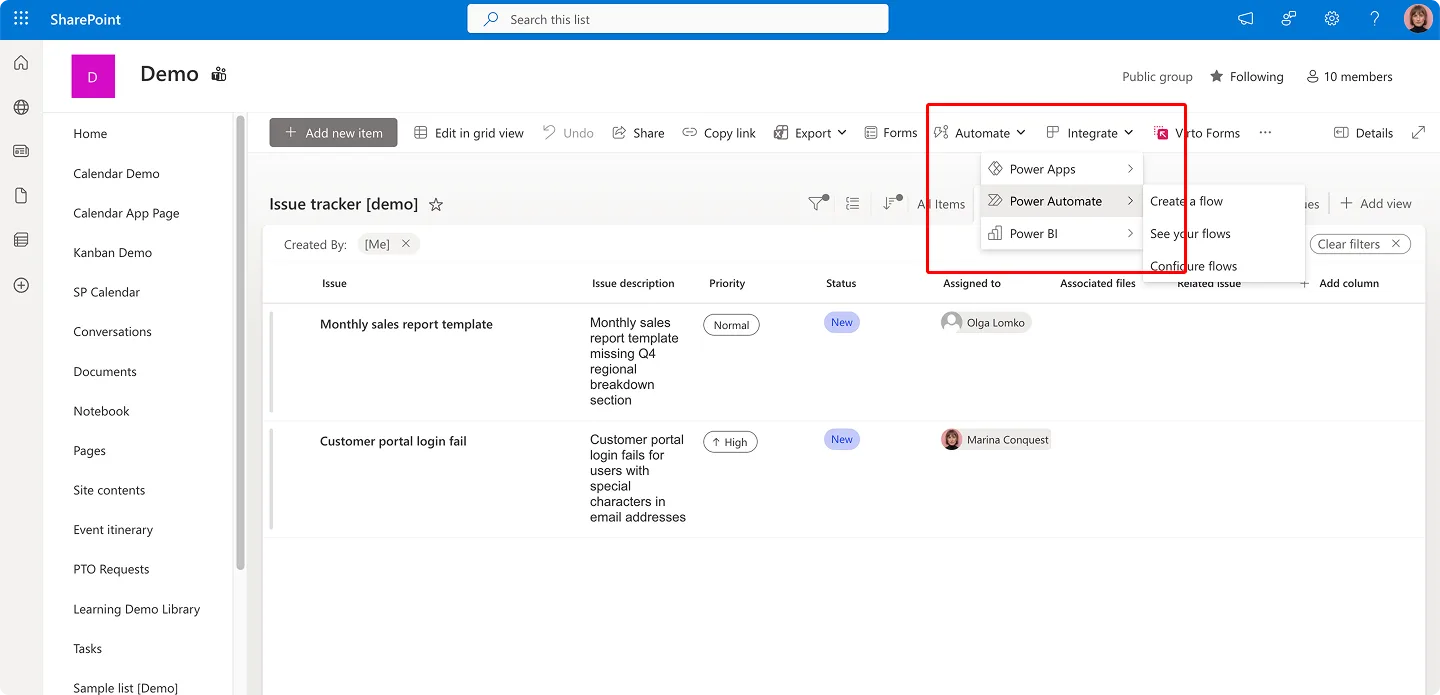
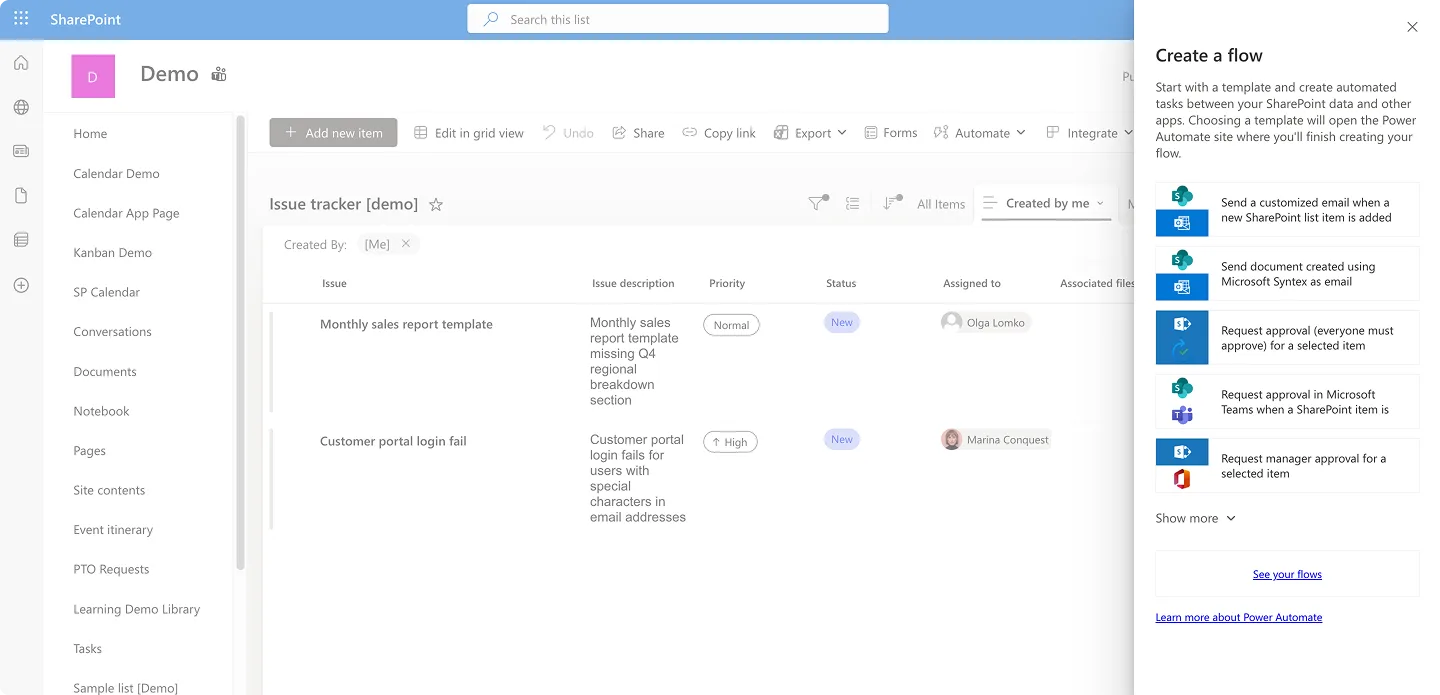
Power Automate for workflow automation. Power Automate (formerly Microsoft Flow) connects SharePoint lists to hundreds of other services and can trigger actions based on list changes. Common task management flows include:
- Assignment notification in Teams. When a new task is created or the “Assigned To” field changes, send a message in a specific Teams channel mentioning the assignee. This ensures people know immediately when they receive new work.
Create this flow: Trigger on “When an item is created or modified,” add a condition checking if “Assigned To” changed, then post an adaptive card to Teams with task details and a link back to the SharePoint item.
- Overdue task reminders. Every morning, check for tasks where the due date has passed and status isn’t “Completed.” Send email reminders to assignees and their managers. Include a direct link to the task for quick access.
Build this using a scheduled flow that runs daily, queries the SharePoint list for overdue items, and sends customized emails using the “Send an email” action with task details dynamically inserted.
- Automatic status updates based on external events. When specific emails arrive in a shared mailbox (like customer responses or approval confirmations), update related task status automatically. This reduces manual data entry and keeps task status current.
- Approval workflows. For tasks requiring sign-off, implement Power Automate approval flows. When a task status changes to “Ready for Review,” trigger an approval request. Approved items update to “Completed”; rejected items revert to “In Progress” with approval comments added to the task.
Power Automate includes templates for common scenarios. Browse the template gallery filtering for SharePoint triggers to find starting points you can customize for your specific needs.
Setting up these elements—structured lists, strategic views, and intelligent automation—converts SharePoint from simple task storage into an active project coordination system that guides work rather than just recording it.
💡Learn more about SharePoint automation: SharePoint Automation: Best Practices, Use Cases and Recommended Tools
SharePoint Task Trackers, Solutions and Tools
Microsoft provides several approaches for task management within SharePoint and the broader Microsoft 365 platform. Understanding what’s available helps you select the right combination for your environment and requirements.
Built-in SharePoint capabilities
As mentioned, SharePoint offers several native task management options, each with distinct capabilities and interfaces suited to different scenarios.
- Standard task list. Available in all SharePoint versions, this provides basic task tracking with title, assignee, due date, priority, and status fields. The interface is straightforward and functional, though not particularly modern-looking in classic SharePoint views.
- Project Tasks template. A specialized version of the task list that includes additional fields for task predecessors, percentage complete, and baseline tracking. This template displays Gantt chart views showing task duration bars along a timeline—useful for project managers who need to visualize task dependencies and critical paths.
The classic Project Tasks list supports hierarchical subtasks, letting you break large tasks into smaller components. This remains one of the few native ways to model task hierarchies in SharePoint without custom development. Note that this is considered a legacy template—Microsoft’s current direction focuses on Lists and Planner rather than enhancing classic task functionality.
- Integration with calendars and document libraries. Task lists with due dates can overlay onto SharePoint calendars, showing deadlines alongside meetings and events. Document libraries connect to task lists through metadata, letting you tag files with associated task identifiers for easier navigation.
- Microsoft Lists interface for SharePoint Online. Cloud-based SharePoint includes the Microsoft Lists experience with its modern UI, board view for visual task management, and improved mobile access. This represents Microsoft’s current investment direction for list-based task management.
❗ Important limitation: The modern Lists experience exists only in SharePoint Online. Organizations running SharePoint Server 2016, 2019, or Subscription Edition on-premises cannot access Microsoft Lists or its board view. These environments continue using the classic interface exclusively.
| Capability | SharePoint Online | SharePoint Server (On-Premises) |
| Microsoft Lists (modern UI) | ✓ Available | ✗ Not available |
| Board View | ✓ Native support | ✗ Requires third-party tools |
| Microsoft Planner Integration | ✓ Full integration | ✗ Not accessible |
| Classic Task Lists | ✓ Available | ✓ Available |
| Gantt Charts | ✓ Via classic templates | ✓ Via classic templates |
| Power Automate | ✓ Full cloud flows | Limited (on-premises gateway required) |
| Power BI Integration | ✓ Direct connection | ✓ Via gateway |
| Automatic Updates | ✓ Continuous | Manual (security patches only) |
| Third-Party Tools Needed | Rarely | Often (for modern UI features) |
Integration with Microsoft Planner
Microsoft 365 subscribers can add the new Microsoft Planner to their task management toolkit. This unified platform combines the former standalone Planner with Project for the web and To Do capabilities, creating a comprehensive work management system.
Planner provides a visual Kanban interface organized around buckets (columns representing work stages) and cards (individual tasks). The people view shows workload distribution across team members. Goals functionality helps connect tactical tasks to strategic objectives. Sprint planning features support agile development teams.
Organizations with Planner Premium subscriptions access advanced project management capabilities: task dependencies (predecessor relationships), baseline comparisons (planned versus actual progress), critical path analysis, and resource capacity planning. These features approach traditional project management software functionality while maintaining the accessible, user-friendly interface that made Planner popular.
The SharePoint connection matters: files attached to Planner tasks automatically store in the associated SharePoint document library. This happens behind the scenes—users attach files in Planner, but SharePoint provides the actual storage and version control. The plan’s SharePoint site becomes the central repository for all project artifacts.
Planner works particularly well embedded in Microsoft Teams channels. Teams provide the communication layer, Planner manages the task execution layer, and SharePoint stores the documents—each component playing to its strengths.
📌 Use case distinction: Planner excels at immediate task coordination for small to medium teams working iteratively. SharePoint task lists handle scenarios requiring extensive customization, complex filtering, detailed reporting, or compliance with specific data governance requirements. Many organizations use both, selecting the appropriate tool based on project characteristics.
❗ Critical consideration for on-premises organizations: Planner is a cloud service exclusively. SharePoint Server installations cannot access Planner regardless of version. The Planner web part that would display plan data on SharePoint pages isn’t available in on-premises environments. These organizations need alternative solutions for visual task management.
Integrating SharePoint task management with the Microsoft ecosystem
SharePoint doesn’t operate in isolation—its task management capabilities multiply when connected to other Microsoft 365 services.
- Outlook integration. SharePoint tasks can sync to Outlook tasks, appearing in the To Do list alongside email-flagged items. Email notifications about task assignments and due dates arrive in the same inbox where other work coordination happens. Outlook calendar can display SharePoint task deadlines, providing a unified view of commitments.
- Microsoft Teams collaboration. Add SharePoint task lists as tabs in Teams channels, keeping task management visible alongside conversations. Team members discuss tasks in context, mention specific items in chat, and update status without leaving Teams. This reduces context switching and keeps task coordination integrated with daily collaboration patterns.
- Power Automate process automation. Hundreds of connectors let you build flows that link SharePoint tasks to virtually any business system. Automatically create tasks when sales opportunities reach certain stages in Dynamics 365. Update task status based on form submissions in Microsoft Forms. Log completed tasks to accounting systems for billing purposes. The integration possibilities are extensive.
- Power BI analytics and reporting. Connect Power BI directly to SharePoint lists to build interactive dashboards showing task metrics: completion rates by team, average time to resolution, overdue task trends, priority distribution. Refresh schedules keep dashboards current. Executives and managers get insights without requiring report customization from IT.
This interconnection positions SharePoint task management as a hub within the broader Microsoft 365 productivity environment. Data flows between systems, notifications reach people through multiple channels, and reporting aggregates information across tools. The integration creates a cohesive work experience rather than disconnected software silos.
Third-party SharePoint task management solutions for advanced task management
Organizations need visual task management capabilities that native SharePoint—particularly on-premises SharePoint—doesn’t provide. Third-party web parts and extensions fill these gaps.
- Virto Kanban Board Web Part. Designed specifically for SharePoint Server environments (2016, 2019, and Subscription Edition), this web part displays any SharePoint list as an interactive Kanban board with drag-and-drop functionality, color coding based on field values, filtering by assignee or other attributes, and swimlane organization for grouping tasks. We’ll cover this solution in detail in the next section.
- Bamboo Task Master. Provides Gantt chart visualizations for SharePoint task lists in on-premises environments. Shows task dependencies, duration bars, and milestone tracking—functionality similar to Microsoft Project but integrated directly into SharePoint pages.
| Feature | Virto Kanban Board Web Part | Bamboo Task Master |
| Primary Function | Visual Kanban board | Gantt chart visualization |
| Compatibility | SharePoint 2016, 2019, SE | SharePoint 2016, 2019, SE |
| Drag-and-Drop | ✓ Yes (cards between columns) | Limited |
| Swimlanes | ✓ Yes | ✗ No |
| Multiple List Aggregation | ✓ Yes | ✗ No |
| Color Coding | ✓ Yes (priority, status, custom) | ✓ Yes (by status, priority) |
| Dependencies | Task relationships | ✓ Yes (predecessor tasks) |
| Critical Path | ✗ No | ✓ Yes |
| Reporting/Charts | ✓ Yes (distribution, completion) | ✓ Yes (resource allocation) |
| Best For | Agile teams, visual task management | Traditional project management, timeline tracking |
| Learning Curve | Low | Moderate |
These tools matter primarily for organizations running SharePoint Server. Cloud-based SharePoint Online includes native board views and Planner integration that reduce the need for third-party visualization tools. On-premises installations lack these modern features, making add-ons necessary to achieve comparable user experiences.
When evaluating third-party solutions, consider compatibility with your specific SharePoint version, licensing costs, vendor support quality, and whether the tool introduces security concerns through external dependencies. SharePoint Server 2013 reached end-of-support in April 2023—running unsupported software creates security risks that should factor into deployment decisions. If you’re still on 2013, migration to a supported version (2016, 2019, Subscription Edition, or SharePoint Online) should take precedence over implementing new task management tools on an obsolete platform.
❗ A security note for on-premises environments: Active attacks targeting SharePoint Server vulnerabilities occurred as recently as July 2025. Maintaining current security patches is critical. Organizations unable to keep on-premises installations properly secured should seriously consider cloud migration where Microsoft handles security updates continuously.
Managing tasks in SharePoint with Virto Kanban Board Web Part
Classic SharePoint task lists function adequately for basic tracking but lack the visual, interactive interface that modern teams expect. The tabular list view doesn’t communicate status at a glance. Updating tasks requires opening edit forms rather than simple drag-and-drop actions. For organizations running SharePoint on-premises, this limitation persists because Microsoft Lists and Planner—the cloud-based solutions with modern interfaces—aren’t available.
On-premises SharePoint installations (2016, 2019, and Subscription Edition) cannot access the board view that SharePoint Online users take for granted. This creates a capability gap for organizations bound to on-premises infrastructure due to regulatory requirements, data residency concerns, or existing technology investments.
Virto Kanban Board Web Part addresses this gap by bringing Kanban visualization directly to on-premises SharePoint environments.
What Virto Kanban Board provides
The web part transforms standard SharePoint lists into interactive Kanban boards without requiring list structure changes. You keep your existing task lists with their current fields and data—Virto simply provides a different way to view and manipulate that data.
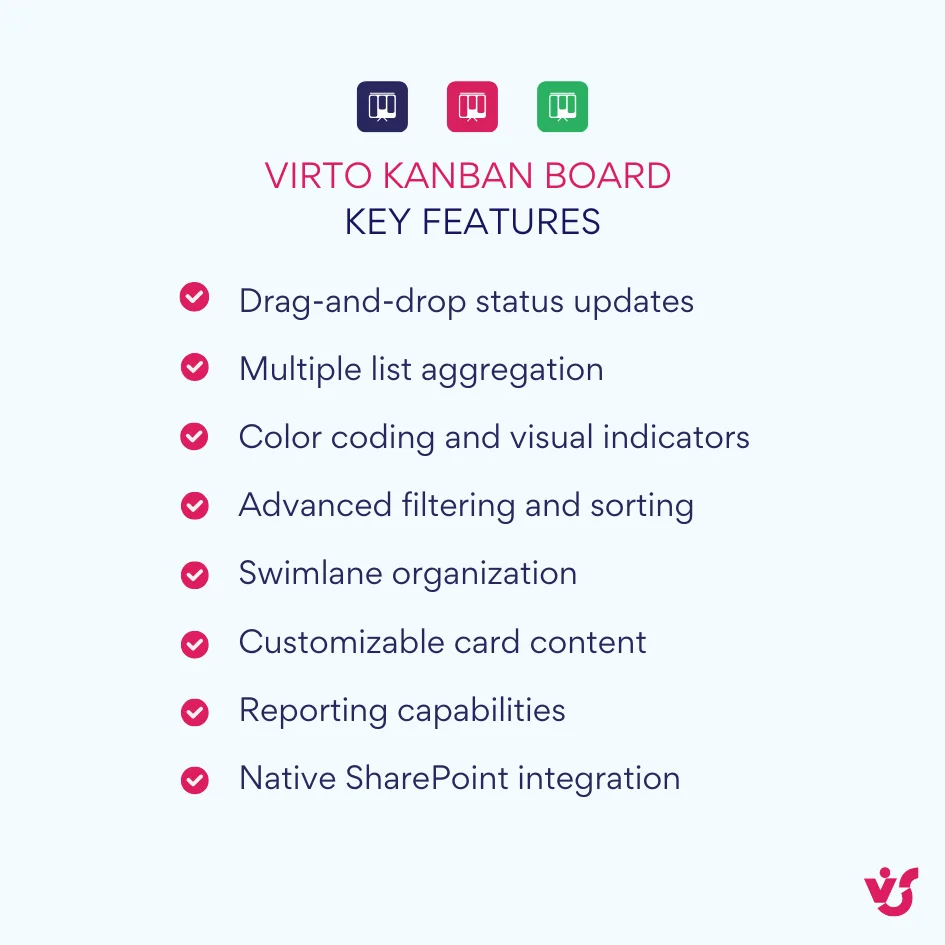
- Drag-and-drop status updates. Tasks appear as cards organized in columns representing status values. Move a card from “In Progress” to “Review” by dragging it across columns. The underlying SharePoint list item updates automatically. This interaction pattern matches what users experience in Trello, Jira, Planner, and other modern task management tools.
- Multiple list aggregation. Display tasks from several SharePoint lists simultaneously on one board. This matters for organizations managing work across multiple projects or departments—managers can see everything requiring their attention without switching between list views.
- Color coding and visual indicators. Configure cards to change color based on priority, overdue status, or custom field values. High-priority overdue tasks appear in red, immediately drawing attention. Tasks approaching deadlines might show in yellow. This visual hierarchy helps teams focus on what needs immediate action.
- Filtering and sorting. Apply filters to show only tasks assigned to specific people, within certain date ranges, or matching particular categories. Sorting options let you order cards by due date, priority, or creation date. This keeps boards manageable even with hundreds of active tasks.
- Swimlane organization. Divide boards into horizontal swimlanes based on a field value like assignee, project, or department. This creates a matrix layout where columns represent status and rows represent the swimlane category. Managers can quickly assess how work is distributed and identify bottlenecks in specific areas.
- Customizable card content. Choose which fields appear on task cards. Display just the essentials for quick scanning, or include detailed information for comprehensive context. The flexibility accommodates different team preferences and use cases.
- Reporting capabilities. Generate reports showing task distribution, completion rates, cycle time metrics, and other Kanban-relevant measurements. Track how long tasks spend in each status column to identify process inefficiencies.
- Integration with standard SharePoint features. Because Virto works with regular SharePoint lists, all existing permissions, workflows, and integrations continue functioning. You’re not moving data into a separate system—you’re visualizing existing SharePoint data differently.
Improve Your Management with VirtoSoftware

Virto Kanban Board
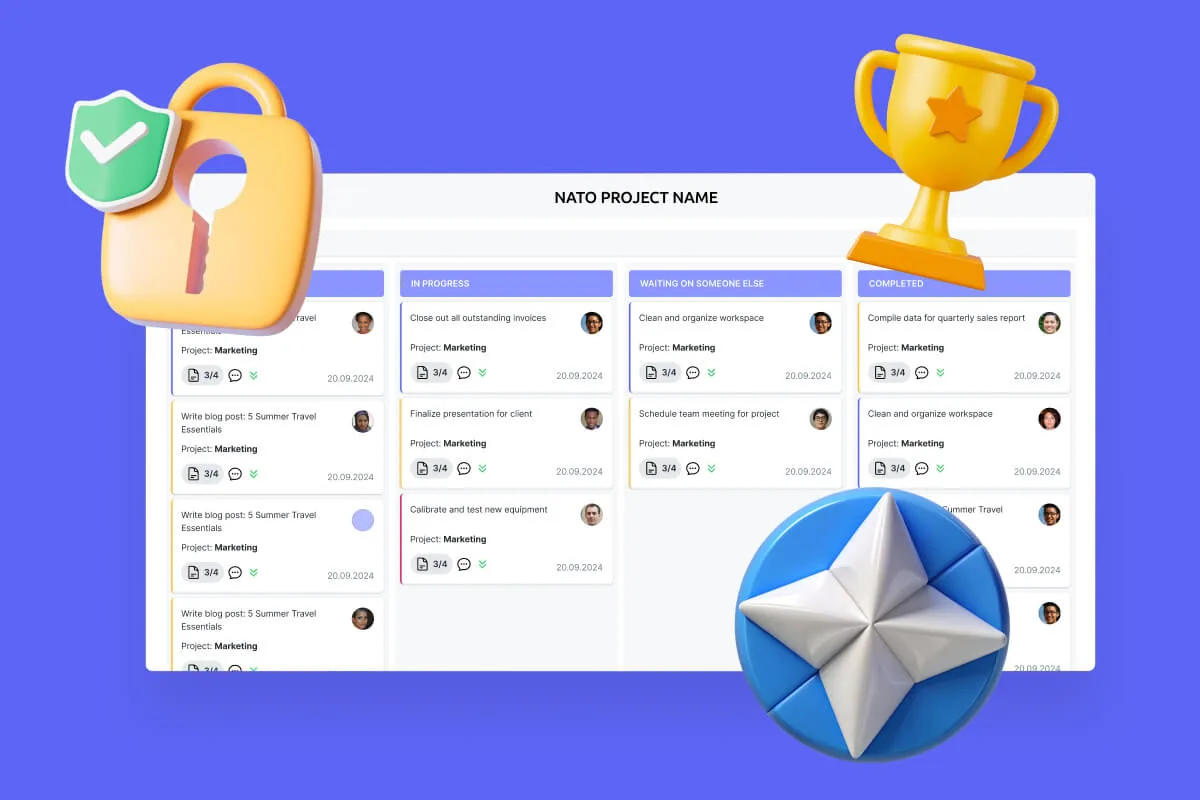
Streamline task management: Visualize projects with color-coded boards for efficient workflow tracking.

Virto Kanban Board
Boost team productivity with Virto Kanban for Teams: a seamless, efficient task & project management tool.

Virto Kanban Board
This tool transforms team collaboration through visual task management for consistent stage-by-stage progress.
Virto Kanban Board supports SharePoint Server 2016, 2019, and Subscription Edition on-premises installations. It deploys as a standard SharePoint web part that administrators add to the SharePoint environment using standard deployment procedures.
Use cases for Virto Kanban Board
The following examples demonstrate how different types of organizations deploy Virto Kanban Board to solve specific task management challenges in on-premises environments:
- Internal project tracking across departments. A company runs multiple concurrent projects—product development, marketing initiatives, IT infrastructure upgrades. Each project has a SharePoint task list. Virto aggregates all these lists onto a single board with swimlanes for each project. Executives see the entire portfolio at a glance. Clicking into a specific card shows full task details.
- IT support ticket management. The IT department uses a SharePoint list for tracking support requests. Virto displays tickets on a Kanban board with columns for “New,” “Assigned,” “In Progress,” “Waiting for User,” and “Resolved.” Color coding highlights overdue tickets. Technicians drag tickets across columns as they work through the queue. Reporting shows average resolution time and ticket volume trends.
- Cross-team workload monitoring. A services organization has task lists for each client account. Managers need to see all tasks across clients to balance workload among account managers. Virto creates a consolidated board with swimlanes for each account manager, showing their tasks regardless of which client list the tasks reside in. This prevents overallocation and identifies capacity for new work.
- Process workflow visualization. A manufacturing company tracks quality control issues in a SharePoint list. Virto displays issues on a board representing their workflow through investigation, corrective action, verification, and closure stages. Managers spot bottlenecks when too many issues accumulate in the verification column, indicating resource constraints in that process step.
These scenarios share a common pattern: organizations need visual, interactive task management but cannot use cloud-based tools due to infrastructure constraints or policy requirements. Virto provides modern user experience within the boundaries of on-premises SharePoint.
The web part helps bridge the gap between what users expect from task management software (based on their experience with consumer tools and cloud applications) and what traditional SharePoint provides natively. For organizations committed to on-premises SharePoint for legitimate business reasons, this capability matters significantly.
Check VirtoSoftware Use Cases
Conclusion on Sharepoint Task Tracking
SharePoint task management capabilities extend well beyond document storage and file collaboration. The platform provides a solid foundation for coordinating work, tracking deliverables, and maintaining visibility across projects and departments. Success depends on selecting the right tools for your specific environment and requirements.
Cloud-based SharePoint Online users benefit from Microsoft Lists with its modern interface, board views, and calendar visualizations. Integration with the new Microsoft Planner adds Kanban capabilities, sprint planning, and—with Premium subscriptions—sophisticated project management features like dependency tracking and critical path analysis. Power Automate handles workflow automation, while Power BI enables comprehensive analytics. This ecosystem delivers considerable functionality without requiring third-party additions.
Organizations running SharePoint Server on-premises face different constraints. Microsoft Lists and Planner don’t exist in these environments—they’re cloud services exclusively. Classic task lists remain functional but lack the visual interfaces that modern teams expect. This is where solutions like Virto Kanban Board Web Part become valuable, providing interactive Kanban visualization directly within on-premises SharePoint.
The patterns demonstrated here—structured lists, filtered views, automated workflows, and integrated reporting—apply across industries and organizational sizes. HR departments, marketing teams, IT groups, and project managers all benefit from consistent task management practices adapted to their specific processes.
Start by assessing your current environment. Are you running SharePoint Online or an on-premises installation? What version if on-premises? This determines which tools you can access. Then evaluate your team’s needs. Do you require hierarchical subtasks? How important is visual board-style task management? What reporting and analytics matter for your stakeholders?
Test approaches before committing. Build a pilot task list for a single project or department. Configure different views and gather user feedback. Experiment with Power Automate workflows for common scenarios. This practical experience reveals what works in your specific context better than theoretical planning.
For on-premises organizations, particularly those using SharePoint Server 2016 or 2019, investigate tools that bring modern task management capabilities to your environment. Virto Kanban Board Web Part represents one option designed specifically for this scenario. Evaluate whether visual task management justifies the investment for your teams. Schedule a quick demo or install a free trial of the web part to see if it’s something that fits your needs.
A final consideration: SharePoint Server 2019 enters extended support ending July 2026. Organizations on this version should begin planning their next move—whether that’s upgrading to Subscription Edition, migrating to SharePoint Online, or maintaining 2019 with the understanding that extended support means no new features, only security updates. This decision impacts your task management strategy because cloud-based options like Microsoft Lists and Planner require SharePoint Online.
The goal isn’t implementing technology for its own sake. The goal is removing friction from how your teams coordinate work, reducing time spent on status updates and searching for information, and increasing time spent on actual value creation. SharePoint task management, properly implemented with appropriate tools, achieves this goal effectively.
In the meantime, check out additional resources:
Official Microsoft resources:
- Create and manage a project task list – Microsoft Support
- Managing tasks in SharePoint | Microsoft 365 Blog
- Overview: View a SharePoint task list in Project Web App – Microsoft Support
Relevant pages on our blog: