SharePoint is often seen as a place to store files. It’s that—but it’s also a full platform for collaboration, automation, and content management across Microsoft 365 and on-premises environments. Teams can co-author pages and documents, track work with lists, automate routine steps, and apply governance without jumping between tools.
Many organizations underuse SharePoint because they focus only on document libraries. That narrow view leaves powerful capabilities on the table: site-level publishing, list-driven processes, integrated approvals, records management, and apps that extend SharePoint for specific business needs.
This article aims to surface what matters most: the core features, the benefits they unlock, and practical ways to apply them in real projects—whether you run SharePoint Online or SharePoint Server on-prem. We’ll cover key capabilities, highlight new options for collaboration, documents, and processes, and show how to extend SharePoint with apps and Web Parts. By the end, you’ll know where SharePoint fits, what you can do with it today, and how to choose the right approach for your organization.
General Overview of SharePoint Features
SharePoint is Microsoft’s enterprise platform inside the Microsoft 365 ecosystem. It’s designed to organize document storage, enable employee collaboration, support project management, and automate business processes. You can run it as SharePoint in Microsoft 365 or as SharePoint Server on-premises, with a consistent experience for sites, libraries, lists, permissions, and governance.
💡 Learn more about the differences between SharePoint Online and On-Premises here: SharePoint Online vs SharePoint On-Premises: A Comprehensive Comparison [2025]
SharePoint is versatile. Organizations use it for content management, internal portals and intranets, team workspaces, and corporate communications. The modern experience brings fast pages, mobile-ready sites, and tighter integrations—so work happens where people already are: Teams, Outlook, OneDrive, and Microsoft Search.
What is the feature of SharePoint?
At its core, SharePoint helps you structure information and control access:
- Sites (team sites, communication sites, and intranet portals) to organize people, content, and navigation.
- Document libraries to store files with version history, approvals, sharing links, and sensitivity labels.
- Lists to track tasks, events, issues, assets, and any other structured data.
- Permissions at site, library, folder, and item level to match real-world access needs.
- Built-in integrations with Teams, Outlook, OneDrive, and Microsoft 365 Groups for identity, chat, meetings, and file sync.
| Building block | What it’s for | Typical owners | Best next step |
| Sites (team, communication, hub) | Organize people, content, navigation | Project owners, comms, IT | Define site purpose + audience |
| Document libraries | Store/share files with versioning & approvals | Content owners | Add required metadata + views |
| Lists | Track tasks, issues, assets, events | Team leads, ops | Add rules/approvals; consider board view |
| Permissions | Secure access at site/library/item | Site owners, IT | Use groups; review quarterly |
| Integrations | Surface content in Teams/Outlook/OneDrive | Everyone | Pin site in Teams; enable digests |
Basic capabilities you’ll use every day
Here’s what most teams rely on day to day. These building blocks—libraries, lists, sites, and integrations—keep content organized, make collaboration straightforward, and ensure changes are tracked without extra effort. Use them as-is or tailor them with views, metadata, and simple rules.
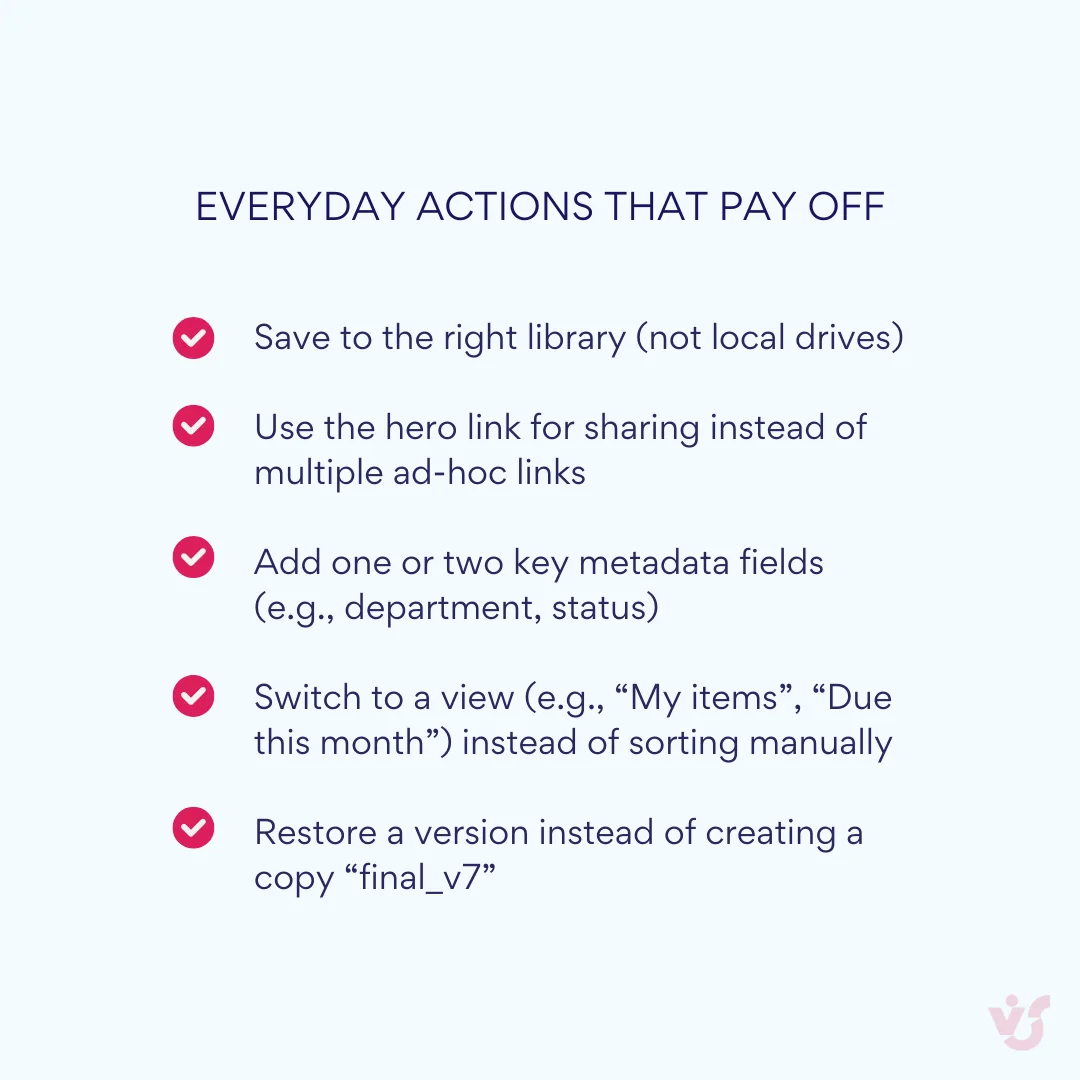
- Document libraries for storing and sharing files with versioning, check-in/out, and easy external sharing (including the latest single “hero link” approach to simplify link management).
- Lists for managing work—tasks, issues, events, contacts—with rules, views, and forms.
- Sites (team, communication, hub/intranet) for collaboration, announcements, pages, and navigation.
- Deep Microsoft 365 integration so documents, lists, and pages surface in Teams, Outlook, OneDrive, Viva Connections, and Microsoft Search.
💡 Learn more about SharePoint document management here:
- Optimize Your Business with SharePoint Document Management
- How to Create and Manage a SharePoint Document Library
- Best Practices for SharePoint Document Management, Library, Folder Structure and Security
What are SharePoint capabilities?
SharePoint goes beyond file storage:
- Organization-wide content management. Build pages, publish news, manage records and retention, and apply labels and policies at scale.
- Employee, partner, or customer portals. Create intranets and extranets with targeted content and secure access.
- Project workspaces. Spin up sites with flexible permissions, shared libraries, lists, calendars, and dashboards.
- Process automation. Use built-in approvals, rules, and Power Automate flows to digitize reviews, notifications, and handoffs; extend forms and apps with Power Apps.
- Modern collaboration enhancements. Coauthor in Office on the web and desktop, use Loop components in pages and conversations, and leverage Copilot in SharePoint to draft pages, summarize content, and find what matters faster.
- Advanced content services. SharePoint Premium (the evolution of Syntex) adds AI-assisted classification, extraction, redaction, eSign, and governance options.
- Developer platform. SharePoint Framework (SPFx) for web parts/extensions and SharePoint Embedded to build document-centric applications that inherit Microsoft 365 security and compliance.
Taken together, these features make SharePoint a single platform for storing content, coordinating teamwork, and automating business operations—whether you’re in Microsoft 365 or running a supported on-premises environment.
💡 Learn more about Loop here: What Is Microsoft Loop? Features, Benefits, and How to Use It
Benefits of SharePoint
SharePoint pays off when you use it as the hub for content, collaboration, and processes—not just a place to park files. The modern experience in Microsoft 365 adds fast pages, tighter security, Copilot assistance, and integrations that keep work flowing across Teams, Outlook, and OneDrive.
What are the main benefits of SharePoint?
Here’s the value in plain terms. SharePoint brings your content, people, and processes into one governed workspace so work is easier to find, track, and finish—whether your team is in one office or spread across time zones.
- Centralized storage and version control
Keep documents, pages, and list data in one governed place. Libraries track version history automatically, so teams can compare edits, restore earlier copies, and avoid duplicate files. The newer single hero link simplifies sharing and reduces link sprawl.
- Increased workflow transparency
Built-in approvals, reminders, and notifications make status visible without chasing email threads. List rules and Power Automate flows keep owners and stakeholders informed, while dashboards and views surface who’s responsible, what’s blocked, and what’s next.
- Support for remote and global teams
SharePoint Online works wherever your people are. Users get secure browser and mobile access to sites, libraries, and lists, with granular permissions for internal teams and external guests. Sensitivity labels, conditional access, and audit logs help you collaborate confidently across regions and partners.
- Integration with other Microsoft 365 applications
SharePoint is the content backbone for Teams, OneDrive, Outlook, and Office apps. Open, coauthor, and share Word, Excel, and PowerPoint directly in Teams or the browser; changes are saved to SharePoint with versioning intact. Microsoft Search connects it all so content is discoverable in the tools people already use.
- Customization options for business needs
Shape SharePoint to fit your processes. Create tailored sites, structure libraries and lists with content types and metadata, and assemble pages with modern web parts. Extend further with Power Apps, SPFx solutions, and third-party apps and web parts (e.g., Virto) to add calendars, Kanban boards, notifications, and more.
- Modern collaboration and content intelligence
The latest experience adds real-time coauthoring, Loop components for atomic collaboration, and Copilot in SharePoint to draft pages, summarize content, and answer questions across your sites. For advanced scenarios, SharePoint Premium brings AI-driven classification, extraction, redaction, and eSign to reduce manual effort and improve compliance.
💡 Learn more about the modern and classic SharePoint experience here: SharePoint Modern vs. Classic: Key Differences and Reasons to Migrate
- Developer and integration flexibility
When you need to go beyond out-of-the-box, use SharePoint Framework for custom web parts and extensions, or SharePoint Embedded to build document-centric applications that inherit Microsoft 365 security, compliance, and sharing—without standing up a separate content platform.
Bottom line: SharePoint centralizes content, clarifies ownership and status, scales to global collaboration, and plugs into the Microsoft 365 apps your teams live in—while still giving you the flexibility to tailor, automate, and extend for your business.
| SharePoint feature | Benefit |
| Sites (team, communication, hubs) | Organize people and content with clear navigation and targeting |
| Document libraries | Centralize files with version history, approvals, and easy sharing |
| Lists (with views/rules) | Track tasks, issues, and data with filters, alerts, and board views |
| Version history | Recover earlier edits and reduce “final_v7” duplicates |
| Permissions & hero link sharing | Secure content and cut link sprawl with a single updatable link |
| Microsoft Search | Find pages, files, and people faster across Microsoft 365 |
| Teams/OneDrive/Outlook integration | Work in familiar apps while saving to governed SharePoint locations |
| Power Automate | Automate approvals, reminders, and cross-app workflows without code |
| Power Apps | Build forms/apps on top of lists to standardize data capture |
| Loop & real-time coauthoring | Edit together in real time and keep lightweight components in sync |
| Sensitivity labels & retention | Protect data and meet compliance without manual policing |
Key SharePoint Features List
SharePoint’s modern experience is built to manage content as a business asset. It centralizes access, streamlines collaboration, and adds automation and protection so work moves faster without sacrificing control.
What can SharePoint offer?
SharePoint delivers full document management: structured libraries, real-time collaboration, approvals, retention, and security—plus tight integration with Teams, Outlook, OneDrive, Power Automate, and Power Apps.
Working with documents and libraries
Think beyond folders—use libraries with metadata, views, and versioning to keep content tidy, traceable, and easy to find:
- Corporate repositories with structure. Create libraries with folders, metadata, and content types so teams can store, sort, and filter files by project, department, confidentiality, or lifecycle stage.
- Collaborative editing. Coauthor Word, Excel, and PowerPoint in real time from the browser, desktop, or inside Teams. Loop components keep lightweight content in sync across pages and chats.
- Versioning you can rely on. Every change is captured. Compare edits, restore earlier versions, and track approvals without spawning duplicate files.
- Access control and sharing. Apply permissions at site, library, folder, or item level; use the latest single hero link for simpler, safer sharing; extend access to guests with auditing and expiration.
- Metadata and compliance. Tag content with columns, managed metadata, sensitivity labels, and retention policies so search works better and governance travels with the file.
- Content intelligence (optional). SharePoint Premium adds AI-assisted classification, extraction, redaction, and eSign to reduce manual processing for high-volume libraries.
Sites and team spaces
Start with the right site type, then add pages, lists, and web parts to match how your team actually works:
- Team sites for projects and departments with shared libraries, lists, calendars, pages, and dashboards.
- Communication sites for organization-wide news, campaigns, and knowledge hubs.
- Intranets and hubs that stitch sites together with consistent navigation, targeting, and search so people find what they need quickly.
Sites connect people, data, and processes in one place. They plug into Teams for chat and meetings, Outlook for calendars and news digests, Viva Connections for home experiences, and Microsoft Search so content is discoverable across Microsoft 365.
Learn more about different SharePoint sites here:
- SharePoint Site Types Explained: Choosing the Right Site for Your Needs
- SharePoint Hub Sites: for Simplified Collaboration and Easy Navigation
- SharePoint Team Site vs Communication Site: Choosing the Right One
- SharePoint Communication Site: Improve Communication and Teamwork
Process automation
SharePoint helps you digitize routine work:
- Built-in rules and approvals. Trigger reminders, route content for review, and track status directly from lists and libraries.
- Power Automate flows. Send notifications, collect approvals, publish news, sync data, and integrate with line-of-business systems without custom code.
- Power Apps forms and apps. Replace email- and spreadsheet-driven processes with guided forms and mobile apps tied to your SharePoint lists.
- Developer options. Use SPFx for custom web parts and extensions or SharePoint Embedded to build document-centric apps that inherit Microsoft 365 security and compliance.
💡 Learn more about SharePoint automation here:
- SharePoint Automation: Best Practices, Use Cases and Recommended Tools
- SharePoint Workflows: How to Create and Use Them
What is included in Microsoft SharePoint
Out of the box you get sites, pages, lists, and document libraries with versioning, sharing, search, and permissions. You also get native integrations with Teams, Outlook, OneDrive, and Office apps; automation with approvals, rules, and Power Automate; customization with web parts and Power Apps; and optional SharePoint Premium for advanced content processing and governance.
Here’s a more detailed look at the offering of both SharePoint Online and On-premises:
SharePoint Online (cloud)
You can get SharePoint as part of Microsoft 365 suites or as a standalone plan.
- Microsoft 365 Business & Enterprise suites – SharePoint is included in Business (Basic/Standard/Premium) and Enterprise (E1/E3/E5) plans alongside Teams, Exchange, OneDrive and the Office apps. Choose the suite for the security/compliance features you need; E3/E5 add the richer compliance, DLP, and eDiscovery capabilities many enterprises expect.
- Standalone SharePoint plans – SharePoint Online Plan 1 covers core sites, lists, and document libraries; Plan 2 adds advanced features (historically more compliance/search depth). Useful when you don’t need the full Microsoft 365 suite.
- Storage & limits – Tenant storage is 1 TB + 10 GB per licensed user (pooled), with 25 TB per site possible. You can buy extra storage if needed.
- External/guest collaboration – Built-in external sharing for files, folders, and sites with policy controls in the admin center.
Learn more on plans and limits here:
- Compare Microsoft 365 Enterprise Pricing and Plans
- SharePoint limits – Service Descriptions | Microsoft Learn
- The Ultimate Guide to SharePoint Limitations in 2025: Online vs On-Premises
Add-ons and adjacent options:
- SharePoint Premium (evolution of Syntex): AI-assisted content processing (classification/extraction/redaction), eSign, and governance features layered onto SharePoint. Ideal for high-volume content scenarios.
- SharePoint Advanced Management (SAM): extra admin/governance features (DAG insights, block-download, lifecycle/ownership policies, AI insights). Licensed per user; some SAM capabilities are also available with Microsoft 365 Copilot licenses.
- SharePoint Embedded: for developers building document-centric apps. It’s pay-as-you-go via Azure—billed on storage, API transactions, and egress—separate from your Microsoft 365 storage entitlements.
💡 Learn more about these options here:
- SharePoint service description
- SharePoint Advanced Management overview – SharePoint in Microsoft 365
- SharePoint Embedded Overview | Microsoft Learn
SharePoint on-premises
When you need to keep content on your own infrastructure—whether for data residency, network isolation, or bespoke integrations—SharePoint on-premises is the path. You manage the servers, updates, and security posture, but you gain maximum control over architecture and change cadence. Here’s how the current on-prem option stacks up:
- SharePoint Server Subscription Edition (SE) – Microsoft’s current on-prem product under the Modern Lifecycle Policy, with twice-yearly feature updates (e.g., 25H2) and monthly security updates; each SE Public Update is supported for one year. Best for customers that must keep content on-site.
- SharePoint Server 2019 – Still supported but in extended support until July 14, 2026; no new features, security updates only. If you’re on 2019, plan a move to SE or SharePoint Online.
- Security reality check – Unpatched or out-of-support on-prem farms are actively targeted; keep current with CUs and hardening guidance.
Learn more about SharePoint On-Prem here:
- SharePoint Server Subscription Edition – Microsoft Lifecycle
- New and improved features in SharePoint Server Subscription Edition Version 25H2
- SharePoint Server 2019 – Microsoft Lifecycle
- Microsoft Put Older Versions of SharePoint on Life Support. Hackers Are Taking Advantage | WIRED
Quick chooser: which route fits?
Not sure where to start? Use this quick guide to match your needs to the right path—cloud suites, standalone plans with add-ons, developer options, or on-prem—so you only pay for what you’ll use:
- You want modern collaboration, Copilot, and least admin overhead → Microsoft 365 suite with SharePoint Online.
- You need advanced admin guardrails → add SharePoint Advanced Management; consider SharePoint Premium for content-heavy processes.
- You must build custom, document-heavy apps → SharePoint Embedded (metered via Azure).
- You have strict data-residency or disconnected requirements → SharePoint Server SE; keep to current CU and feature update rings.
| Option | Includes SharePoint? | Storage baseline | Key features included | Common add-ons | Best for |
| Microsoft 365 Business (Basic/Standard/Premium) | Yes (SharePoint Online) | Tenant: 1 TB + 10 GB/user pooled; up to 25 TB/site | Sites, libraries, lists, sharing, versioning, Microsoft Search, Teams/Outlook/OneDrive integration, baseline compliance | SharePoint Premium; SharePoint Advanced Management | SMBs that want modern collaboration with minimal admin overhead |
| Microsoft 365 Enterprise (E1/E3/E5) | Yes (SharePoint Online) | Tenant: 1 TB + 10 GB/user pooled; up to 25 TB/site | All Business features plus advanced compliance (E3/E5), eDiscovery, DLP (by SKU), Copilot (if licensed) | SharePoint Premium; SharePoint Advanced Management | Enterprises needing stronger security/compliance and scale |
| SharePoint Online Plan 1 (standalone) | Yes (SharePoint Online) | Tenant: 1 TB + 10 GB/user pooled; up to 25 TB/site | Core sites, libraries, lists, sharing, versioning, integration with Teams/Outlook/OneDrive | SharePoint Premium (select capabilities may need Plan 2 or suites) | Teams that need SharePoint without the full Microsoft 365 suite |
| SharePoint Online Plan 2 (standalone) | Yes (SharePoint Online) | Tenant: 1 TB + 10 GB/user pooled; up to 25 TB/site | Plan 1 plus deeper SharePoint features (historically more search/compliance depth) | SharePoint Advanced Management; SharePoint Premium | Orgs needing deeper SharePoint features without full suites |
| SharePoint Premium (add-on) | Add-on to SharePoint Online | Uses SharePoint/OneDrive storage | AI content services: classification, extraction, redaction, eSign; advanced governance | Often paired with E3/E5 or SAM | Content-heavy teams (finance, legal, ops) needing automation |
| SharePoint Advanced Management (add-on) | Add-on to SharePoint Online | N/A | Extra admin controls: policy enforcement, sharing insights, block-download, lifecycle/ownership policies | Pairs with E3/E5; complements Premium | Tenants with strict governance and external sharing controls |
| SharePoint Embedded (developer service) | API-only via Azure | Pay-as-you-go (Azure: storage + API + egress) | Build document-centric apps that inherit M365 security/compliance without full SharePoint UI | Azure services; Microsoft Entra for auth | ISVs/internal dev teams building custom content apps |
| SharePoint Server Subscription Edition (on-prem) | Yes (on-prem) | Your infrastructure (SQL + file storage) | Modern lifecycle with feature updates (e.g., 25H2) and monthly security updates; classic + modern features by patch level | Reverse proxy/WAF, backup/HA tooling; third-party web parts (e.g., Virto) | Strict data residency/isolated networks; custom on-prem integrations |
| SharePoint Server 2019 (on-prem) | Yes (on-prem) | Your infrastructure | Extended support to Jul 14, 2026 (security fixes only) | Same as SE; plan migration to SE or Online | Legacy farms planning an upgrade path |
👉 What are the most important updates as of 2025 to both SharePoint Online and On-Prem that a typical user should be aware of? As of 2025, the biggest changes are a more modern, AI-assisted SharePoint Online and a still-advancing on-prem release. In the cloud, Microsoft is rolling out a “hero link” sharing model that gives each file a single primary link you can update—cutting link sprawl—alongside smarter Microsoft Search, Copilot in SharePoint, and continued maturation of SharePoint Premium (the evolution of Syntex) whose promo has been extended through December 2025; developers also get a GA toolchain and updates for SharePoint Embedded. On-prem, SharePoint Server Subscription Edition keeps receiving twice-yearly feature updates (25H2 shipped with the September 2025 CU), while SharePoint Server 2019 remains in extended support until July 14, 2026; admins should stay vigilant, as multiple 2025 security advisories and zero-day patches targeted on-prem farms. More on some of those features below.
SharePoint Online Features and New Capabilities
SharePoint Online is the cloud version of SharePoint inside Microsoft 365. You don’t manage servers—Microsoft handles updates, security, availability, and scale—so you get a continuously improving platform suitable for small teams and global enterprises alike.
Deep integration is the standout strength. Store documents in SharePoint, coauthor them in Teams, sync files with OneDrive, and surface events and news in Outlook and Viva. The result is a unified workspace where content, conversations, and tasks stay connected.
What are the features of SharePoint Online?
Here’s what you get out of the box in the cloud—core capabilities that keep content organized, secure, and easy to collaborate on inside Microsoft 365.
- Modern sites with responsive design. Team and communication sites load fast, look good on any device, and support hub navigation, audience targeting, and multilingual pages.
- Real-time collaborative editing. Coauthor Word, Excel, and PowerPoint in the browser, desktop, or Teams—with version history and approvals.
- Flexible permissions. Grant access at site, library, folder, or item level; invite guests securely; apply sensitivity labels and sharing policies.
- Centralized content management. Use pages, news, libraries, and lists with retention, records, and search to keep information governed and discoverable.
What’s new and improved in 2025
The latest release raises the bar on speed, usability, and intelligence so everyday tasks take fewer clicks and results are easier to find.
- Refreshed modern interface. Cleaner page authoring, simpler theming, and faster navigation make site setup and customization easier for owners and comms teams.
- Smarter search with Microsoft Search. AI-powered answers, better filters, and people- and activity-aware results help users find files, pages, and conversations quickly.
- Viva integration. Publish SharePoint news and pages to Viva Connections, build learning and knowledge hubs, and target content to the right audiences.
- Microsoft Loop support. Create living components—tables, lists, notes—that stay in sync across SharePoint pages, Teams chats, and email. Loop components and workspaces can be stored in OneDrive, SharePoint, or SharePoint Embedded depending on where they’re created, and are governed through Microsoft 365 and SharePoint admin policies.
- Hero link sharing model. Each file can have a single, primary share link that’s easy to update and audit, reducing duplicate links and confusion.
- Copilot for SharePoint. Draft pages, summarize documents, generate highlights, and answer site-specific questions using your organization’s content (respecting permissions).
- Better external collaboration. Streamlined guest access, expiry and review policies, and block-download options balance openness with control.
- Admin and governance enhancements. Sharper insights into sharing and site ownership, plus optional add-ons (like SharePoint Advanced Management) for organizations with stricter guardrails.
Together, these updates make SharePoint Online a modern, user-friendly platform for teams and communicators—tightly linked to Teams, OneDrive, Outlook, Viva, and the rest of Microsoft 365.
Practical Uses of Microsoft 365 SharePoint Features
SharePoint works best when you match its building blocks—sites, libraries, lists, pages—to real business scenarios. Here are common, practical ways organizations use it today.
Document management
SharePoint acts as a corporate repository where access follows your permission model. Administrators can set rights at the site, library, folder, and even file level, with options like sensitivity labels, link expiration, and the 2025 hero link model for simpler sharing.
What this looks like in practice:
- Contract library. Legal owns the library with edit rights; sales managers get contribute access to their folders; executives get read access to finalized agreements. Versioning, approvals, and required metadata (client, region, term) keep everything traceable. Optional eSign and redaction are available with SharePoint Premium.
- Company knowledge base. Policies, procedures, and templates organized by department. Employees see targeted content based on role or location; owners publish updates as news with digest emails sent via Outlook. Search, filters, and labels help people find the right artifact quickly.
Why it helps:
- Centralized access with clear ownership
- Real-time coauthoring in Word/Excel/PowerPoint
- Auditing and retention for compliance
- External sharing controls for partners when needed
Project management
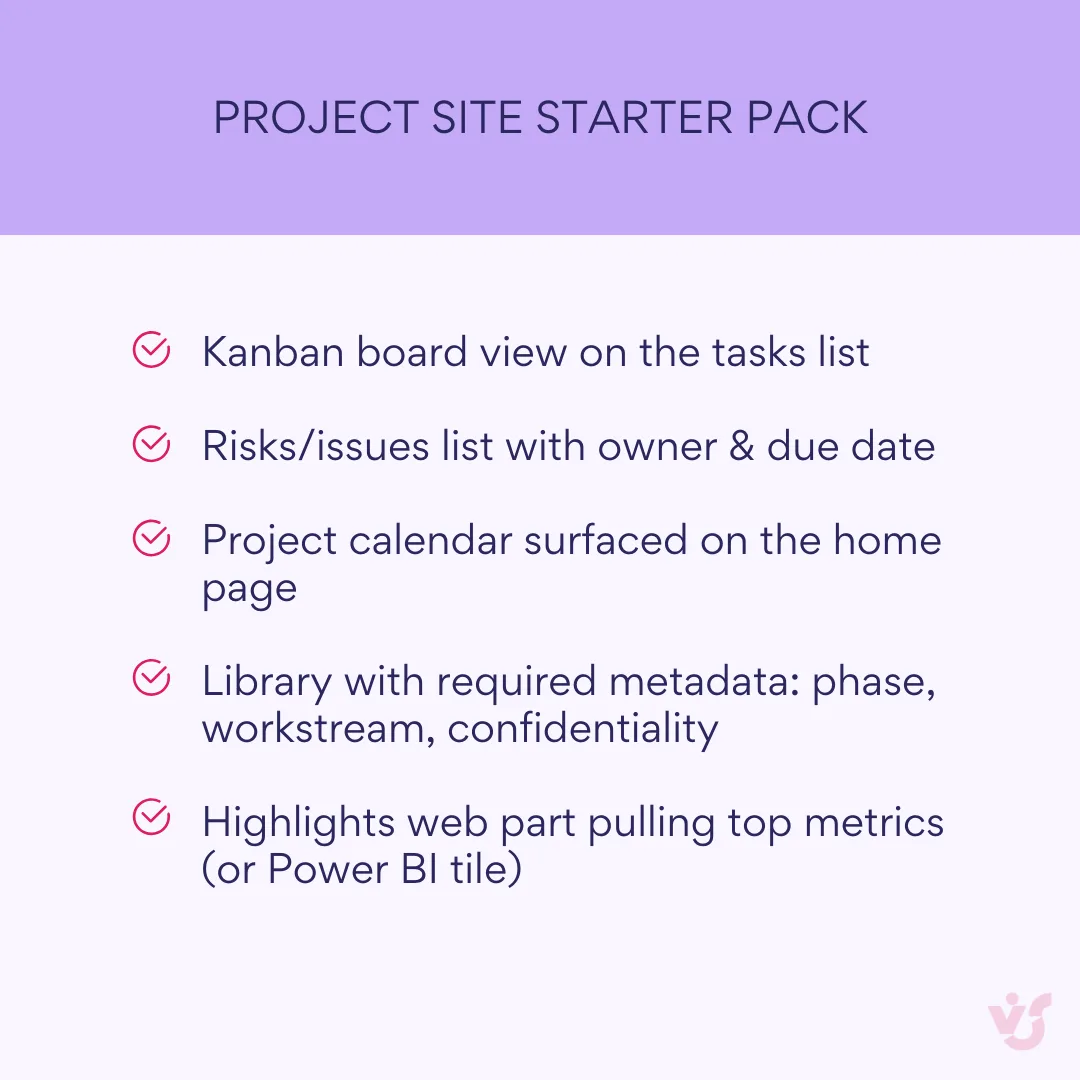
Create a project site for each initiative so files, tasks, and conversations stay connected.
Typical components:
- Task tracking with lists. Custom columns, views, and rules for due dates, owners, and status. Add a board view (Kanban) for workflow clarity.
- Calendars and meetings. Surface the project calendar on the site and pin the site in Teams; meeting notes can live as pages or Loop components.
- Dashboards. Use web parts for progress metrics, risks/issues lists, timeline highlights, and a Power BI report if you track KPIs.
- Document library. Structured folders or metadata (phase, workstream) with required properties and approvals.
Example:
- A project site with a meeting calendar, Kanban task board, risks/issues list, and a documentation library available only to the core team. Guests from a vendor get limited access to a shared folder with link expiry and block-download enabled.
Team communication
Communication sites help you publish news and run an intranet that reaches everyone—on web and mobile.
What to include:
- News and pages. Announcements, leadership posts, and campaign pages with images, quick links, and callouts.
- Targeting and subscriptions. Audience targeting ensures people see relevant content; automated digests send highlights to Outlook.
- Viva integration. Surface your SharePoint home as the Viva Connections dashboard in Teams, so updates, resources, and tasks are a click away.
- Feedback and engagement. Add forms for questions or suggestions; enable comments and reactions to keep the loop tight.
Example:
- An internal portal with company news, an HR hub (policies, benefits, onboarding), and a feedback form. Updates publish to Teams and Outlook automatically, and employees can discuss posts in Teams without leaving the page.
Across these scenarios, modern SharePoint features—coauthoring, Loop components, Copilot-assisted summaries and page drafts, Microsoft Search, and precise sharing—reduce friction for day-to-day work. Whether you run SharePoint Online or a supported on-premises environment, the same patterns apply: use sites to group people and goals, libraries and lists to structure work, and pages to communicate clearly.
👉 What is SharePoint functionality? SharePoint functions are the core capabilities that let you create sites, pages, document libraries, and lists to organize work. They include versioning, permissions, metadata, and Microsoft Search so content is secure, traceable, and easy to find—plus real-time coauthoring in Office apps. SharePoint also integrates with Teams, OneDrive, and Outlook and supports automation with approvals, rules, and Power Automate, as well as custom forms with Power Apps. For advanced needs, you can extend with web parts/SPFx, Copilot, and SharePoint Premium for AI-driven content processing.
SharePoint Best Practices
The fastest wins come from simple habits: teach people how SharePoint works, keep access tidy, structure content with metadata, and extend with the right apps. Here’s a practical playbook that reflects the latest SharePoint Online experience.
Regular employee training
SharePoint has depth—sites, libraries, lists, pages, approvals, Loop components, Copilot, and more—so features aren’t always obvious at first.
- Run short, role-based sessions. Focus on “how we work here”: where to save, how to share (use the 2025 hero link), and how to coauthor.
- Publish quick guides. Use a communication site for tips: saving versions, restoring files, using filters and views, posting news.
- Schedule refreshers. Example: quarterly mini-trainings on new SharePoint Online updates, plus a 10-minute “what changed this month” digest.
Configure access rights and mfa to protect data
Permissions are the backbone of SharePoint security.
- Use groups, not individuals. Grant access via Microsoft 365 groups and SharePoint groups to simplify changes over time.
- Enable MFA for everyone. Pair with Conditional Access and sign-in risk policies.
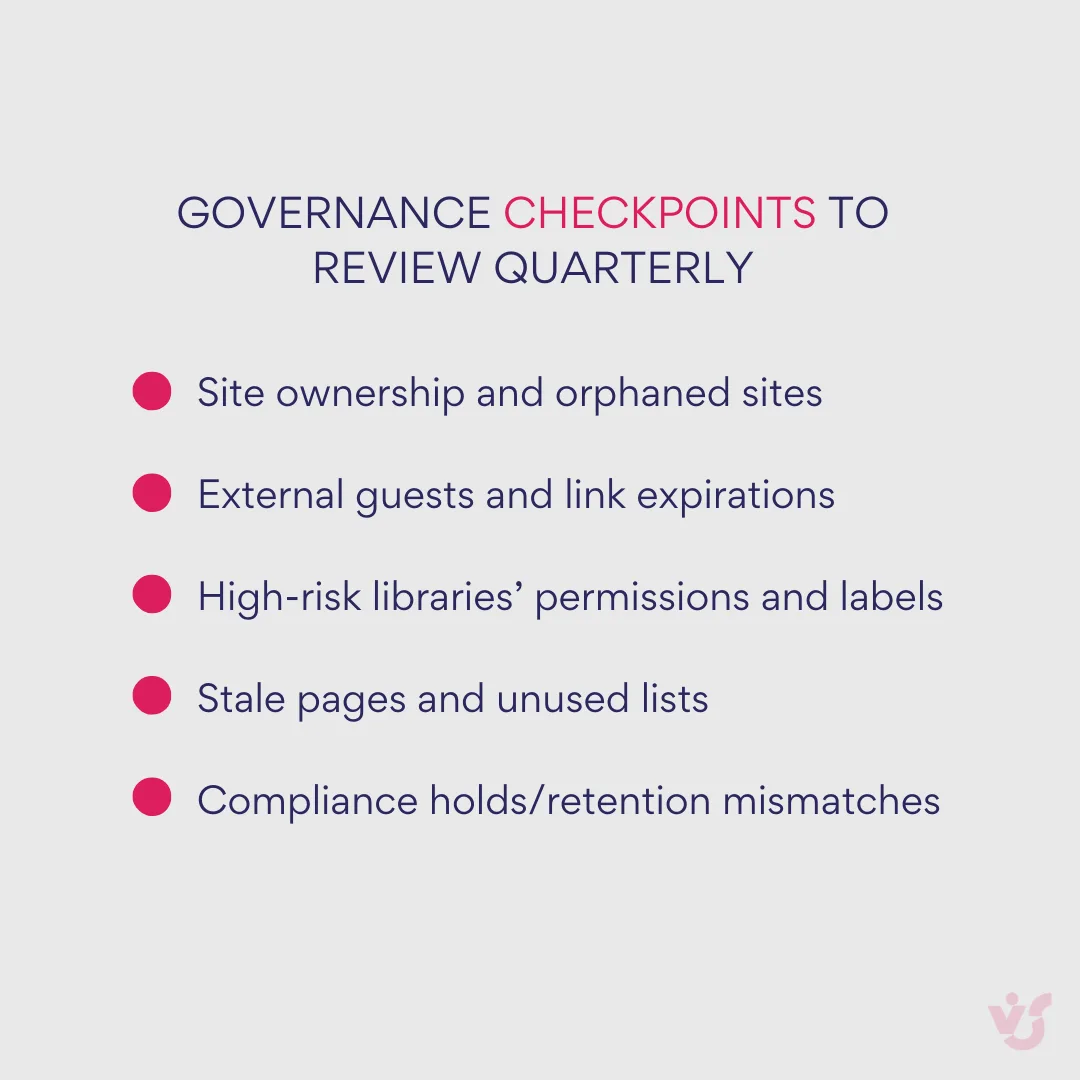
- Review sharing regularly. Audit external guests, set link expirations, and prefer the single hero link per file to reduce link sprawl.
- Label and retain. Apply sensitivity labels and retention policies so protection and lifecycle travel with the file.
- Quarterly access reviews. Re-confirm who can see high-risk libraries when people change roles or leave.
Use metadata and structured libraries for search
Good structure makes content findable and reportable.
- Define columns that matter. Examples: document type, client, department, effective date, status.
- Standardize with content types. Reuse the same schema across libraries to keep views and rules consistent.
- Build useful views. Create “My department,” “Due this month,” or “Ready for approval” views with filters and grouping.
- Example: contract library. Tag by contract type, effective/expiry dates, and responsible department; require key fields before publish.
- Coach on search. Show how Microsoft Search surfaces results from pages, files, and conversations—and how metadata improves ranking.
Connect additional apps for automation and visualization
Extend out-of-the-box features where it saves time or adds clarity.
- Power Automate. Route approvals, send reminders before deadlines, and post status updates to Teams.
- Power Apps. Replace email-driven processes with guided forms tied to SharePoint lists (mobile-friendly).
- Web parts and third-party apps. Add calendars, Kanban boards, charts, and notifications (e.g., VirtoSoftware apps) to turn sites into working hubs.
- Power BI. Embed dashboards on project or department sites for at-a-glance metrics.
- Copilot in SharePoint. Use it to draft page summaries, generate highlights, and answer site-specific questions (respecting permissions).
Extra hygiene that pays off
- Plan site architecture. Use hubs for navigation and targeting; avoid sprawling subsite trees.
- Keep pages lightweight. Favor modern web parts, reusable page templates, and image compression for fast load times.
- Set lifecycle rules. Archive inactive sites, close old projects, and apply retention so storage stays clean.
- Monitor and iterate. Use site analytics and (optionally) SharePoint Advanced Management insights to spot oversharing or stale content.
Adopting these practices builds a SharePoint environment that’s easier to use, safer by default, and ready to scale—whether you’re supporting a single department or a global intranet.
💡 Learn more about some of the best SharePoint practices in our dedicated guides:
- Best Practices for SharePoint Document Management, Library, Folder Structure and Security
- SharePoint Share with External Users: Best Practices for Collaborating
- SharePoint Secure File Sharing: Methods, Best Practices, and Advanced Tips
- SharePoint Automation: Best Practices, Use Cases and Recommended Tools
Extending SharePoint with Virtosoftware
VirtoSoftware adds ready-made apps and web parts that turn SharePoint into a practical hub for planning, task flow, reminders, and richer forms—whether you’re on SharePoint Online or running an on-premises farm.
Check Out VirtoSoftware Apps

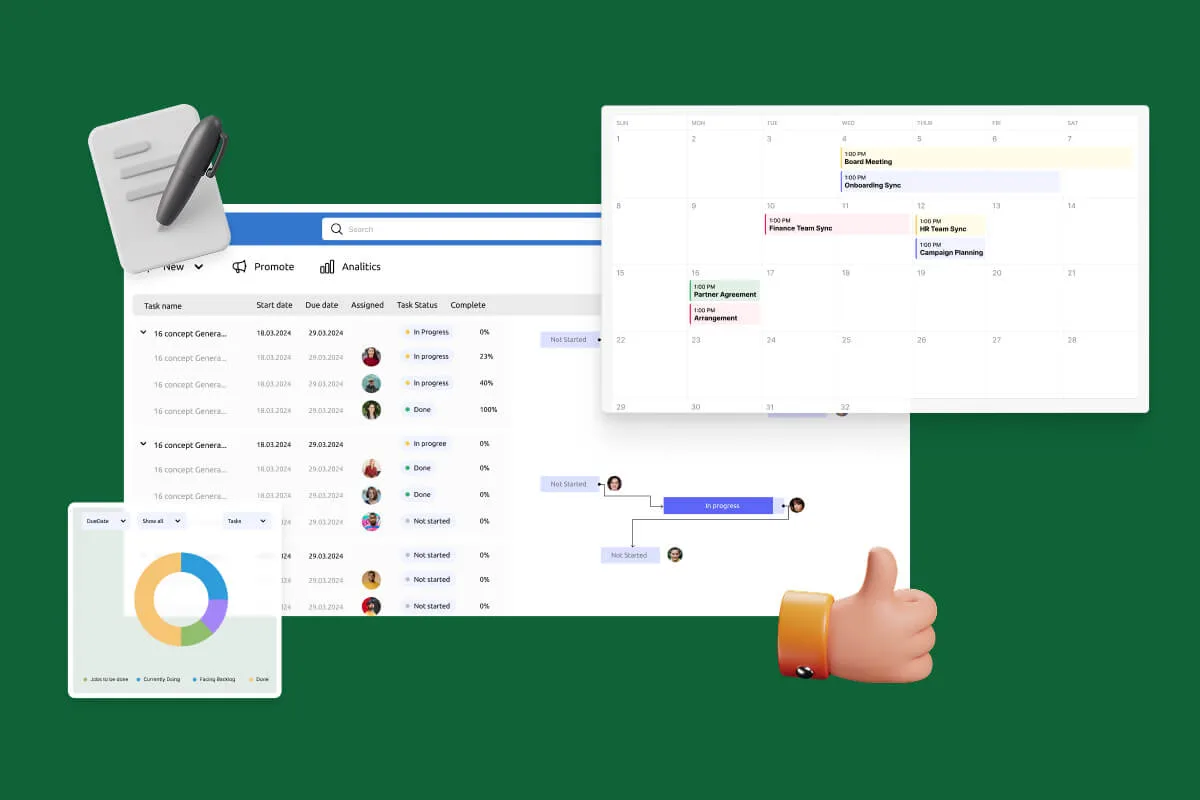
Virto Calendar
Consolidate events from SharePoint, Exchange, Google, and more into one calendar view for simplified planning.

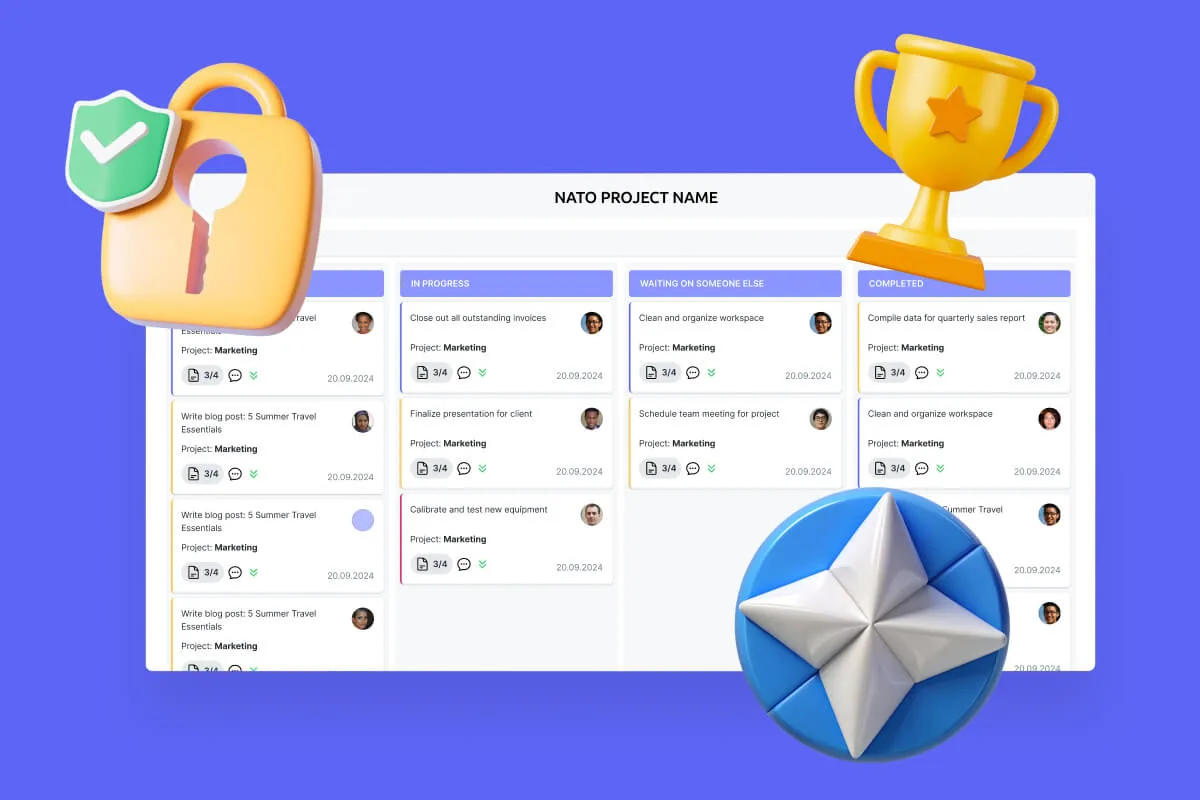
Virto Kanban Board
This tool transforms team collaboration through visual task management for consistent stage-by-stage progress.

Virto Alerts & Reminder
Integrated within your daily tools like Microsoft Teams, the app ensures you stay ahead of all tasks and meetings.
Sharepoint Online (Microsoft 365) apps
Use these Microsoft 365 apps to add planning, task flow, reminders, and richer forms right inside SharePoint and Teams—installed from AppSource, no heavy setup required:
- Virto Calendar app – Unified, color-coded calendar overlays that combine SharePoint lists, Outlook/Exchange, meeting rooms, and iCalendars. Available in Microsoft AppSource and as a SharePoint Online app; ideal for event and project scheduling inside Teams and SharePoint.
- Virto Kanban Board app – Visualize any SharePoint list as a Kanban board, manage tasks and sub-tasks, drag across columns/swimlanes, and track activity—usable in SharePoint pages and Microsoft Teams.
- Virto Gantt Chart app – Build timeline views from SharePoint lists to plan milestones, dependencies, and resources across projects in Microsoft 365.
- Virto Alerts & Reminders – Create flexible, rule-based notifications for list changes and calendar events; send to email (and Teams via connectors) to keep stakeholders aligned without manual follow-ups.
- Virto Forms – Advanced, no-code forms to collect and validate data against SharePoint lists. Use to standardize requests, registrations, or intake.
Sharepoint On-Premises web parts
On classic server farms, these web parts close key gaps with the cloud. Deploy them to your farm or site collection to boost automation, monitoring, and visualization without leaving on-prem:
- Workflow automation (activities kit) – A large set of no-code workflow actions for SharePoint Designer that extends what you can automate in SharePoint Server 2016/2019/SE. Useful when Power Automate isn’t available on-prem.
- Workflow status monitor – A control panel for running workflows across a site: filter by list/item, see in-progress/error states, and stop/restart as needed—compatible with SharePoint 2016/2019.
- Gantt chart web part – Advanced Gantt visualization for SharePoint Server (2016/2019/SE) so project teams can manage timelines without leaving on-prem.
- Notifications & reminders web part – Schedule email/SMS alerts and reminders from SharePoint Server lists to keep processes moving even when out-of-box alerts fall short.
- Other extensions – VirtoSoftware’s on-prem catalog also includes utilities like resource utilization and directory-related parts that round out classic SharePoint farms.
Bottom line: with VirtoSoftware, SharePoint becomes a full workflow and collaboration hub: plan with Virto Calendar and Virto Gantt, visualize flow with Virto Kanban, automate follow-ups with Virto Alerts & Reminders, capture data with Virto Forms, and—on-prem—extend workflow logic and monitoring to keep operations moving.
| Need | Online app / On-prem web part | What you gain |
| Calendar planning | Virto Calendar (Online) | Unified overlays across lists/rooms/Outlook |
| Visual task flow | Virto Kanban Board (Online) | Drag-and-drop, swimlanes, activity tracking |
| Timeline planning | Virto Gantt Chart (Online/On-prem) | Dependencies, milestones, resource view |
| Never miss a deadline | Virto Alerts & Reminders (Online/On-prem) | Rule-based notifications to email/Teams |
| Better data capture | Virto Forms (Online) | No-code forms with validation |
| On-prem automation | Workflow Activities Kit (On-prem) | No-code actions beyond out-of-box flows |
| Monitor workflows | Workflow Status Monitor (On-prem) | Visibility/control over running workflows |
One license, many apps: VirtoSoftware also offers two all-in bundles that make licensing simple. Virto One Cloud gives Microsoft 365 tenants a single subscription to 30+ apps optimized for SharePoint Online—Virto Calendar, Virto Kanban, Virto Gantt, Virto Alerts & Reminders, Virto Forms, and more—with centralized support and updates included. It’s designed to boost planning, task flow, and content operations without piecemeal purchases. Virto One License is the on-premises suite for SharePoint Server (2013–SE), providing access to 15+ proven web parts and tools—such as Virto Workflow Activities Kit, Virto Multiple File Operations, and Virto Notifications & Alerts—under one 12-month key per WFE, with upgrade rights across supported versions. Both bundles let you standardize on a full toolkit and scale as needs grow.
Explore VirtoSoftware Use Cases
Conclusion on Microsoft SharePoint Features
SharePoint is more than file storage. It’s a powerful platform for managing documents, projects, and everyday business processes—built to centralize content, keep teams aligned, and apply the right controls as your organization grows.
As part of Microsoft 365, SharePoint helps you create a unified workspace where files, pages, lists, and conversations connect across Teams, Outlook, OneDrive, Viva, and Microsoft Search. The modern experience brings fast pages, real-time coauthoring, Loop components, and strong governance so work moves quickly without sacrificing security.
You can take it further with Virtosoftware. In SharePoint Online, apps like Virto Calendar, Virto Kanban Board, Virto Gantt Chart, Virto Alerts & Reminders, and Virto Forms add planning, visualization, automation, and richer data capture. On-premises, Virto web parts—Workflow Automation, Workflow Status Monitor, Gantt, notifications, and more—close gaps and bring classic farms closer to the cloud experience. Together, these solutions turn SharePoint into a full workflow hub tailored to your teams.
Ready to see it in action? Schedule a demo of the Virto apps and start a free trial directly from the VirtoSoftware site.
Also, peruse additional resources for more context:
Official Microsoft resources:
- What is SharePoint – Overview of features
- What’s new in SharePoint – Microsoft Support
- What is SharePoint? – Microsoft Support
- SharePoint service description
VirtoSoftware blog: