HR teams rarely have a truly “quiet” day. New applications arrive in different formats and channels. Managers email about vacation approvals and last-minute schedule changes. Someone needs onboarding next Monday, another employee is switching departments, and compliance wants confirmation that every new hire has signed the right documents. Most of this work is still driven by emails, spreadsheets, and manual updates in HR and IT systems.
None of these tasks are complex on their own—but repeated dozens or hundreds of times a month, they become a constant drain on time and attention. HR specialists end up chasing missing information, nudging managers for approvals, re-entering data into multiple systems, and fixing small errors that creep in when processes are handled by hand.
HR process automation is not about replacing people or cutting headcount. It’s about taking these repeatable, rules-based activities—receiving applications, routing approvals, coordinating vacations, onboarding new employees—and letting software handle the mechanics. That frees HR teams to focus on the work that actually needs human judgment: building culture, supporting managers, improving retention, and shaping the company’s long-term talent strategy.
The goal of this article is to show, with real-world examples, what HR automation looks like in practice. We’ll look at which HR processes can be optimized, what benefits automation brings to the business, and how to approach implementation so that changes feel practical rather than disruptive.
We’ll also touch on the tools that make this possible. HR automation isn’t done with generic spreadsheets or email rules. It relies on specialized solutions that plug into your existing systems—such as Microsoft 365 and SharePoint—to orchestrate workflows, route approvals, and keep data in sync. In the sections that follow, we’ll walk through concrete scenarios and specific tools you can use to build reliable, scalable HR processes without turning your department into a software development team.
What Is HR workflow Automation, and Why Is It Needed?
HR work is full of patterns. The names change—“onboarding,” “performance review,” “expense claim”—but underneath, each task follows a predictable route from one person or system to another. HR workflow automation simply takes those patterns, makes them explicit, and lets software handle as much of the repetitive work as possible.
To understand why automation matters, it helps to start with the basic building block: the HR workflow.
What are workflows in HR?
An HR workflow is a clear, repeatable sequence of steps that a task goes through from start to finish.
If you think of a vacation approval workflow, it’s essentially a route:
Employee submits a request → manager reviews and approves or rejects it → HR or the system updates balances and calendars → the team gets notified.
Once you see it as a route, you can decide who should do what, in what order, and what must never be skipped. That’s the heart of a workflow.
Let’s break down some common HR workflows and what they look like in real life.
| HR process | Typical trigger | Key participants | Core steps (summary) | Main risk if handled ad hoc |
| New employee onboarding | Candidate accepts offer & start date is set | HR, hiring manager, IT, payroll, facilities | Contracts & docs → accounts & access → equipment → introductions & check-ins | Delayed access, missing equipment, poor first week |
| Vacation / time off | Employee submits time-off request | Employee, manager, HR | Request → balance check → manager decision → calendar update → team notification | Overlapping absences, disputes over balances |
| Recruiting & hiring | New role approved / vacancy created | Hiring manager, HR/recruiter, interview panel | Posting → screening → interviews → assessment → offer → handover to onboarding | Candidates lost in inboxes, inconsistent evaluation |
| Performance assessment | Start of performance cycle | HR, employees, managers, leadership | Cycle launch → self-review → manager/peer feedback → calibration → development plan | Missed reviews, inconsistent criteria, weak data |
| Travel & expenses | Travel/expense request submitted | Employee, manager, finance | Request → policy/budget check → booking → expense report → reimbursement | Out-of-policy spend, messy reimbursement |
| Offboarding | Resignation/termination recorded | HR, manager, IT, payroll, facilities | Exit notification → asset return → access removal → final pay → exit interview | Security gaps, lost assets, non-compliant exits |
- New employee onboarding
A good onboarding workflow turns “we hired someone” into “this person is productive and connected to the team”. A typical path might be:
- Offer and acceptance: HR sends the offer, candidate accepts, and the start date is confirmed.
- Document collection: The new hire submits ID documents, tax forms, contracts, and any compliance paperwork.
- Account and access creation: IT creates accounts in Microsoft 365, HRIS, payroll, ATS (if needed), learning systems, and any role-specific tools.
- Equipment distribution: Laptops, phones, badges, and other equipment are prepared, shipped, or handed over.
- Introductory briefings: HR schedules orientation sessions, policy briefings, and role-specific training.
- Mentor or buddy assignment: A mentor or buddy is assigned and notified, and expectations are set.
- Check-ins after 30/60/90 days: The manager and HR receive reminders to check in, capture feedback, and adjust the development plan.
Without a defined workflow, some of these steps happen “when someone remembers”, which is how access gets delayed, equipment goes missing, and new hires feel lost in their first weeks.
- Vacation and time off approval
Time off seems simple, but at scale it is one of the most frequent HR interactions. A clear workflow might look like:
- Request submission: An employee submits a vacation or leave request via a form, HR portal, or Microsoft Teams app.
- Balance check: The system checks remaining vacation or leave days and flags anything that goes beyond the limit.
- Manager approval: The manager reviews the request alongside team availability and approves or declines.
- Schedule update: Once approved, the absence is added to the team calendar and any relevant planning tools.
- Team notification: Team members and stakeholders are notified so they can adjust workloads or handovers.
If this process lives only in email threads, HR is often pulled in to untangle overlaps, miscommunications, or “I never saw that request” situations.
- Recruiting and hiring
Hiring is a chain of small workflows stitched together:
- Job opening and posting: A hiring manager requests a new role; HR approves, sets the budget, and publishes the job description.
- Application management: Applications arrive through the applicant tracking system (ATS), job boards, or referrals and are logged in a central place.
- Initial screening: HR or recruiters run CV screens and initial phone interviews.
- Interview process: Candidates meet an interview panel; feedback is collected and recorded in a consistent format.
- Assessment and decision: The hiring team reviews feedback, compares candidates, and selects a finalist.
- Offer and background checks: HR prepares the offer, runs background checks if required, and manages negotiations.
- Transition to onboarding: Once the offer is accepted, the hiring workflow hands off to the onboarding workflow.
Here, a workflow ensures every candidate follows the same path and nothing falls between systems (for example, CVs in email, feedback in chat, and decisions in someone’s notebook).
- Performance assessment
Performance management is often cyclical and company-wide, so the workflow must be very structured:
- Cycle launch: HR defines cycle dates and triggers notifications to all employees and managers.
- Self-assessment: Employees complete self-evaluations, often linked to goals or competencies.
- Manager and peer feedback: Managers and sometimes peers submit feedback, ratings, and comments.
- Review and calibration: Leadership reviews ratings across teams to ensure fairness and alignment.
- Development plan: Together, the employee and manager define goals, training, and next steps.
If this process isn’t structured, people miss deadlines, and HR spends weeks chasing forms and manually consolidating data.
- Travel and expenses
Even in hybrid and remote-first environments, travel and expenses still matter:
- Request submission: An employee submits a travel or expense request, often with an estimate.
- Compliance and budget check: The system or finance team checks policy limits, budget codes, and required approvals.
- Booking and confirmation: Once approved, travel is booked and details are saved centrally.
- Expense report: After the trip, the employee submits receipts and an expense report.
- Reimbursement and posting: Finance reimburses the employee and posts the costs to the correct accounts.
A clear workflow prevents out-of-policy spending and reduces back-and-forth about missing receipts or incorrect codes.
- Offboarding
Offboarding is as critical as onboarding, particularly for security and compliance:
- Notification of exit: HR receives a resignation or initiates a termination process and sets a final working date.
- Equipment and asset return: The system creates tasks to collect laptops, badges, keys, and other assets.
- Access closure: IT revokes or modifies access to Microsoft 365, line-of-business apps, and physical locations.
- Final payments and documentation: Payroll processes the final salary, unused leave, and any statutory payments; HR provides exit documents.
- Exit interview and knowledge transfer: HR schedules an exit interview, and the manager arranges knowledge handover.
In a mature workflow, these steps are standardised so that nothing is left to “we’ll remember to do it”.
👉 So, what are some of the typical human resources workflow processes? Common HR workflows include recruiting and hiring (from job posting to offer), new hire onboarding, employee transfers and promotions, performance reviews and development plans, vacation and leave requests, business travel and expenses, training and certification tracking, everyday HR requests such as letters and data changes, and offboarding with access removal and equipment return.
What is HR process automation?
HR process automation is the use of software to run these workflows with minimal manual intervention.
Instead of HR coordinators pushing every step forward by hand, the system takes over the routine actions:
- sending reminders at the right time
- routing applications and approvals to the right people
- updating records in multiple systems
- and tracking what happened for audits and reporting.
The people involved still make the important decisions—who to hire, how to rate performance, whether to approve an exception—but the software handles the mechanics around those decisions.
Concretely, an HR automation solution typically does the following:
| Automation capability | What it does in practice | Example HR use case |
| Event- and time-based triggers | Starts workflows when something happens or on a schedule | Kick off onboarding when a new hire is added; open performance reviews quarterly |
| Smart routing | Sends tasks to the right person or group automatically | Route vacation requests to the correct manager |
| Data & policy validation | Checks fields and rules before a request moves forward | Block leave that exceeds balance without exception |
| Notifications & reminders | Nudges people to act and escalates when deadlines are missed | Remind managers about pending reviews or offboarding tasks |
| System updates & sync | Writes data to HRIS, ATS, SharePoint, and finance systems | Create SharePoint folder and HRIS record on hire |
| Reporting & audit trails | Logs every step for analytics and compliance | Show who approved a contract change and when |
- Triggers processes based on an event or schedule
Automation can start a workflow when something happens or at a defined time. For example:
- A new hire record appears in the HRIS → onboarding workflow starts automatically.
- An employee submits a vacation request → approval workflow is triggered.
- The quarter ends → performance review cycle is launched for all employees.
This removes the need for someone to “remember” to kick things off.
- Routes tasks to the right people
Instead of HR manually forwarding emails, the system:
- sends a new vacation request directly to the employee’s manager
- assigns IT tasks to the correct support group when onboarding starts
- routes performance reviews to each manager and, if needed, to HR business partners.
Routing is based on rules (department, manager, location, role), which reduces misdirected requests and delays.
- Verifies data and policy compliance
Automation can do basic checks before a task gets to a person:
- ensure required fields are filled in (e.g., cost centre, project code)
- validate that requested leave does not exceed the balance
- enforce approval steps for spend above certain amounts
- check that mandatory documents are attached for onboarding or offboarding.
These automated checks catch many small errors early, so HR does less manual validation.
- Sends notifications and reminders
A large part of HR coordination is reminding people to do things. The system can:
- notify managers that a new candidate review is waiting
- remind employees to complete self-assessments before the deadline
- alert IT about upcoming start dates or exits
- escalate overdue approvals to a manager’s manager.
This keeps processes moving without HR sending dozens of follow-up emails.
- Enters records into HRIS, ATS, and financial systems
Modern HR environments rarely run on a single system. Data might live in:
- an HRIS or HCM platform
- an ATS for recruiting
- Microsoft 365 and SharePoint for documents and collaboration
- finance or ERP systems for payroll and expenses.
Automation helps keep these in sync. For example:
- When onboarding starts, the system creates a SharePoint folder, updates the HRIS, and sends IT a structured task list.
- When a position is filled, the job opening is automatically closed in the ATS and tagged as “hired”.
- When an expense claim is approved, a transaction is created in the finance system.
Instead of copying and pasting data between systems, HR defines how information should flow once.
- Generates reports and audit trails
Every automated step can be logged:
- who approved what and when
- which documents were uploaded
- how long each stage took
- where bottlenecks appear.
This provides:
- operational insight (for example, average time to fill a role, onboarding completion rates)
- audit evidence for compliance, particularly around terminations, benefits, and regulated roles.
Without automation, someone has to piece this information together from email threads and scattered files.
In short, HR workflow automation takes the repeatable “how” of HR processes and hands it to software. That’s why it’s needed: not to remove people from HR, but to remove time-consuming, error-prone steps so that HR professionals can spend more of their day on judgment, coaching, and strategic work rather than chasing forms and approvals.
👉 What do automated HR workflows mean? Automated HR workflows are HR processes that run largely on their own using software: a request or event triggers a defined sequence of steps, tasks are routed to the right people, data is checked and updated in your systems, and notifications and reminders are sent automatically, so HR and managers only step in where judgment or approval is actually needed.
Key Benefits of HR Process Automation
Once you start mapping and automating HR workflows, the benefits show up quickly in day-to-day work. People notice that things “just happen” without dozens of emails. Managers spend less time chasing information. HR can finally move attention from firefighting to long-term projects.
Below are the core benefits and how they look in a modern, cloud-based HR environment.
| Benefit | What it looks like day to day | Sample metric to track |
| Faster task completion | Requests move quickly without manual chasing | Average approval time (days/hours) |
| Consistent quality & fewer errors | Fewer missing fields, reissued contracts, and data fixes | % requests completed first time; error rate |
| Status transparency | Everyone can see where a request is and who owns the next step | % of requests with visible status; “Where is my request?” tickets |
| Time savings for HR & managers | Less admin, more time for coaching, hiring strategy, and culture | Hours per month spent on manual admin |
| Standardised procedures | Same steps and rules across teams and locations | % processes using standard workflow template |
| Improved employee experience | Clear forms, predictable timelines, fewer “black box” processes | CES/eNPS for key HR journeys (onboarding, PTO) |
| Scalability as you grow | Processes still work at 5× volume without extra headcount | Requests per FTE; onboarding throughput |
| Compliance & audit readiness | Complete history of actions and approvals for sensitive workflows | Time to respond to audit request; # of policy exceptions |
| Better data for decisions | Reliable data on bottlenecks and throughput | Cycle times; bottleneck stage frequency |
| Cost reduction | Less rework, reduced risk exposure, fewer manual workarounds | Estimated savings vs. manual baseline |
Faster task completion
In a manual process, every step waits for someone to notice an email, open a spreadsheet, or remember a due date. That’s why vacations, onboarding, and hiring can stall for days at a time.
With HR automation:
- Every workflow has a defined path, from the moment a request is submitted to the final approval or completion.
- Reminders and due dates are built in, so tasks don’t sit forgotten in an inbox.
- Approvals are routed instantly to the right person based on clear rules (for example, “direct manager first, then HR if there’s a policy exception”).
Example: An employee submits a vacation request through a self-service form. The system immediately checks their balance, sends the request to their manager, and sets a response deadline. If the manager doesn’t react, the system nudges them automatically. Once approved, the absence appears in the team calendar. No one has to forward anything manually or remember to update a shared spreadsheet.
The result is shorter turnaround time for common tasks like time-off, equipment requests, onboarding tasks, and hiring steps.
Consistent quality and fewer errors
When every manager or HR coordinator “does it their own way”, you get:
- missing fields in forms
- contracts with slightly different wording
- documents stored in different places
- and mistakes in dates, names, or salary details.
Automation enforces unified rules and templates:
- Every onboarding request uses the same checklist and document set.
- Every job offer pulls from standard contract templates with approved wording.
- Required fields (for example, cost centre, manager, start date) must be filled before the workflow can move on.
Because the system validates data and follows the same steps each time, errors drop sharply. HR spends less time correcting typos, chasing missing documents, or explaining why one person’s process looked very different from another’s.
Status transparency
In a manual world, the most common HR question from employees and managers is:
“Where is my request right now?”
Without automation, the answer often involves digging through email, pinging colleagues, or hunting in different systems.
With automated workflows, status is visible by design:
- Each request has a clearly defined stage (submitted, under manager review, approved, waiting for IT, completed).
- You can see who currently “owns” the next step.
- Dashboards and views allow HR to sort and filter by status, type of request, or deadline.
Example: For onboarding, HR can see at a glance that 12 new hires are in progress, 3 are waiting on equipment, and 2 are blocked because background checks are late. That makes it much easier to intervene early, rather than discovering issues on a new hire’s first day.
This transparency helps with prioritisation and bottleneck detection. You can see where work is piling up and whether the process itself needs to be adjusted.
Saving time for HR and managers
In most organisations, HR teams and line managers spend a surprising amount of time on routine admin:
- forwarding CVs and interview links
- copying data from emails into HR or finance systems
- chasing signatures
- sending reminders for overdue performance reviews
- replying to “did you get my request?” emails.
Automation offloads many of these repetitive actions:
- Reminders are automatic.
- Data from forms flows directly into the right systems.
- Standard documents are generated from templates.
- Notifications are sent as soon as something changes.
That means HR specialists and managers can focus on higher-value activities:
- refining hiring profiles and interview questions
- coaching managers on performance and development
- running engagement or culture initiatives
- analysing trends in turnover, absenteeism, or hiring pipelines.
The daily workload shifts from micro-coordination to more strategic work.
Standardisation of procedures
As companies grow—especially across multiple branches or countries—process variation becomes a real risk. One office might handle onboarding carefully, while another treats it as an informal checklist. That leads to:
- inconsistent employee experiences
- uneven compliance with internal policies or local laws
- confusion when people move between teams or regions.
Automation pushes you to define and document each process, then use that standard across the organisation:
- The onboarding workflow is the same in London, Berlin, and the remote team, with only necessary local variations (e.g. contract type or legal documents).
- Performance reviews follow the same steps and rating scales, regardless of department.
- Offboarding always includes access removal, equipment collection, and final pay calculations.
This standardisation is especially important when there are many managers with varying experience. Instead of relying on individual memory or initiative, the process itself ensures key steps are never skipped.
Improved employee experience
Employees experience HR mostly through “moments”:
- how easy it is to request leave
- whether onboarding feels organised
- how transparent performance reviews are
- how fast issues are solved.
Manual, email-driven processes often feel bureaucratic and opaque. People don’t know what to do, where to submit, or how long things will take.
Automation improves this experience by providing:
- Clear, guided forms: employees see exactly what information is needed and in what format.
- Self-service portals: people can submit requests, upload documents, and track status themselves.
- Timely notifications: they’re informed when something changes, instead of having to chase HR.
For example, a new hire who receives a structured onboarding plan, automatic calendar invites, and clear instructions for each step will feel more confident and welcomed than someone who gets a last-minute laptop and a vague “we’ll sort the rest this week”.
Over time, smoother HR processes contribute directly to higher satisfaction and trust in HR as a function.
Scalability as the company grows
What works at 50 employees breaks at 500. Informal processes—“just email HR”, “ask your manager”, “we’ll remember to do it”—don’t scale when:
- the organisation is distributed across time zones
- there are multiple legal entities or brands
- hiring volume spikes or fluctuates
- hybrid/remote work is common.
Automated workflows are inherently scalable:
- The same routing rules and approvals work whether there are 10 vacation requests per month or 1,000.
- Adding a new location often means adding configuration, not inventing an entirely new process.
- Distributed teams can rely on the system rather than local “fixes” or side agreements.
This reduces the need for manual workarounds like parallel spreadsheets, private email threads, or unofficial tools that only a few people understand.
Compliance and audit readiness
HR processes are tightly linked to compliance: labour laws, data protection, internal policies, and sometimes industry regulations. Manual handling increases the risk of:
- inconsistent application of policies
- missing documentation for contracts, terminations, or leave
- over-retention or mishandling of personal data
- difficulty proving what happened if a dispute arises.
With HR automation:
- Policies are encoded as rules in workflows (for example, approvals required for certain contract changes, mandatory steps before termination).
- The history of each action is logged: who approved, when, and what was changed.
- Access rights can be managed centrally, helping to protect personal data in line with regulations like GDPR.
If you ever need to answer “who approved this change?” or “did we send the required documents at the right time?”, the system can show you. That reduces legal and reputational risk.
Data collection for analytics
Every step that runs through an automated workflow can be measured. Over time, this creates a rich dataset that manual processes simply cannot provide.
You can track, for example:
- average time from job posting to offer
- how long onboarding tasks stay with IT, HR, or managers
- completion rates for performance reviews
- frequency and reason codes for different types of leave.
This lets HR move from intuition to evidence-based decisions:
- If one stage in the hiring process is consistently slow, you can adjust capacity or simplify steps.
- If certain teams delay performance reviews, you can target communication or training.
- If offboarding tasks often lag on access removal, you can tighten rules or responsibilities.
Instead of reacting when problems become visible, you can see patterns early and adjust processes proactively.
Cost reduction
Finally, all of these improvements add up to lower operating costs, even if you’re not cutting headcount:
- Less rework (for example, reissuing contracts or fixing payroll because of incorrect data).
- Fewer manual hand-offs and follow-ups.
- Reduced “loss along the way”, such as missing equipment, unrevoked accounts, or unpaid invoices.
- Less time spent on low-value admin by highly paid staff.
Some savings are direct and easy to quantify (fewer hours spent on a specific process). Others are indirect but still significant, like avoiding compliance fines, reducing turnover due to poor onboarding, or preventing errors in payroll and benefits.
Taken together, HR process automation doesn’t just make life easier for HR. It creates a more predictable, efficient, and resilient way of handling the people-related work that keeps the company running—especially as the organisation grows and the world of work continues to change.
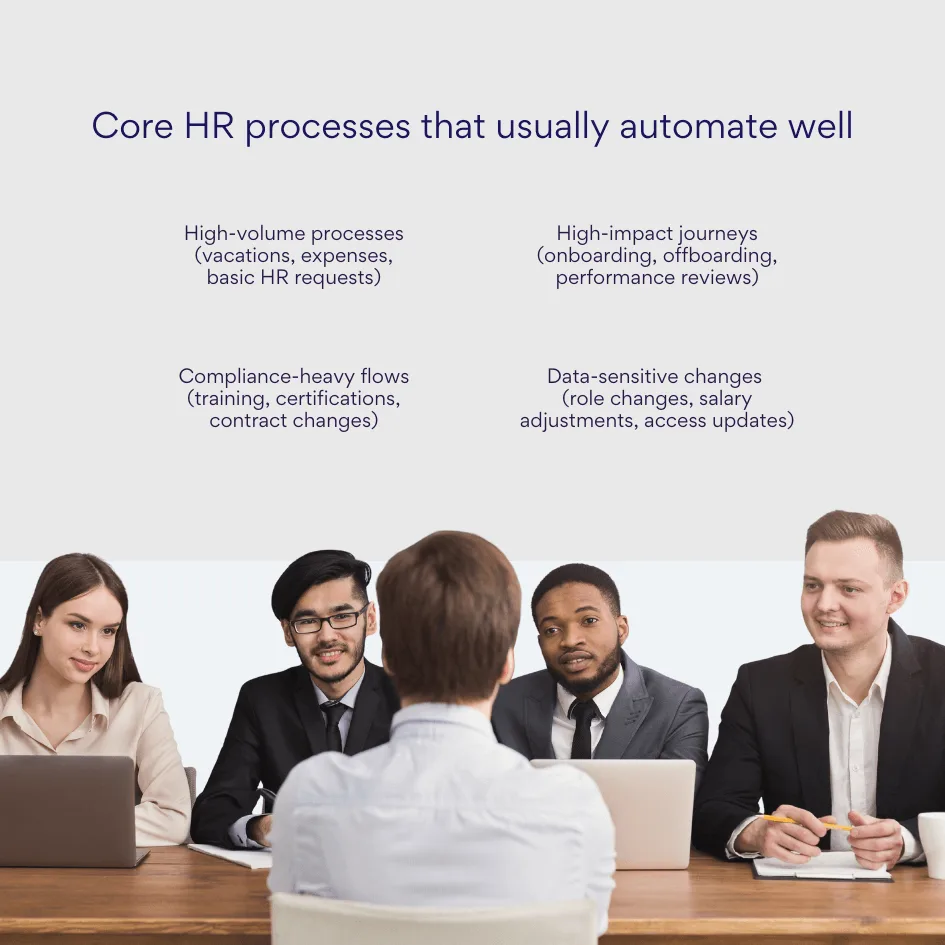
Which HR Processes Can Be Automated
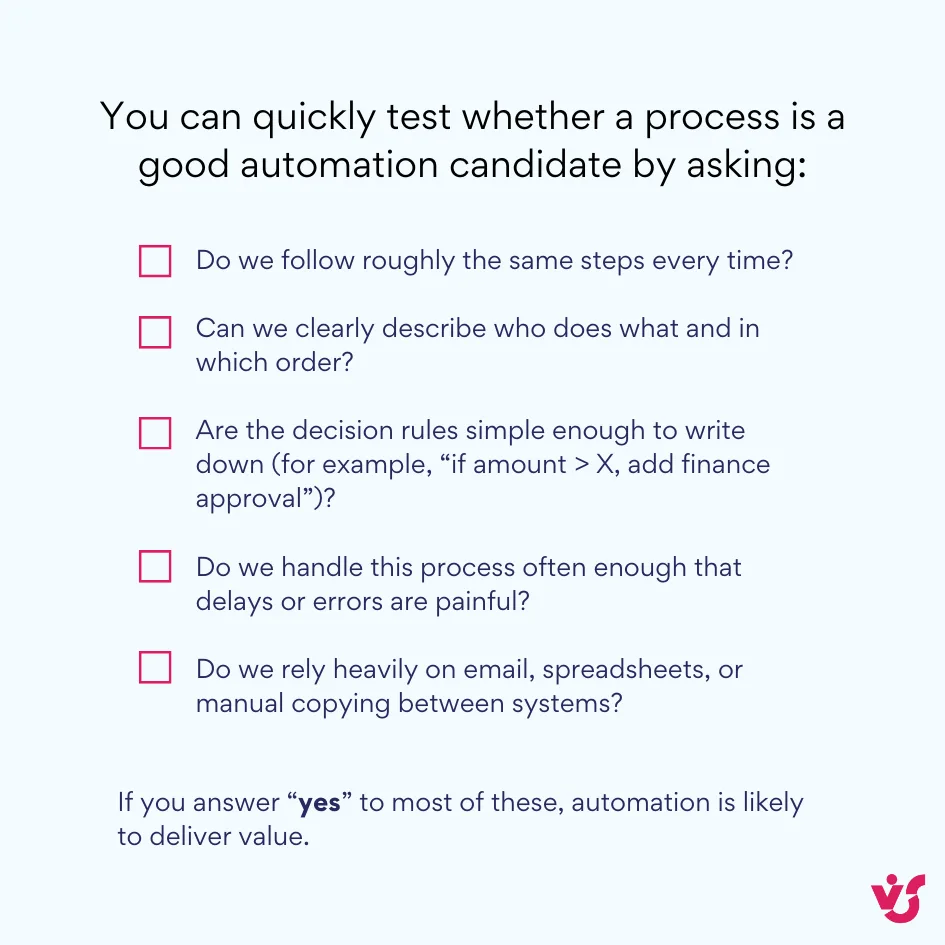
Almost any standardised HR process can be automated, as long as two things are true:
- The steps are clear and repeatable.
- You can describe them with simple rules: who does what, in what order, and with which conditions.
If a process depends entirely on individual judgment, intuition, or one-off negotiations, software can support it but not fully automate it. Everything else—where the steps don’t really change from case to case—is a strong candidate.
Below are the main HR processes that are routinely automated in modern organisations.
Hiring: from application to offer
Hiring is one of the most structured HR areas, which makes it highly automatable:
- Posting jobs to multiple channels and updating them when roles are filled.
- Collecting applications in a central system rather than across email inboxes.
- Automatically acknowledging receipt of applications.
- Routing candidates through stages: screening, interviews, assessments, decision.
- Triggering background checks, reference checks, and offer approvals.
- Handing successful candidates over to onboarding workflows.
You still need humans to assess fit and make the final hiring decision, but much of the coordination around it can run automatically.
Onboarding and offboarding
Onboarding and offboarding are critical, repeatable, and heavily dependent on checklists:
- For onboarding, automation can orchestrate contract signing, account creation, equipment allocation, training schedules, and early check-ins.
- For offboarding, workflows can ensure access is revoked, equipment is collected, data is archived correctly, and exit documentation is complete.
Because these processes involve HR, IT, managers, and sometimes finance, automation reduces the risk of missed steps and security gaps.
Vacations, business trips, and expenses
Time off and travel are frequent, rule-based processes:
- Vacations and leave: requesting time off, checking balances, manager approvals, calendar updates, and notifications to the team.
- Business trips: travel request, budget and policy checks, approvals, bookings, and itinerary sharing.
- Expenses: submitting receipts, validating policy compliance, manager approval, and sending data to finance.
These processes use clear rules (limits, approvers, required fields), which makes them ideal for automation with self-service forms and structured workflows.
Performance assessments and development plans
Performance reviews follow a predictable cycle:
- Launching the review cycle.
- Collecting self-assessments and manager feedback.
- Gathering optional peer feedback.
- Approvals, calibration, and documentation of final ratings.
- Creating or updating individual development plans.
Automation helps manage deadlines, route forms, send reminders, and record outcomes, while managers and employees focus on the actual conversations and decisions.
Training and certifications
Learning and compliance training are highly repetitive:
- Assigning mandatory courses or certifications based on role, location, or department.
- Reminding employees to complete training before deadlines.
- Recording completion, results, and renewal dates.
- Notifying managers and HR if required training is overdue.
This is especially important in regulated industries where proof of training is required for audits.
Changes in working conditions
Employee changes can be structured as workflows:
- Promotions, grade changes, or job title updates.
- Transfers to other departments, teams, or regions.
- Salary indexations and benefit changes.
Automation ensures that:
- The right approvals are collected (manager, HR, finance).
- HRIS, payroll, and access rights are updated consistently.
- Documentation and communication are handled in a standard way.
HR requests
Everyday HR queries and requests are also automatable, at least in the way they’re captured and tracked:
- Requests for employment certificates or salary confirmations.
- Changes to personal data (address, bank details, family status).
- Questions about policies or benefits, which can be captured, routed, and answered through a single channel.
Rather than managing these requests via scattered email threads, automation uses forms, queues, and SLAs so nothing is lost or forgotten.
Work schedules, shifts, and overtime approval
In companies with shift work or irregular schedules, HR and line managers can automate:
- Creation and publication of schedules.
- Swap and change requests between employees, with automated approval rules.
- Overtime requests, checks against policy, and approvals.
- Sending final schedules to employees through email, apps, or portals.
This reduces manual rework when someone is sick, needs to swap shifts, or requests additional hours at short notice.
| HR process area | Typical automation focus | Primary systems involved |
| Hiring (application → offer) | Candidate flow, interview scheduling, approvals, handover | ATS/HRIS, email, calendars, SharePoint |
| Onboarding & offboarding | Checklists, tasks, access, documents, reminders | HRIS, IT service tools, SharePoint, email |
| Vacations, trips, expenses | Requests, approvals, balances, policy checks, reimbursements | HR portal, calendars, finance/ERP, SharePoint |
| Performance & development | Cycle launch, forms, reminders, approvals, documentation | HRIS, performance platform, email, SharePoint |
| Training & certifications | Assignments, reminders, completion tracking, escalation | LMS, HRIS, email, Teams/SharePoint |
| Changes in working conditions | Approvals, record updates, access changes, communication | HRIS, payroll, directory, SharePoint |
| Everyday HR requests & certificates | Intake, routing, SLA tracking, templated outputs | HR portal, ticketing system, SharePoint |
| Work schedules & overtime | Schedule creation, change requests, approvals, notifications | Scheduling tools, HRIS, email/apps |
👉 What are some of the best HR workflow software? Some widely used human resources workflow automations include platforms like Workday, BambooHR, Personio, HiBob, UKG, and Zoho People, as well as workflow-focused solutions like Microsoft Power Automate with SharePoint, ServiceNow HR Service Delivery, and specialist add-ons such as VirtoSoftware for Microsoft 365. The “best” option depends on your size, existing systems, budget, and whether you want an all-in-one HR suite or workflow tools that extend what you already use.
What are examples of HR workflow automation?
To make this concrete, here are a few “before and after” scenarios that show what automation looks like and what it changes for both the company and its employees.
Example 1: New hire onboarding
Onboarding is one of the most sensitive HR processes because it shapes a new hire’s first impression of the company. Do they arrive to a ready laptop, clear schedule, and warm welcome—or to missing access, ad hoc meetings, and confusion about who to ask for what? The steps are almost always the same, but when they’re handled manually, small delays and miscommunications accumulate and turn into a frustrating first week. That’s exactly where automation can make a visible difference.
Before automation (manual):
- The hiring manager emails HR: “We’ve hired Alex, starting in three weeks.”
- HR writes a checklist in a spreadsheet and sends separate emails to IT, facilities, and payroll.
- IT misses the email or receives incomplete information, so accounts are created late or with wrong permissions.
- Equipment is requested manually; sometimes the laptop arrives after the first week.
- The manager forgets to schedule introductions or early check-ins in the rush of daily work.
- The new hire spends the first days waiting for access and asking what to do next.
After automation (automated onboarding workflow):
- When the candidate is marked as “hired” in the HR system, an onboarding workflow starts automatically.
- A structured form captures all required data (role, location, manager, start date, equipment needs).
- Tasks are created for IT, facilities, and HR with clear due dates and instructions.
- Standard documents (contracts, confidentiality agreements) are generated from templates and sent for e-signature.
- Calendar invites for orientation, introductions, and a first-week schedule are created automatically.
- The system reminds the manager to complete 30/60/90 day check-ins and logs completion.
Benefit for the company:
- Fewer delays and mistakes; new hires can be productive earlier.
- Clear responsibility and status tracking across departments.
- Reduced security risk because access is set up with the right permissions and audited.
Benefit for employees:
- A smoother, more welcoming first week with less confusion.
- Clear visibility of what will happen and when.
- Positive first impression of the company’s organisation and professionalism.
Example 2: Vacation and time-off requests
Time off is one of the most frequent interactions employees have with HR and their managers. The rules are usually straightforward, but the volume is high, and every delay or mistake feels personal to the person waiting for an answer. When requests are scattered across email and chat, balances are tracked in spreadsheets, and calendars aren’t updated consistently, it’s easy for things to slip. Automating this flow turns a messy, manual routine into a simple self-service experience.
Before automation (manual):
- Employees send informal emails or chat messages to managers: “Can I take next Friday off?”
- Managers try to remember or manually calculate remaining leave.
- Overlaps and conflicts are discovered late because there is no central calendar.
- HR receives separate emails to adjust balances and update systems.
- Employees often ask HR for status updates because they are unsure whether the request is approved.
After automation (self-service leave workflow):
- Employees submit leave requests via a self-service form or HR portal.
- The system automatically checks balances and flags if the request exceeds available days.
- Requests are routed to the manager; if not approved within a set time, the system sends reminders or escalates.
- Once approved, the system updates balances and creates an event in the team calendar.
- HR sees a single dashboard of upcoming absences and doesn’t have to manage each case manually.
- Employees can log in and see the status of their requests at any time.
Benefit for the company:
- Less time spent on manual calculations and corrections.
- Better visibility of team availability for planning and staffing.
- Fewer disputes about remaining days or “lost” approvals.
Benefit for employees:
- Clear, simple way to request time off and see what has been approved.
- Faster decisions, with fewer back-and-forth emails.
- Greater sense of fairness and transparency around leave.
Example 3: Performance review cycle
Performance reviews touch almost everyone in the organisation at once, which is why even small inefficiencies scale into a lot of extra work. Without structure, each manager invents their own approach, deadlines are missed, and HR ends up chasing forms instead of supporting meaningful conversations. The underlying pattern—a recurring cycle with clearly defined steps—makes this process an ideal candidate for automation that keeps things moving while preserving the human side of feedback.
Before automation (manual):
- HR sends a mass email: “Please start performance reviews this month.”
- Managers create their own forms or use outdated templates saved from previous years.
- Some employees complete self-assessments; others forget.
- HR spends weeks sending reminders and collecting documents by email.
- Final ratings are stored in a mix of spreadsheets and files on different drives.
- Aggregating results for reporting is slow and error-prone.
After automation (structured review workflow):
- HR defines the review cycle in the system with dates, stages, and templates.
- The system launches the cycle and sends automatic invitations to employees and managers.
- Employees fill in self-assessments in a standard form; managers receive tasks when self-assessments are completed.
- Peer feedback requests can be triggered directly from within the workflow if needed.
- Reminders go out automatically before deadlines.
- Once completed, results are stored centrally and can be exported or analysed without manual copying.
Benefit for the company:
- Consistent process and documentation across all teams and locations.
- Easier reporting and comparison across departments.
- Clear evidence of fair and systematic performance management for compliance or internal review.
Benefit for employees:
- A clearer, more predictable process with standard forms and deadlines.
- Less chance of being forgotten in the review cycle.
- Opportunities for more structured feedback and development planning.
Example 4: Offboarding and access revocation
Offboarding doesn’t happen as often as hiring or vacation requests, but when it goes wrong, the impact is serious: security gaps, missing equipment, and unresolved questions about final pay or documentation. The process spans HR, IT, managers, and finance, and every step has to happen at the right time. Because the workflow is predictable—once a departure date is known, the same tasks repeat—automation can enforce that sequence reliably and reduce the risk of something important being forgotten.
Before automation (manual):
- HR is informed by email that an employee is leaving.
- Someone sends a message to IT asking to disable accounts and collect equipment.
- The manager tries to arrange handover informally.
- In the rush, some systems are not updated; the employee might retain access to email or shared folders for days or weeks.
- Equipment lists are incomplete, so not all assets are collected.
After automation (offboarding workflow):
- When HR records the termination date in the HR system, an offboarding workflow starts.
- Tasks are generated automatically for HR, IT, facilities, payroll, and the manager.
- IT receives a detailed list of accounts to disable and systems to update, with deadlines tied to the exit date.
- The system tracks equipment assigned to the employee and generates a return checklist.
- Payroll is prompted to process final payments and unused leave according to policy.
- HR schedules an exit interview and documents the outcome.
Benefit for the company:
- Lower security risk because access is removed on time and in a consistent way.
- Better control over company assets and reduced loss of equipment.
- Clear record of actions taken in case of disputes or audits.
Benefit for employees:
- A more orderly and respectful exit process.
- Fewer surprises around final pay and documentation.
- A sense that the company treats departures as carefully as arrivals.
These examples show a common pattern: you take a repeatable HR process, define the steps and rules clearly, and let software manage the flow. People still make the important decisions, but they no longer have to carry the process on their shoulders, one email at a time.
How to Implement Human Resource Workflow Automation: A Step-by-Step Approach
For most companies, the hardest part of HR automation is not the technology. It’s deciding where to start, getting people aligned, and turning messy real-life processes into something a system can actually follow.
Here’s a practical, step-by-step plan you can use, whether you’re on Microsoft 365 with SharePoint and Teams or a mix of HRIS/ATS tools.
Step 1: Process audit and selection
Don’t try to automate everything at once. Start by picking one simple, high-volume process that:
- happens often (so improvements are noticeable), and
- is stable enough that steps don’t change every week.
A classic starting point is vacation/time-off approval. It’s relatively simple, well understood, and touches most employees.
For the chosen process, document it in detail:
- Stages: Write down each step from start to finish: “Employee submits request → Manager reviews → Manager approves/rejects → HR updates balance → Calendar is updated → Employee notified”.
- Participants: List who is involved at each step: employee, manager, HR, finance, IT, etc.
- Inputs and outputs: What information comes in at each step (form fields, documents), and what should happen (update, approval, notification).
- Exceptions: Note special cases: urgent requests, overlapping vacations, negative leave balances, different approval paths for senior roles.
At this stage, your goal is not to design the perfect process. You just need a clear picture of how it really works today.
Step 2: Goal setting
Next, define what “better” looks like in measurable terms. Without clear goals, it’s hard to tell whether the new workflow is actually an improvement.
Examples of concrete goals:
- Speed
- Reduce average vacation approval time from 3 days to 1 day.
- Cut onboarding preparation time from 5 working days to 2.
- Quality / error rate
- Reduce the rate of applications returned due to errors from 20% to 5%.
- Ensure 100% of offboarding cases include access closure and equipment collection.
- Experience
- Increase employee satisfaction with the process (measured via a short survey or CES score) by X points.
- Reduce the number of “Where is my request?” emails by Y%.
Attach a timeframe to each goal (for example, “within three months of launch”). These metrics will guide design decisions and help you judge success later.
Step 3: Tool selection
With your first process and goals defined, you can look at tools with a much clearer brief.
Key criteria for HR automation tools today:
- User-friendly for non-technical staff: HR specialists and managers should be able to read and adjust workflows without needing a developer every time. Look for visual, no-code/low-code designers, understandable rules, and good documentation.
- Flexible and customisable: The tool should let you adapt forms, steps, and rules as your policies change. Avoid solutions that lock you into rigid, hard-coded workflows that are expensive to modify.
- Integration with existing systems: The tool should connect to:
- your HRIS/HCM and ATS,
- collaboration tools like Microsoft 365, SharePoint, and Teams,
- finance/payroll where relevant.
- Security and permissions: Make sure the solution respects role-based access, data protection requirements, and your internal security policies. HR processes often involve sensitive personal data, so this is non-negotiable.
- Scalability: As you add more processes and users, the tool should cope without becoming slow or unmanageable.
You don’t need to solve every future use case on day one, but you do want a platform that can cover more than one narrow workflow.
Step 4: Development and testing
Now you translate your documented process into an actual automated workflow.
- Describe the “as is” flow: First, mirror your real-world process in the tool as closely as possible. Don’t jump straight to an idealised version. Capture the real routes, fields, and decisions.
- Create the workflow: In your automation tool, set up:
- a form (what employees or managers fill in),
- the sequence of steps (who gets what, in what order),
- conditions (for example, “if leave balance < 0, route to HR”),
- notifications and reminders at each stage.
- Test with a small group: Before rolling out company-wide:
- Choose a test group (for example, HR team plus one or two friendly departments).
- Run real cases through the workflow.
- Watch where people get confused, stuck, or try to bypass the system.
- Fix and refine: Adjust wording, steps, and rules based on feedback. It’s normal to iterate several times before things feel smooth.
This test phase is where you catch most usability issues cheaply, before the entire company meets the new process on day one.
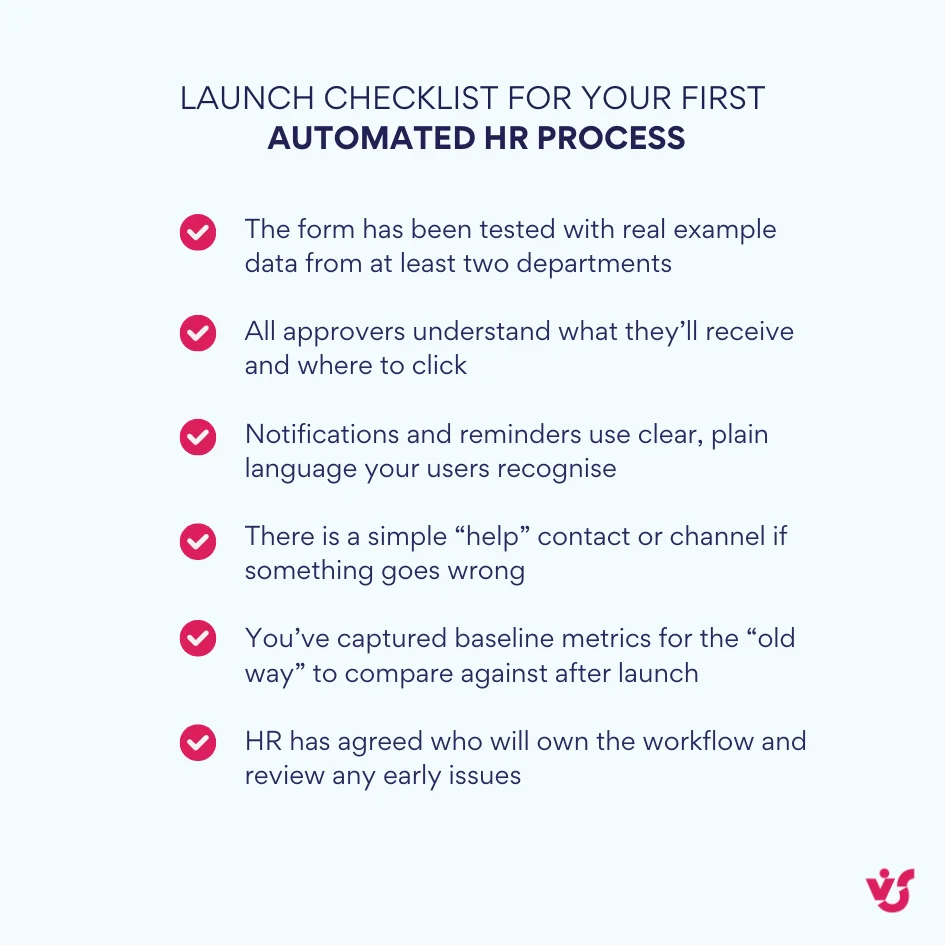
Step 5: Training and launch
Even the best workflow will fail if people don’t understand it or trust it.
Plan your launch like a small internal project:
- Explain the “why”: Make it clear that automation is there to reduce manual work and delays, not to micromanage or replace people.
- Show how it works in practice: Use short demos, screenshots, or a 10-minute live session to show:
- how to submit a request,
- where to see status,
- who to contact for help.
- Share quick guides: Provide a one-page “how to” and a short FAQ:
- how to submit,
- what to expect,
- what to do if something seems wrong.
- Support in the first weeks: Expect questions and edge cases. Be ready to respond quickly and adjust minor details so trust builds instead of eroding.
Once the first process runs smoothly, you can expand to other workflows using the same approach.
Practical tips for successful HR automation
Beyond the basic steps, a few practical guidelines will make implementation smoother and more effective.
Start simple
Resist the urge to build a giant “all-in-one” HR automation program on day one. Instead:
- Pick 1–2 processes (for example, vacations and onboarding).
- Automate those thoroughly.
- Prove the benefits with real numbers and feedback.
- Use what you learn to guide the next round.
This reduces risk and makes it easier to build internal support.
Describe “as is”, not “as desired”
When you map the process, focus on how it really works today:
- who actually approves
- what people really do when something is missing
- where they store information now.
Only after that should you simplify. If you start from an idealised picture, you’ll miss all the real-world shortcuts, exceptions, and pain points that the new workflow needs to handle.
Remove unnecessary details
Automation forces you to ask: does this step or field change any decision?
If the answer is “no”:
- remove that field from the form, or
- remove or merge that step.
For example, if no one ever uses a specific free-text comment in vacation forms to make decisions, you can probably drop it. Every unnecessary field slows people down and increases the chance of errors.
Create a single entry point
One of the biggest gains comes from having one place to submit and track a request:
- One vacation request form (not email, chat, and spreadsheets).
- One status page or channel where people can see progress.
A single entry point dramatically reduces:
- lost applications,
- duplicated requests,
- repetitive “Where is my vacation?” questions.
Employees quickly learn “if I do it through this form, I can see exactly where it is”.
Add “deadline insurance”
Processes stall when someone forgets to act. Build in:
- reminders (for example, 24 hours before a due date), and
- gentle escalations (for example, “if there’s no response within 48 hours, notify your manager or HR”).
This keeps the workflow moving without HR manually chasing every case.
Measure “before” and “after”
Treat automation like an experiment:
- Before launch, track a month of “old way” data:
- average time to approve,
- error rate (forms sent back for corrections),
- percentage of requests completed “on the first try”,
- satisfaction scores (for example, a short CES or eNPS question about the process).
- After launch, collect the same metrics for at least one month.
Compare the two. Use this data to:
- demonstrate value to leadership,
- prioritise the next processes to automate,
- identify where the new workflow still needs adjustment.
Prepare short communication templates
To avoid confusion, prepare a small set of reusable messages:
- launch announcement
- “how to submit a request”
- “what to do if you spot an error or need to change something”
- “who to contact for support”.
Clear, consistent wording reduces misinterpretations and ensures different managers give the same instructions.
Give users shortcuts
The more the system can do for people, the more they’ll actually use it:
- Auto-populate fields from user profiles (name, department, manager, location).
- Use sensible default values where possible (for example, today’s date, current manager).
- Add inline hints directly inside the form so people don’t have to open a separate manual.
These small touches make the process feel faster and less bureaucratic.
Assign a process owner
Every automated workflow should have a named owner in HR (sometimes jointly with another function):
- monitors performance and exceptions
- decides on rule changes
- ensures data quality
- coordinates with IT or vendors when changes are needed.
Without an owner, workflows quickly become “nobody’s job”, and small problems accumulate.
Plan cyclical improvements
Automation is not a one-time project. After launch:
- Review reports quarterly.
- Collect feedback from HR, managers, and employees:
- What works well?
- Where do people get stuck?
- Which steps still feel unnecessary?
Then make targeted adjustments:
- simplify forms,
- change routing rules,
- tweak reminders,
- or split one large workflow into two smaller ones.
Over time, this cycle of measurement and adjustment will give you a library of HR workflows that are genuinely helpful, not just digitised versions of old paperwork.
HR Process Automation Tools: Solutions from Virtosoftware
There are plenty of HR and workflow tools on the market: native Microsoft options like Power Automate, niche HRIS platforms with built-in workflows, and third-party automation engines. For organisations that already live in Microsoft 365 and SharePoint, it often makes sense to stay inside that ecosystem and add tools that extend what Microsoft provides rather than replacing it outright.
VirtoSoftware sits exactly in that space. Their workflow products are designed specifically for Microsoft 365 and SharePoint and are used by thousands of organisations globally.
In HR terms, you can think of VirtoSoftware’s workflow tools as “power-ups” for the processes you already run on SharePoint and Microsoft 365—especially useful if you need more than what out-of-the-box features or Power Automate alone can deliver.
VirtoSoftware offers two main workflow automation products, aimed at different environments:
- Virto Workflow Automation App for SharePoint Online & Microsoft 365 (cloud)
- Virto Workflow Automation Web Part for SharePoint on-premises (server)
Let’s look at each and how they can support HR automation.
| Product | Environment | Workflow engine extended | Best for… | Typical HR use cases |
| Virto Workflow Automation App for SharePoint Online & Microsoft 365 | Cloud (Microsoft 365, SharePoint Online) | SharePoint Designer / classic SharePoint workflows in M365 | Organisations already using SharePoint Online who want richer no-code actions | Cloud-based onboarding, leave approvals, HR checklists, training reminders |
| Virto Workflow Automation Web Part for SharePoint on-premises | On-premises SharePoint Server 2016/2019/SE | SharePoint Designer workflows | Organisations keeping SharePoint on-prem for compliance or control | On/offboarding, HR data maintenance, scheduled HR checks, permissions updates |
Virto Workflow Automation App for SharePoint Online & Microsoft 365
This app is built for cloud environments—specifically SharePoint Online in Microsoft 365. It extends the classic SharePoint workflow platform with 80+ ready-to-use actions, giving you far more building blocks to automate HR and business processes without code.
In today’s Microsoft 365 world, Power Automate is Microsoft’s primary recommendation for new cloud workflows, but many organisations still have classic SharePoint workflows in place or want deeper SharePoint-specific actions than Power Automate offers. VirtoSoftware’s app fits into that reality by enhancing those SharePoint workflows rather than replacing your stack.
Key aspects for HR teams:
- No-code workflows using an extended visual designer
VirtoSoftware doesn’t replace the SharePoint Designer canvas; instead, it extends it:
- You continue to design workflows visually in SharePoint Designer, but now have access to 80+ additional actions that cover administration, Azure AD, list operations, notifications, and more.
- HR and IT teams can chain these actions together—“create list item”, “set field value”, “send email”, “start another workflow”—to build onboarding flows, approval chains, and reminders without writing C# or PowerShell.
For an HR automation project, this means you can model processes like onboarding, leave approvals, or policy acknowledgements in a visual, step-by-step way, while VirtoSoftware handles the heavy lifting behind each action.
- Deep integration inside the Microsoft 365 environment
The Workflow Automation App runs inside SharePoint Online, so it naturally works with:
- SharePoint lists and libraries: storing HR requests, documents, and logs.
- Outlook/email: workflows can send notifications and reminders via standard SharePoint email actions, enriched by Virto’s extended capabilities.
On its own, the workflow app focuses on SharePoint-centric automation. When you combine it with other Virto cloud apps, you get a broader HR automation stack:
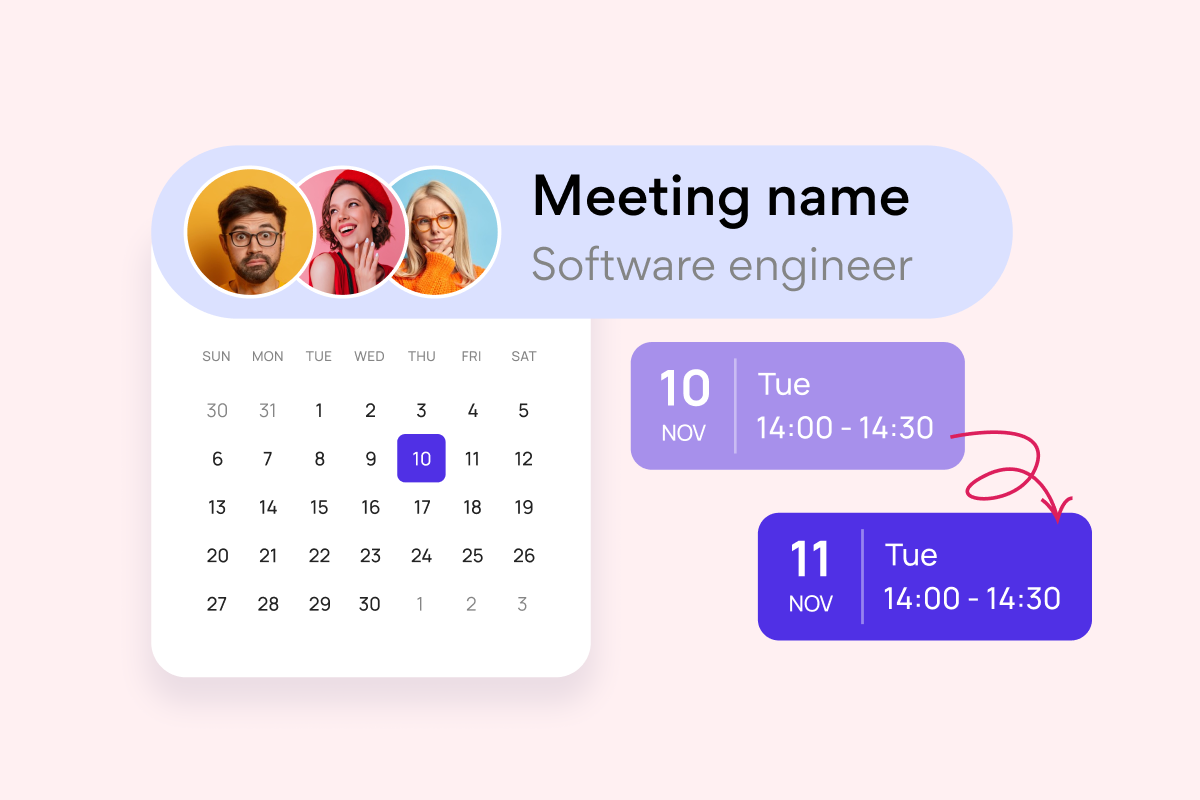
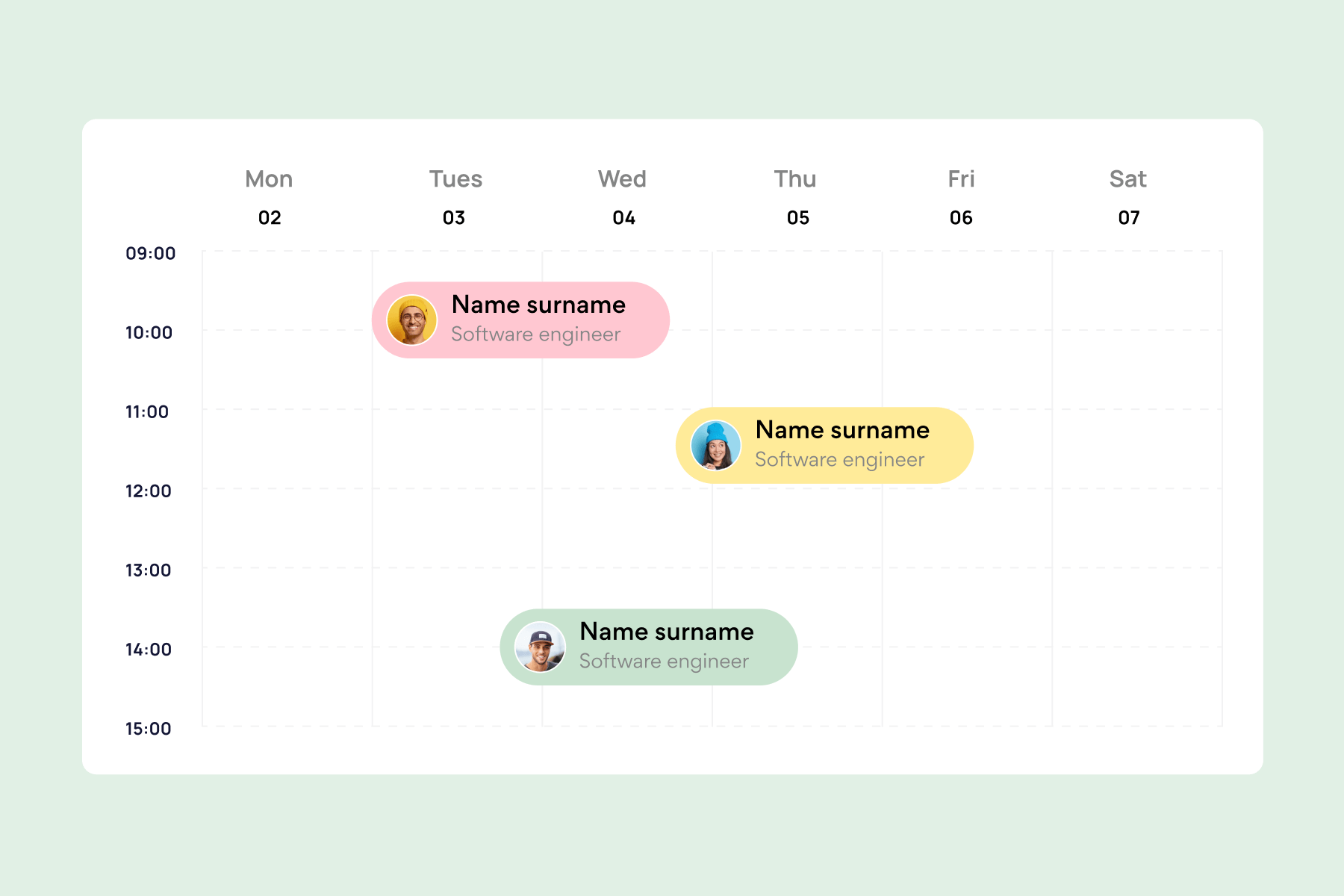
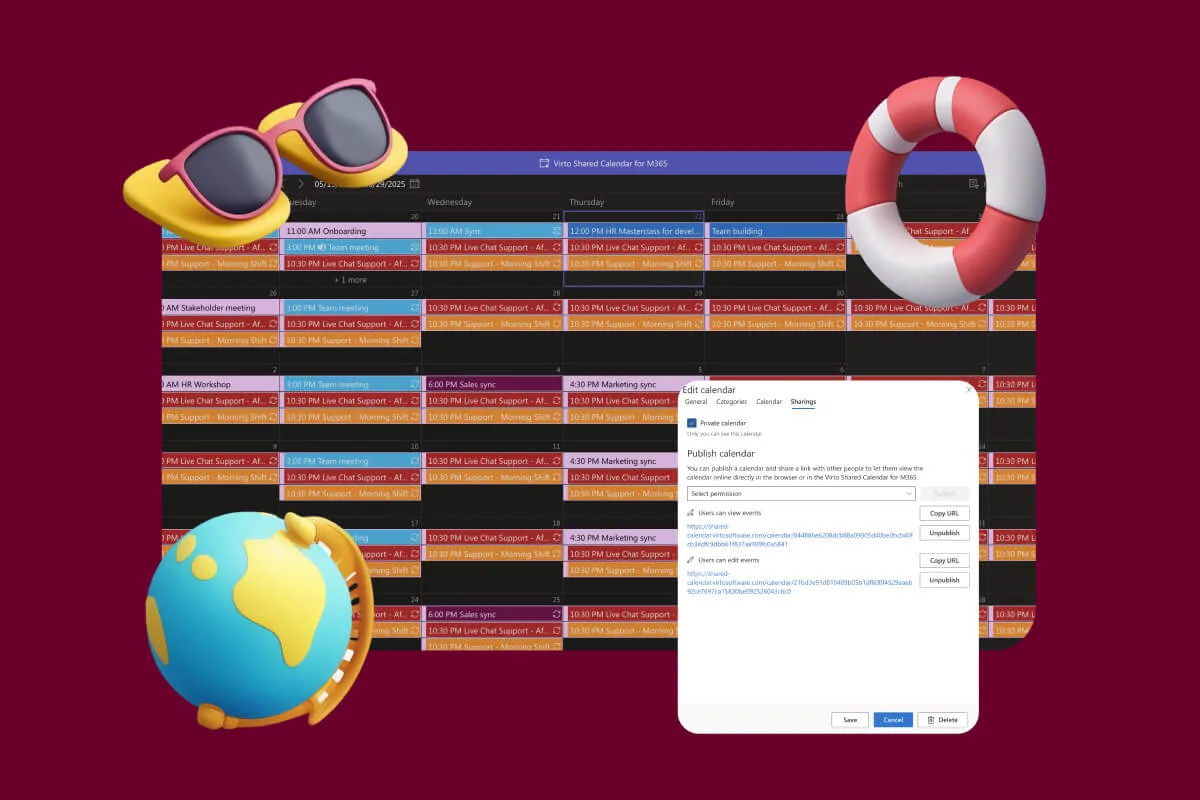
- Virto Calendar to surface HR timelines (onboarding dates, probation end, leave calendars) and even approve/reject vacation requests from calendar views.
- Virto Alerts & Reminders to push alerts into Microsoft Teams as well as email—useful for training reminders, expiring contracts, or probation check-ins.
So while the Workflow Automation App itself focuses on SharePoint workflows, together with these apps it effectively ties your HR processes into Outlook, Teams, and SharePoint in a way employees actually notice.
- Ready-made actions and patterns for HR scenarios
Instead of starting from a blank slate, you get a library of pre-built actions that cover common building blocks, such as:
- Creating and updating items in HR lists (applications, requests, checklists).
- Working with user data in Azure Active Directory (for example, fetching user details for notifications or routing).
- Sending configurable email notifications at key steps.
- Starting or cancelling other workflows for related tasks.
VirtoSoftware’s documentation and blog also walk through concrete HR-related scenarios—onboarding automation, approval chains, overdue notifications, and vacation approvals—so teams can adapt those patterns instead of designing everything from scratch.
In practice, many customers treat the first successful workflow (say, a leave approval or simple onboarding checklist) as an internal template: they clone it, tweak the actions, and gradually build a portfolio of HR workflows tailored to their organisation.
- Easy deployment in Microsoft 365
From an IT perspective, deployment is straightforward:
- You download the Virto Workflow Automation App from the product page.
- The tenant admin adds it to the SharePoint App Catalog under “Apps for SharePoint”.
- Site owners can then add the app to HR-related sites and start using the new actions in SharePoint Designer.
There’s no separate server or infrastructure to manage, which suits organisations that have already standardised on Microsoft 365 and want to avoid extra moving parts.
Typical HR use cases with the cloud app:
- Onboarding: workflows that create checklists and tasks in SharePoint lists, send orientation emails, and notify IT and managers.
- Vacation and PTO: flows that validate balances in a list, route approvals to managers, and update a shared vacation calendar.
- Training and compliance: workflows triggered when training is assigned or due, sending reminders and updating completion logs.
Virto Workflow Automation for SharePoint on-premises
For organisations that still run SharePoint Server on their own infrastructure (for example, for regulatory or security reasons), Virto offers Virto Workflow Automation Web Part. This is the evolution of the older Workflow Activities Kit and is explicitly packaged as:
Virto Workflow Automation—combining Virto SharePoint Workflow Activities, Virto Workflow Status Monitor, and Virto Workflow Scheduler—downloaded as a single package.
In other words, you get three capabilities in one:
- Hundreds of extra activities for SharePoint Designer workflows.
- A Status Monitor web part to track workflows across sites.
- A Scheduler to run workflows automatically on a schedule.
This solution is designed for:
- SharePoint Server 2016, 2019, and Subscription Edition (SE) environments, where classic workflows and SharePoint Designer are still supported and widely used.
Extensions to SharePoint Designer workflows
On-premises, the core of Virto Workflow Automation is a large library (270+ actions) of no-code activities that extend what SharePoint Designer can do out of the box.
These actions cover areas such as:
- Tasks and lists: creating, updating, approving items; looping through items; bulk operations.
- Documents and libraries: copying, moving, renaming, publishing documents and folders.
- Permissions and security: changing item permissions, managing SharePoint groups, handling access automatically as people join or leave teams.
- User and directory data: interacting with user profiles and even Azure Active Directory attributes where applicable.
- Notifications: advanced email alerts; when combined with Virto’s Notifications & Alerts Web Part, SMS or other channels are also possible.
You still design workflows visually in SharePoint Designer, but with a much richer toolbox. There’s no direct “extension to Power Automate” here; instead, Virto complements an on-prem or hybrid environment where you may use Power Automate for cloud-connected flows and Virto+SharePoint Designer for deep, server-side automation.
Check Out VirtoSoftware Apps

Workflow Automation
Enhance SharePoint with 270+ no-code workflow activities for easy, customized automation.

Virto Calendar
Consolidate events from SharePoint, Exchange, Google, and more into one calendar view for simplified planning.

Virto Workflow Automation App
Enhance SharePoint Online with 80+ no-code workflows for streamlined processes.
Built for complex, multi-step scenarios
Because the activities go beyond standard SharePoint actions, Virto Workflow Automation is particularly useful when HR and IT want to implement more complex logic, for example:
- Multi-site onboarding where tasks and permissions need to be created across several site collections.
- Automated group and permission updates when an employee changes department or role.
- Scheduled HR checks (for example, run a workflow nightly to find contracts near expiry and notify HR).
Without these extended actions, you would often need custom code or external scripts. With Virto, many of those scenarios can be handled as no-code workflows.
Examples of HR-related actions
Mapped to HR processes, typical use of on-prem Virto Workflow Automation includes:
- Onboarding and offboarding
- Create or update user-related items in HR lists.
- Add or remove users from SharePoint groups tied to roles or departments.
- Move or archive documents when someone leaves.
- Training and compliance
- Loop through “Training due” lists to find overdue items and send reminders.
- Schedule workflows that run weekly to enforce rules (for example, check who hasn’t completed mandatory training).
- Performance and HR data maintenance
- Update permissions or visibility when someone changes grade or manager.
- Trigger status change workflows when performance cycles start or end.
Because Virto includes the Status Monitor and Scheduler, HR and IT can see how workflows are behaving and can schedule big jobs (like periodic HR data clean-ups) during off-hours.
HR use cases across VirtoSoftware tools
Across both cloud and on-premises environments, Virto’s workflow tools are used in a consistent set of HR scenarios:
- Hiring and onboarding
- Automatically create onboarding checklists in SharePoint when a candidate is marked “hired” in an HR list.
- Notify managers, IT, and facilities, and track completion through workflow status monitoring.
- Vacation and leave management
- Validate requests against balances stored in SharePoint lists.
- Route approvals to managers and update a team or company vacation calendar.
- Use Virto Calendar and Alerts to visualise absences and send reminders.
- Training and certifications
- Changes in working conditions
- When a person’s role or department changes in an HR list, workflows update permissions, group memberships, and HR records automatically.
- Offboarding and compliance
- Trigger multi-step workflows on termination: revoke permissions in SharePoint, generate checklists for equipment return, and log each action for audit purposes.
Check Out VirtoSoftware Use Cases
Summary: flexible automation for any Microsoft platform
Whether you’re running Microsoft 365/SharePoint Online or SharePoint Server on-premises, Virto’s workflow tools give HR and IT a way to:
- build no-code workflows around the systems they already use
- cover the full HR lifecycle—hiring, onboarding, changes, training, leave, and offboarding
- and go beyond what standard SharePoint workflows or Power Automate alone can easily provide in complex, SharePoint-heavy environments.
For HR teams, the practical takeaway is simple: if your processes already run on Microsoft 365 or SharePoint, Virto Workflow Automation (cloud or on-prem) lets you automate those processes in a way that respects your existing security model, data structures, and collaboration tools—while still giving you the flexibility to grow and refine your workflows over time.
Conclusion on HR Automation Process
HR automation is now an accessible, practical way to improve how HR teams work every day. You don’t need to rebuild your tech stack or hire developers to get started. By structuring repeatable processes and handing routine steps to software, HR can support the business with more speed and accuracy while spending more time on strategic work.
The core benefits are straightforward and tangible:
- Faster processes—requests move through clear steps with built-in reminders instead of getting stuck in inboxes.
- Greater transparency—everyone can see where a request stands and who needs to act next.
- Fewer errors—standardised forms, rules, and templates reduce rework and inconsistencies.
A sensible starting point is to choose one or two processes (for example, vacations or basic onboarding), analyse how they work today, and then automate them end-to-end. Once that foundation is in place, you can expand to more complex workflows with much less effort.
If your organisation already uses Microsoft 365 and SharePoint, specialised solutions like VirtoSoftware’s workflow tools are a natural fit. They integrate directly into the environment your teams know, extend SharePoint’s capabilities, and let HR and IT build robust workflows without extensive technical knowledge.
You can schedule a demo of the applications discussed or install them directly from the VirtoSoftware site to see how they handle your real HR scenarios.
For deeper dives into workflow and HR automation, explore these resources on our blog and site: