Introduction
Ever missed an important update because your inbox was overflowing? Or found out about a project delay only after it was too late to fix it? In a world packed with chats, and platform alerts, it’s easy to drown in information noise. That’s exactly where automated notifications come to the rescue. These smart messages make sure the right people get the right information exactly when they need it—no manual effort required.
Relying on manual updates or reminder emails is a recipe for inefficiency. It takes time, invites human error, and slows down decision-making. An automated notification system changes that by monitoring events and sending instant auto alerts whenever certain conditions are met—say, a document update, workflow approval, system incident, or new customer request.
In this article, we’ll unpack how automated notifications actually work, explore the main types of auto notifications and alerts, and highlight where they make the biggest difference—from employee workflows to customer engagement. You’ll also find a practical guide on how to set up an automated alert system in a corporate environment and learn how these tools integrate smoothly into SharePoint and Microsoft 365.
What Is an Automated Notification and How Does It Work?
So, what exactly is an automated notification? In simple words, it’s a message generated and sent by software when certain conditions are met—without any human intervention. Instead of someone manually reminding you about a deadline or sending a project update, an automated notification system does it for you.
You already encounter these alerts every day, even if you don’t think about them. Your bank sends a reminder when a payment is due. An online store notifies you that your order has shipped. A project management tool pings you when a task is completed or a deadline is approaching. All these are examples of how auto notifications keep communication flowing smoothly.
Behind the scenes, the logic is simple but powerful:
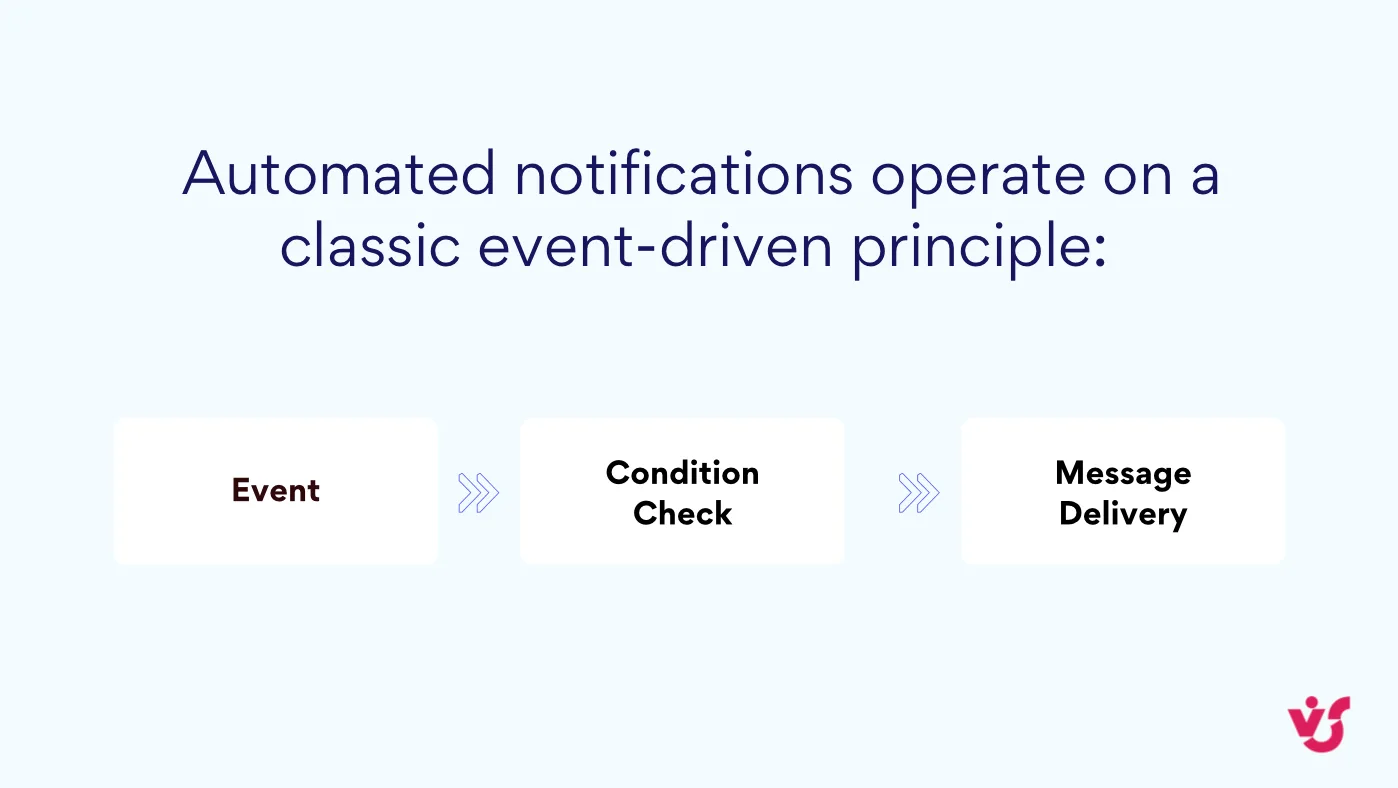
The system monitors data or user actions, detects specific triggers—like “document approved,” “new comment added,” or “file updated”—and then automatically sends an alert or message through the chosen channel: email, chat, or mobile push.
For example:
- When an HR system detects that an employee’s contract renewal is coming up, it sends an automated notification to both HR and the manager.
- When a SharePoint document is updated, team members instantly receive an automated message via Teams or email.
- When a customer completes an online support form, an automatic notification lets the support team know that a new request needs attention.
These real-time updates reduce manual work, prevent delays, and make sure no one misses critical information in the daily flood of communication.
Types and Channels of Automated Notifications
If you’re wondering what an automated message actually means, it’s a system-generated piece of communication created and sent by software based on predefined logic—no manual effort involved. It follows an algorithm responding to a specific event or condition and triggers an appropriate response, whether it’s a reminder, confirmation, or alert.
Automated notifications come in many forms and can reach users through different communication channels. The choice of channel often depends on the urgency, context, and type of message you need to send:
- Push notifications are the most common type of auto notifications used by mobile apps and web services. These short pop-up messages appear directly on a user’s screen—whether on a smartphone or computer. They work perfectly for marketing or real-time updates such as: “New discount on your favorite product” or “Your report is ready.”
- Email notifications are the classic choice for sharing more detailed information. Businesses use them to send action confirmations, workflow approvals, or daily reports. For instance, an employee might receive an email saying, “Your vacation request has been approved,” while the manager gets notified that the process is complete.
- SMS alerts are ideal when reliability and speed matter most. They are widely used for critical updates and secure information delivery—think of verification codes, urgent maintenance warnings, or emergency notifications. Because mobile carriers handle SMS delivery even without internet access, it remains one of the most dependable alert channels.
- System alerts, also known as in-app or in-platform notifications, appear inside your company’s internal tools such as an intranet, CRM, or corporate chat. These notifications inform teams about workflow events like “Project stage completed,” “New task assigned,” or “Policy document published.”
Automated alerts deserve a separate mention. An automated alert system is a specialized type of notification designed for monitoring and control. It continuously tracks defined metrics, detects anomalies or content changes, and then sends an instant alert to notify the responsible person or team. Think of it as your organization’s version of Google Alerts, but fine-tuned for internal data—like performance thresholds, compliance changes, or news feeds that matter to your company.
The Role of Automated Notifications in Business
Automated notifications are a game-changer for modern business workflows. They help teams work faster, keep clients engaged, and reduce routine workload across many functions.
Speeding up Workflow
Imagine a manager gets a real-time auto notification: “Document needs approval.” The project team receives automated alerts about new tasks or reminders when due dates creep up. Operators instantly see status changes for customer requests. All these automated notification systems keep everyone in sync and minimize delays.
Improving Customer Service and Engagement
Push notifications are key for better service and marketing. Shoppers receive reminders about abandoned carts or updates on new promotions based on their purchase history. After placing an order, customers get automatic notifications about shipment and delivery—no more waiting or guessing.
Risk Monitoring and Control
Automated alert systems continuously track business-critical data. Inventory managers get instant reports about low stock. IT support is pinged about system errors as soon as they occur. Compliance teams are notified before contracts or licenses expire. This way companies catch problems early and act before things go wrong.
Reducing No-Shows and Missed Meetings
Automatic reminders help clients and teams remember about meetings, calls, or deadlines. This is proven to reduce no-show rates significantly—some sources report a drop of up to 50% when auto notifications are used for scheduling and appointment reminders.
Lightening the Staff Load
With less manual messaging, employees save time and reduce stress. Auto alerts and notifications automate repetitive tasks, so your team can focus on what matters most.
Popular Business Scenarios
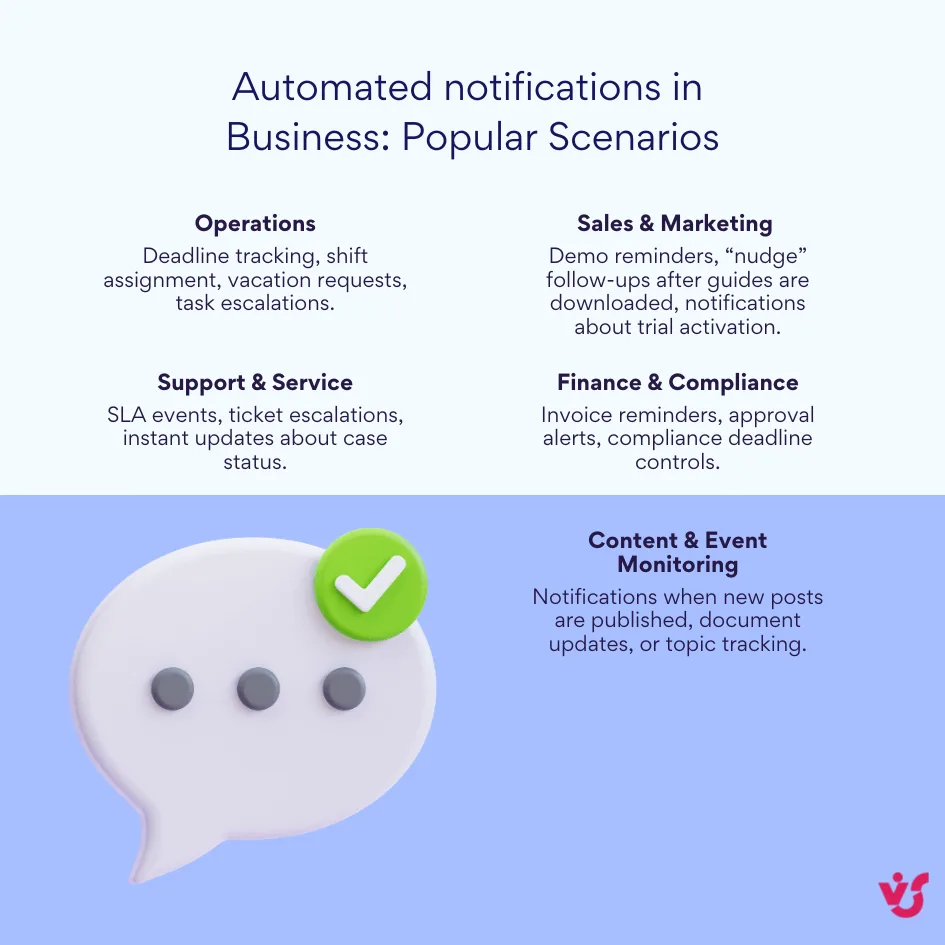
Automated notifications help companies proactively resolve issues, raise customer loyalty, and speed up everyday operations, making processes intelligent.
How to Set Up an Automated Notification System: A Step-by-Step Guide
Implementing an effective automated notification system requires planning. Here’s a structured approach to help you integrate auto notifications into your daily processes:
1. Analyze Processes and Identify Needs
Start by mapping out your key workflows. Which processes benefit most from automation? Common areas include:
- Task approvals and deadlines
- Customer reminder notifications
- Stock and inventory alerts
- Support ticket escalations
This step helps you focus on the most impactful areas.
2. Choose Communication Channels
Select the appropriate channels for your notifications based on urgency and context:
- Email for detailed reports and confirmations
- SMS for time-sensitive alerts
- Push notifications for mobile engagement and immediate updates
- System notifications within enterprise tools like CRM, intranet, or ERP systems
The right combination improves user experience and increases effectiveness.
3. Configure Triggers and Conditions
Each notification should activate based on specific events, such as:
- Status change (e.g., document approved or rejected)
- Time-based triggers (e.g., 2 hours before a meeting)
- Thresholds (e.g., stock falling below a minimum level)
Use a business automation platform or CRM to establish rules and make sure notifications fire only when truly necessary.
4. Create Message Templates
Design clear, concise message templates for each notification type. Use short, action-oriented language with a single call-to-action (CTA). Examples include:
- “Your approval request is pending – please review by 5 PM.”
- “Order #123456 has been shipped. Track your delivery here.”
- “Reminder: your support ticket #1580 is due for escalation.”
Always include personalization—like names and relevant data—to increase engagement.
5. Add Tracking and Analytics
Improve your system’s effectiveness with UTM tags, event categories, or tags for analytics. This allows you to monitor:
- Delivery success rate
- Open and click-through rates
- Conversion or action completion rates
Regularly review these metrics to improve your notification strategies.
6. Test and Launch
Before going live, conduct testing:
- Verify triggers and conditions function correctly
- Check message delivery across all channels
- Collect feedback from a test group to improve relevance
Once tested, launch your system gradually, closely monitoring results.
7. Measure Success and Optimize
Track performance indicators such as:
- Delivery rates
- User engagement (opens, clicks)
- Reduction in missed deadlines or follow-ups
- Decrease in missed meetings or no-show.
Use insights to optimize timing, messaging, and triggers—continually improving your notification system.
Common Mistakes to Avoid and Best Practices
Automated notifications can greatly improve communication and workflow efficiency, but poor configuration can quickly lead to frustration. Avoid these pitfalls to get the most out of your system:
- Too Many Signals: Alarm Fatigue
Bombarding users with notifications causes them to tune out important alerts. Prioritize notifications based on urgency and use throttling methods to limit frequency. Focus on delivering only truly relevant information to avoid message burnout. - Long, Unclear Messages
Concise messaging works best. Each notification should have a single clear purpose with one CTA. Avoid info overload by keeping texts short and easy to act on. - Lack of Personalization
Personalized notifications—with the recipient’s name and relevant contextual information—increase engagement and response rates. Tailor messages based on user data to make alerts meaningful rather than generic. - Ignoring Time Zones and Schedules
Sending notifications at inconvenient times can annoy recipients. Respect local time zones, working hours, and weekends when scheduling notifications to maximize open and action rates. - No Analytics or Feedback Loop
Without tracking delivery, open, click, and conversion rates, you can’t measure success. Add UTM parameters and event tags for performance monitoring, and regularly review analytics.
Additional Tips for Success
- Trigger Precision
Only generate notifications on significant events, avoiding trivial updates like every small file save. For example, send alerts when a document’s status changes or a task transitions to a critical stage. - Frequency Control
Use digest emails or summary notifications that compile several updates instead of multiple individual messages. This approach reduces “notification fatigue” and helps recipients process information efficiently. - Opt-Out Options
Empower users to customize their notification preferences or unsubscribe from alerts. This transparency helps in building trust. - Multichannel Synchronization
Coordinate notifications across email, SMS, push, and in-app channels for a consistent communication without redundancy or conflict. - Continuous Testing and Optimization
Use A/B testing to experiment with message content, timing, channels, and tone. Analyze user engagement data to refine message effectiveness. - Compliance
Always ensure your notifications comply with privacy laws such as GDPR and CCPA when handling personal data or sending marketing messages.
When carefully designed and implemented following these best practices, your automated notification system can improve workflows, boost engagement from both employees and customers, minimize errors, and elevate the effectiveness of your communications.
Security of Automated Notifications
Automated notifications often involve sensitive company and customer information, making their security essential to protect data and maintain trust.
Key Risks and Mitigation Strategies
- Unauthorized Access to the Notification System
Risk: If attackers gain access, they could send fraudulent messages posing as the company.
Solution: Implement mandatory two-factor authentication and enforce strict role-based access controls so that only authorized personnel can manage notifications. - Data Leakage of Confidential Information
Risk: Notifications might accidentally include personal customer data or confidential business information.
Solution: Use encryption protocols like HTTPS during data transmission, anonymize or sanitize sensitive data before sending, and apply strict controls over message templates to prevent leaks. - Phishing via Spoofed Notifications
Risk: Cybercriminals may forge notifications to trick employees into divulging credentials or other sensitive info.
Solution: Conduct regular cybersecurity training for staff, verify sender domains, and consistently use corporate branding in all legitimate notifications to help recipients distinguish genuine messages. - Violations of Data Privacy Regulations
Risk: Sending notifications without explicit user consent can result in legal penalties under laws like GDPR or CCPA.
Solution: Obtain clear opt-in consent, include unsubscribe options in every message, and maintain detailed logs of notification activities.
Practical Recommendations
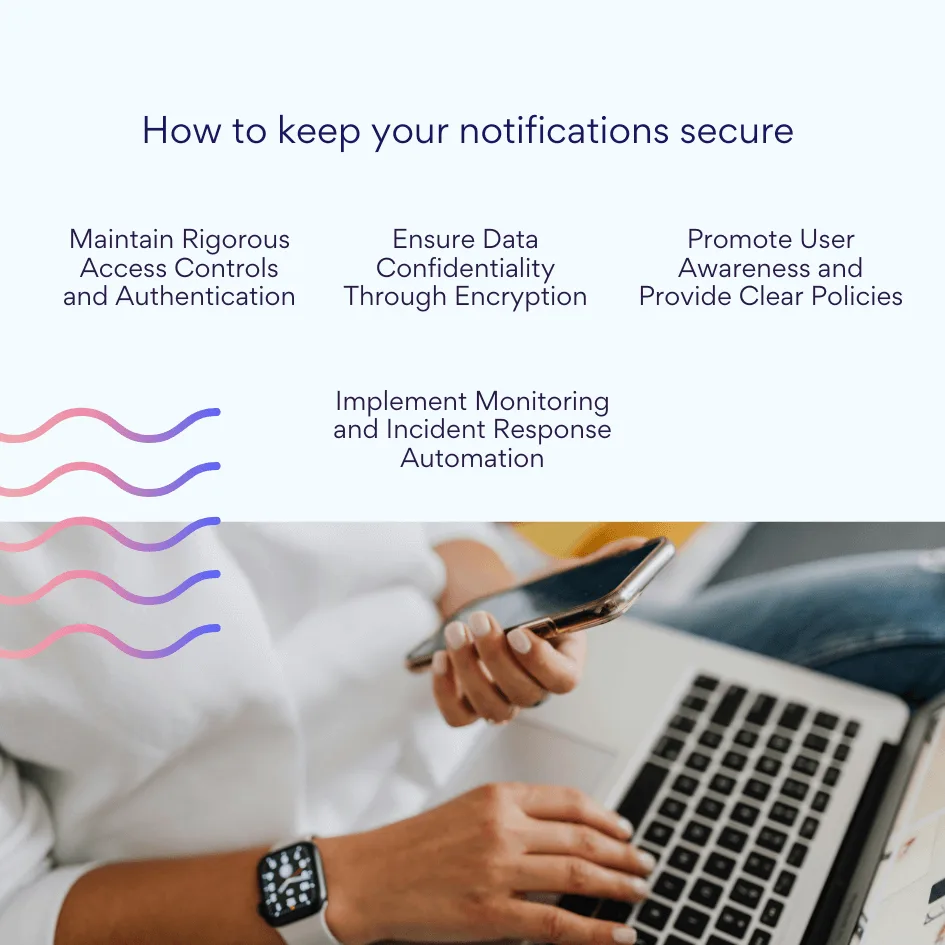
- Maintain Rigorous Access Controls and Authentication
Enforce strict role-based access control (RBAC) to limit permissions only to those who absolutely need them. Combine this with multi-factor authentication (MFA) for all users accessing the notification system. This dual-layer approach drastically reduces the risk of unauthorized access, ensuring that only trusted personnel can create, edit, or send automated notifications. Regularly revoke access for former employees or changes in roles to maintain security hygiene. - Ensure Data Confidentiality Through Encryption and Data Minimization
Protect all data involved in notifications by using end-to-end encryption during transmission (e.g., TLS/HTTPS) and, where possible, at rest. Evaluate message content carefully, applying data minimization principles—only include essential, non-sensitive information in notifications. Where personal or confidential data must be included, anonymize or pseudonymize fields to reduce exposure risk. Additionally, establish strict controls over message templates to prevent accidental leakage of sensitive information. - Implement Continuous Monitoring and Incident Response Automation
Use tools that monitor the notification system activity and user behavior to detect anomalies, such as spikes in notification volume or unusual message content. Integrate automated response mechanisms that can temporarily block suspicious activity or escalate alerts to security teams in real time, enabling rapid containment. Coupling monitoring with AI-driven threat intelligence helps preempt attacks and reduces false positives, allowing security personnel to focus on genuine threats. - Promote User Awareness and Provide Clear Policies
Conduct regular cybersecurity training for all employees emphasizing how to recognize phishing attempts or suspicious notifications. Educate staff on verifying notification authenticity, such as checking sender domains and recognizing official branding. Provide transparent guidelines for notification usage, including how to manage notification preferences and reporting procedures if suspicious messages are received. Encouraging an informed user base acts as a critical line of defense complementing technical safeguards.
Services for Monitoring and Automated Notifications
Beyond notifications for internal processes like tasks, documents, and reminders, there are specialized systems that act as a “digital radar.” These services continuously monitor the external environment—such as the internet, websites, or business metrics—and instantly alert you to any important changes.
Popular Solutions
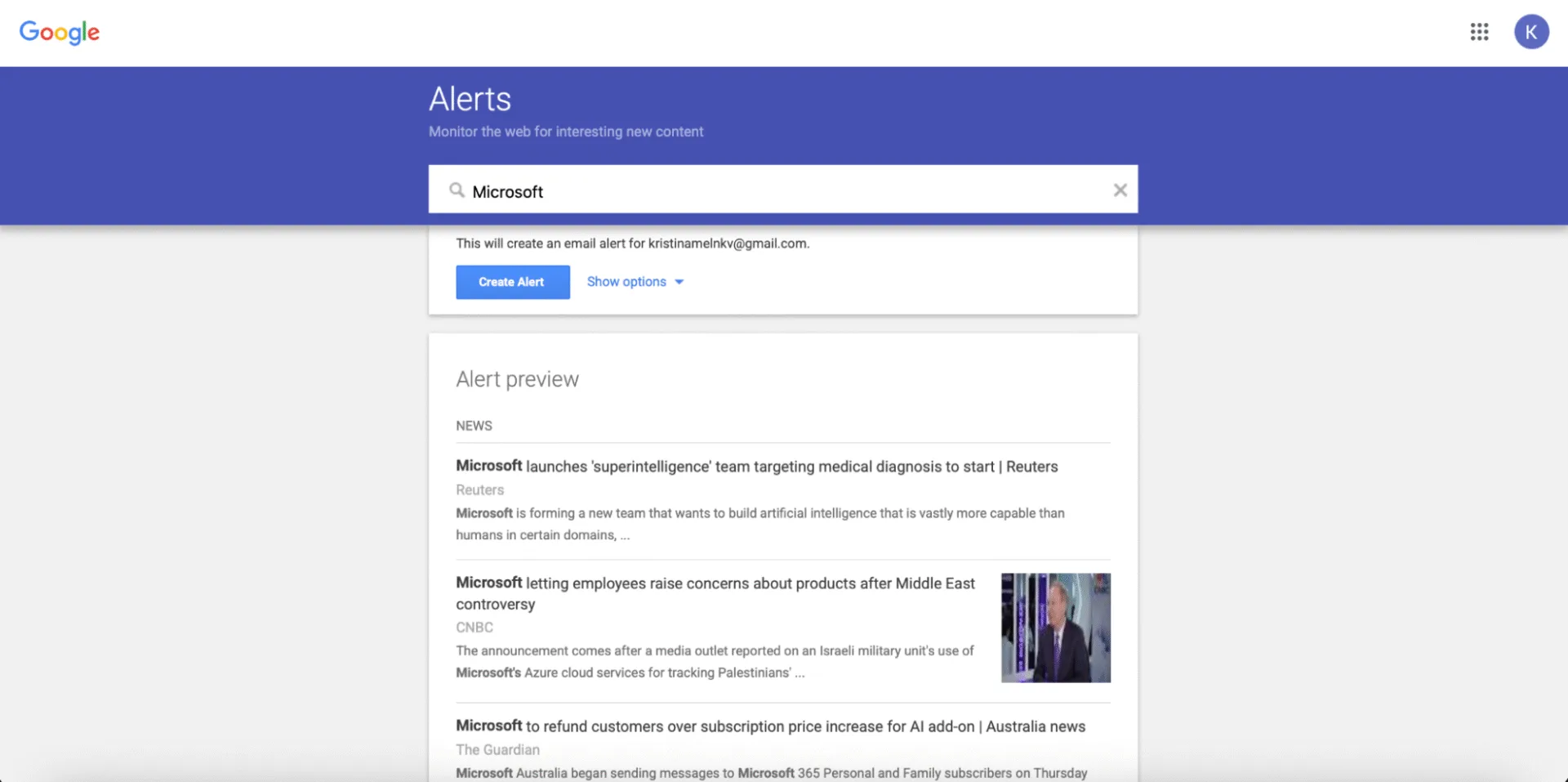
- Mention and News Monitoring (Media Radar)
Google Alerts is a free and simple starting tool.
How it works: Users set keywords (company name, brand, executive names, industry terms). Google scans new publications and sends a digest via email.
Who it’s for: marketers, PR specialists, business owners, researchers.
Example: A user wants to know when their company is mentioned in media or blogs to thank for positive reviews or quickly respond to negative coverage.
- Website Availability and Performance Monitoring
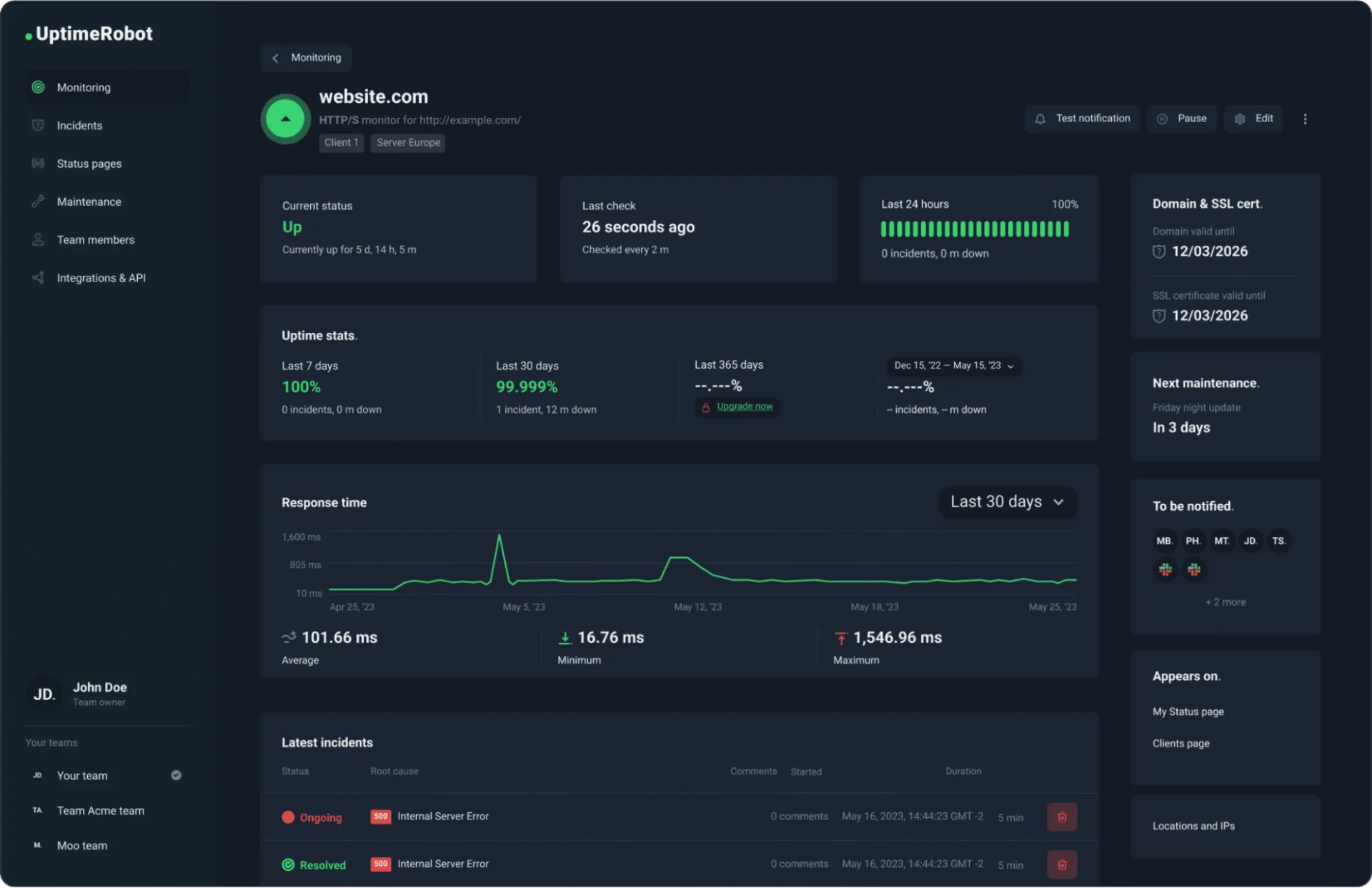
Services such as UptimeRobot, Pingdom, and Site24x7 monitor websites by “pinging” them every minute or more frequently from various global locations.
Who it’s for: IT departments, webmasters, online store owners.
What they track: total downtime, slow page loading, database unavailability.
Example: An online store goes down during peak hours; the owner receives SMS notification before angry customer complaints arrive.
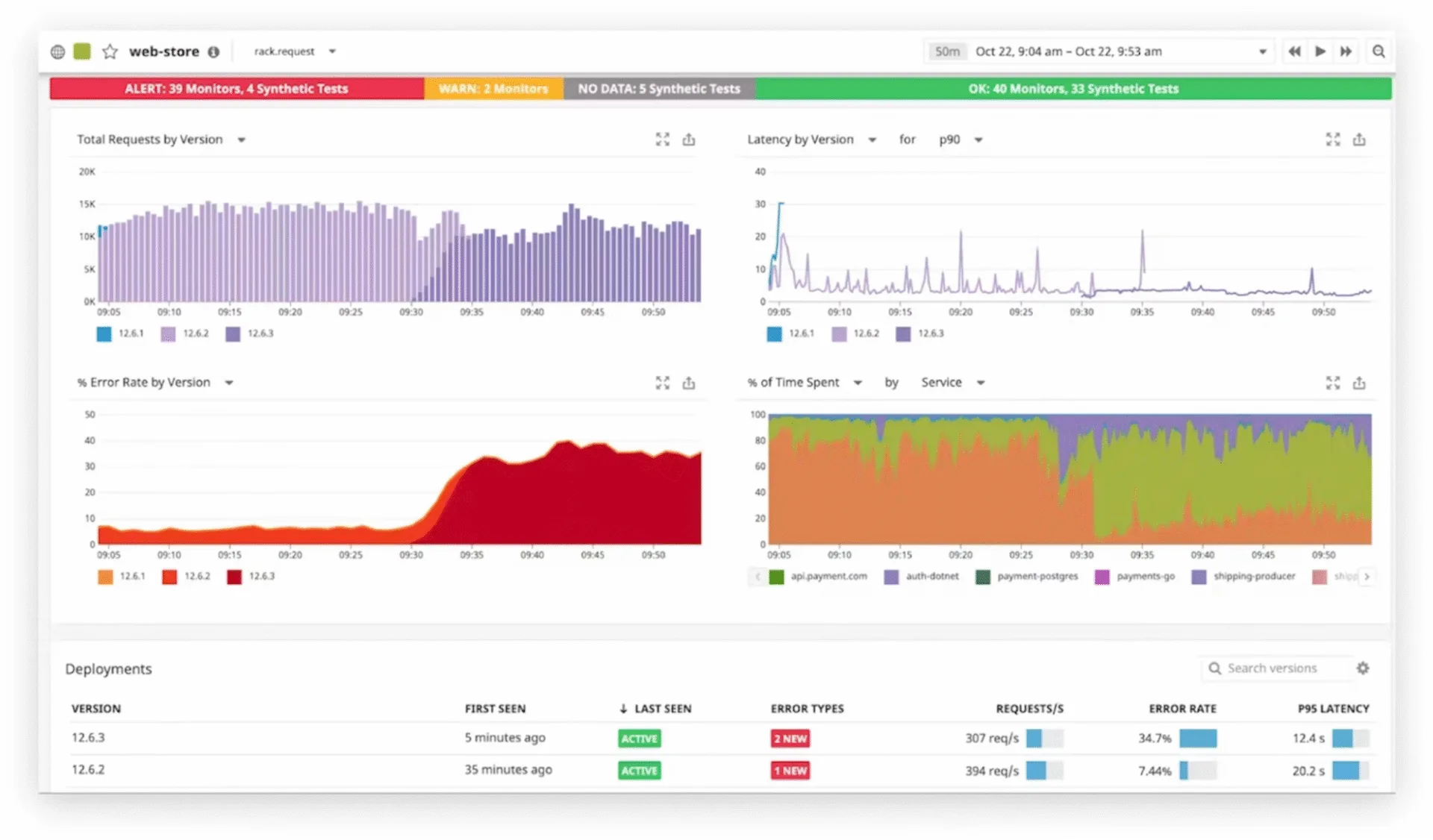
- Business Metrics Monitoring (BI Monitoring)
Systems like Datadog, Grafana with alerting, and built-in options in Google Analytics or Yandex.Metrika connect to user databases, analytics platforms, and CRM to track key metrics in real-time.
Who it’s for: analysts, department heads, marketers.
What they track: sudden drops in order volumes, unusual traffic spikes from suspicious sources, reaching revenue targets.
Example: The number of successful payments on a site suddenly falls by 90%. The system automatically sends an alert to the responsible team’s Slack channel for immediate investigation.
Solutions for Corporate Systems: SharePoint and Microsoft 365
In a corporate environment, especially when using platforms like SharePoint and Microsoft 365, integrating notifications with business workflows is essential for operational efficiency. Standard built-in alerts provide basic functionality—such as notifications on creation, modification, or deletion of items—so that teams stay informed about critical changes.
Native SharePoint and Microsoft 365 Alerts
SharePoint’s native alert system allows users to easily configure notifications:
- Setup: Users navigate to a list or library, select the “Alert Me” option, then specify the change type (e.g., new item, modifications, deletions). Alerts can be set for immediate, daily, or weekly delivery.
- Limitations: These alerts often lack conditional logic, personalization, and sophisticated formatting options. They are further limited in the context of on-premises versions and do not support complex business scenarios.
Upcoming Changes and Limitations
Microsoft plans to retire the existing SharePoint alerts feature by June 2026, favoring newer solutions such as Power Automate. The transition emphasizes the need for advanced alerting capabilities that the native tools cannot sufficiently provide.
Extended Capabilities with Virtosoftware
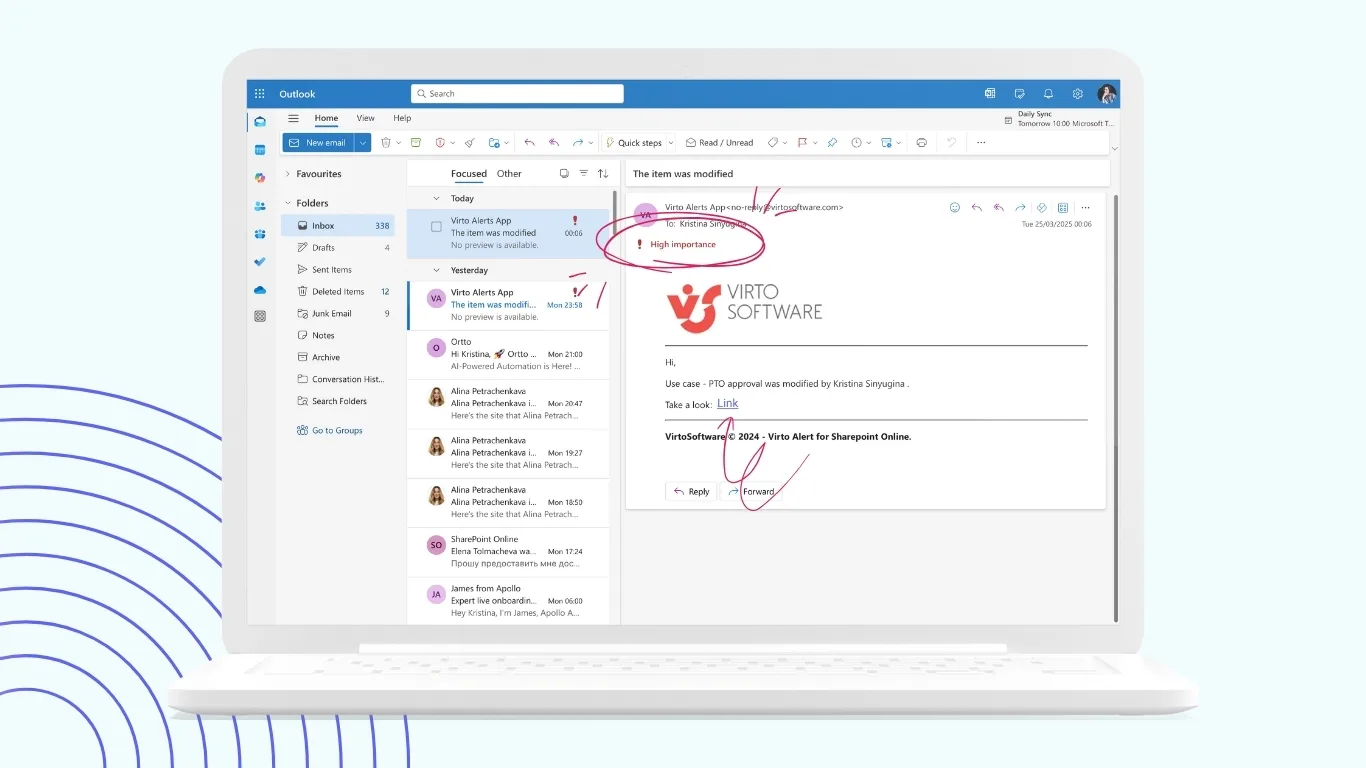
To address the limitations of native SharePoint alerts, Virtosoftware offers the Virto Alerts & Reminder App for SharePoint Online & Microsoft 365, a powerful alternative designed for complex, rule-based, and conditional notifications. This tool unlocks advanced functionality beyond the standard capabilities, empowering organizations to create customized and targeted alerts that truly fit their business needs.
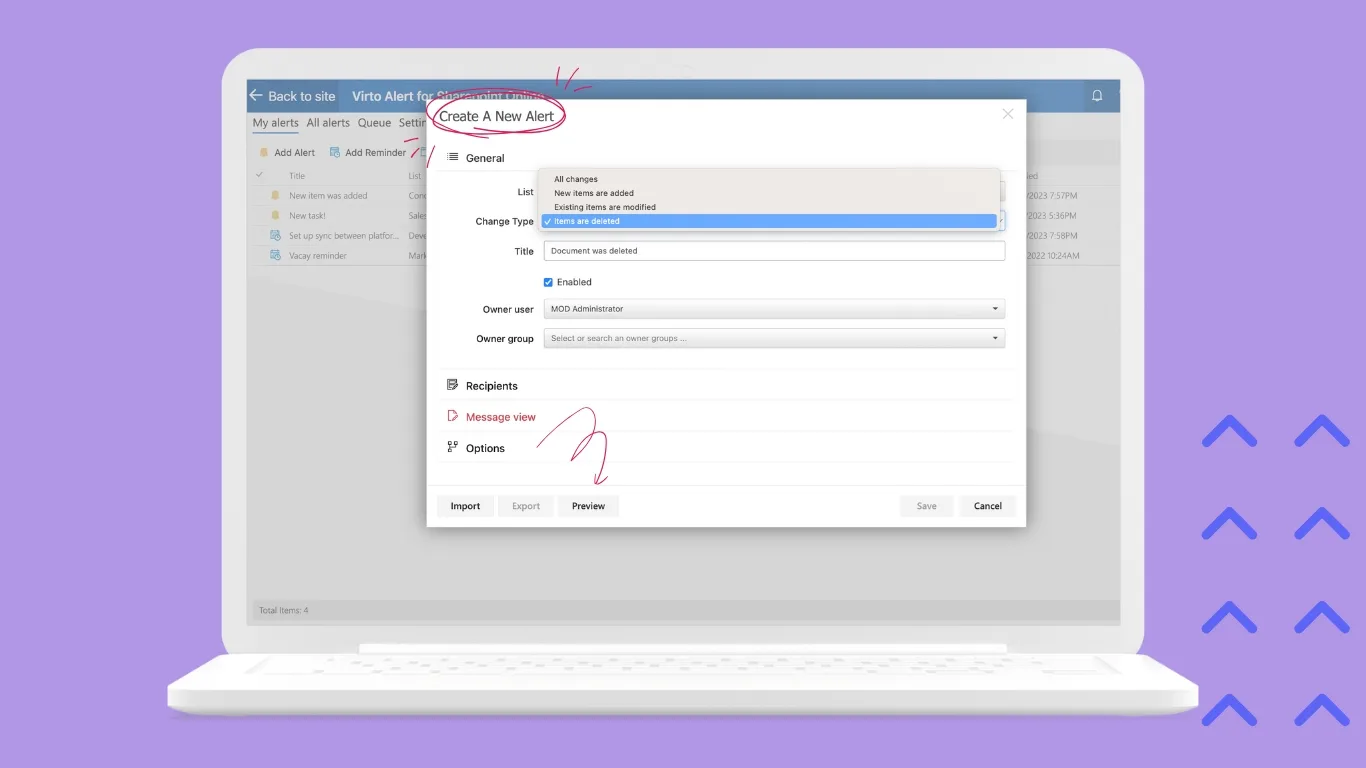
Key features include:
- Flexible Setup for Any Event or Change: Configure notifications for virtually any event within SharePoint lists or libraries, ranging from item creation, edits, deletions, or custom metadata changes.
- Deadline and Important Date Reminders: Automate reminders for due dates, contract expirations, or project milestones to keep teams on track without manual follow-ups.
- Deep Integration with SharePoint Workflows: Seamlessly connect alerts with existing workflows to trigger notifications as part of business processes, ensuring timely communication tied to specific tasks or approvals.
For companies using SharePoint On-Premises, Virtosoftware offers the Virto Notifications & Alerts Web Part, which provides parallel capabilities tailored to local infrastructure needs. This solution supports:
- Advanced Alert Scenarios and Multiple Triggers: Customize alerts based on compound conditions and workflows, enabling precise targeting and contextual relevance.
- Support for Complex Business Processes: Adapt alerting mechanisms to diverse organizational requirements regardless of process complexity.
- Local Infrastructure Operation: Meet data residency and regulatory compliance needs by running entirely within a company’s internal IT environment.
Security and Compliance with Virtosoftware Solutions
Virtosoftware places security at the forefront in designing these notification tools, offering features such as:
- Corporate Authentication Integration: Use existing identity management systems (such as Azure AD) for secure, centralized user authentication.
- Granular Access Rights Management: Define detailed permissions on who can view, create, or modify notifications, minimizing insider risk.
- Encrypted Communication Channels: Protect data in transit via encryption standards, ensuring confidentiality and message integrity.
- Comprehensive Audit Trails: Maintain logs of all sent notifications for traceability, reporting, and compliance auditing.
This architecture allows enterprises to implement highly customizable and secure notification processes that go beyond the limitations of native SharePoint and Microsoft 365 alerts, providing seamless and powerful communication within complex workflows.
Conclusion
Automated notifications are a powerful tool to ensure important events and tasks reach the right people promptly. Automating routine alerts allows organizations to greatly reduce human errors and improve the customer experience by delivering timely notifications.
For corporate users of SharePoint, particularly, specialized solutions like Virto Alerts & Reminder App and Virto Notifications & Alerts Web Part are a must-have. They extend the basic notification capabilities with conditional and personalized alerts deeply integrated with SharePoint workflows, all without the need for custom software development.
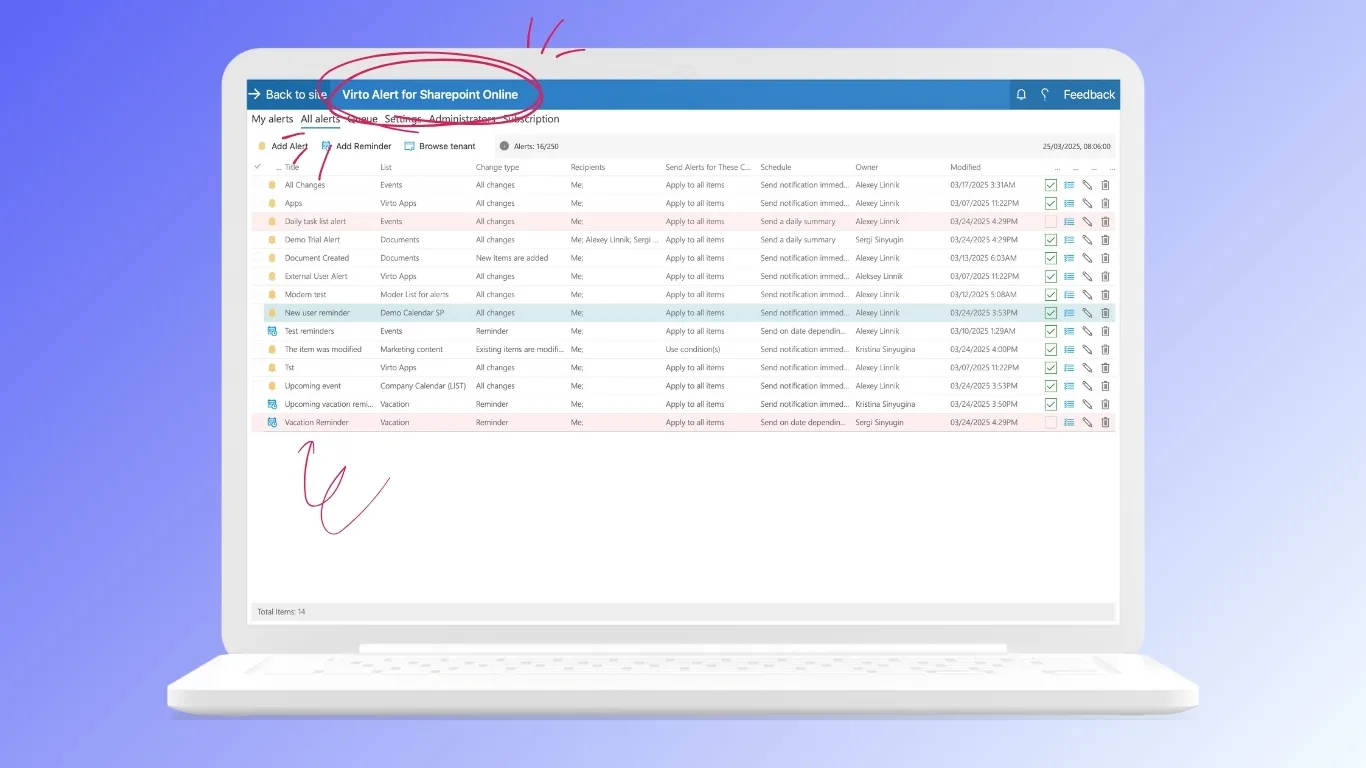
These Virtosoftware products provide a fast, flexible way to implement tailored notification systems that support changing business requirements. Starting with simple notification scenarios—such as deadline reminders or status updates—and progressively adding sophisticated alerts is a recommended strategy to build user confidence.