Universities and colleges face a constant barrage of administrative, academic, and personnel processes that demand approval, notification, and oversight. Faculty leave requests pile up in department inboxes. Student applications crawl through multiple approval layers. Academic schedules require coordination across departments that operate on different systems. Reports sit waiting for signatures while deadlines approach.
Without automation, these processes become unstructured and difficult to control. Time gets wasted. Delays compound. Errors creep in. According to Education Week’s 2024 survey, teachers now work an average of 57 hours per week, with administrative duties consuming more time than actual teaching. McKinsey research reveals that 60% of educational staff could reclaim up to 30% of their time through automation while reducing process errors by up to 90%.
This article explains what education workflow automation is, which processes benefit most from automation, and why Microsoft SharePoint provides the optimal environment for implementation. You’ll find specific examples of automation in educational settings and learn how VirtoSoftware solutions extend SharePoint and Microsoft 365 capabilities to accelerate workflow deployment.
What Is Workflow Automation in Education?
Education workflow automation uses digital tools and software to handle repetitive administrative, academic, communication, and HR processes in educational institutions. This covers everything from approving student requests to routing documents between departments and sending automatic deadline reminders.
But automation isn’t just about swapping manual tasks for technology. It represents a strategic approach to optimizing institutional infrastructure, aimed at increasing management efficiency, accelerating decision-making, eliminating human error, and ensuring process transparency. Universities, colleges, and schools can create digital document approval routes, automatically notify process participants, and centrally store data in a single system.
The core elements of workflow in educational processes include approval templates for requests and documents, task routing between departments, automated notifications and reminders, plus progress logs and approval statuses. These components work together to create a management structure where nothing falls through the cracks.
| Element | Purpose | Typical fields | Lives in Microsoft 365 |
| Approval template | Standardise decisions and routing | Request type, approvers, due date | Power Automate (connected to SharePoint) |
| Task routing | Move items between roles/units | Current stage, owner, escalation | Power Automate + Teams notifications |
| Notifications & reminders | Keep work moving on time | SLA, reminder cadence, escalation target | Teams and Outlook |
| Progress log & status | Provide transparency/audit | Status, timestamps, comments | SharePoint list/library columns |
| Document repository | Single source of truth | Version, metadata, retention label | SharePoint libraries |
👉So, what is automation in education? It’s the use of rules-driven workflows to move requests, documents, and decisions without manual chasing—think admissions reviews, course/program approvals, class scheduling, finance and HR requests, and IT tickets. Automation routes items to the right people, sets deadlines and reminders, logs actions for audit, and syncs data across systems so work is faster, clearer, and more reliable.
Common processes that automation addresses in education
Student application processing represents one of the highest-volume workflow opportunities. Requests for admission, transfer, scholarships, academic leave, or certificates all follow similar patterns. Automation facilitates step-by-step approval between the student, the dean’s office, and the academic department, sending automatic notifications at each stage. Research from Cflow indicates that institutions using automated workflows achieve significantly faster processing times and enhanced applicant experience.
| Process | Trigger | Key approvers | Common bottleneck | Automation fix |
| Student applications | Form submission | Program lead, admissions | Manual routing & status opacity | Auto-route by program; status page + reminders |
| Transfer credit | Transcript upload | Evaluator, department chair, registrar | Back-and-forth via email | Task queue; deadline nudges; single dossier |
| Scholarships | Eligibility check | Committee members, financial aid | Criteria screening | Pre-screen rules; parallel reviews |
| Faculty leave | Leave request form | Dept head, HR | Lost emails | Assigned owner + SLA reminders |
| Classroom scheduling | Section draft | Scheduler, facilities | Room/time conflicts | Conflict rules; approval handoff |
| IT requests | Ticket form/email | Support queues | Manual triage | Auto-categorise + skill-based assignment |
The average response time for prospective student inquiries stands at 42 hours when handled manually. Speed matters tremendously in admissions—institutions that respond within minutes have a 21 times higher chance of qualifying prospects compared to those that wait more than 30 minutes. Automated workflows address this challenge by instantly acknowledging applications, routing them to appropriate reviewers based on program and criteria, and sending status updates without human intervention.
Consider the typical transfer credit evaluation process. Students submit transcripts from previous institutions, an evaluator must compare courses against institutional requirements, department heads review equivalencies for their programs, and the registrar records approved credits. Without automation, this process involves email exchanges, paper forms, and manual data entry that can take weeks. Studies show transfer students who receive limited credit recognition are 2.5 times less likely to graduate. Automated workflows accelerate this critical process, routing transcripts to evaluators immediately upon receipt, tracking evaluation deadlines, and ensuring students receive timely decisions about their academic standing.
Scholarship application processing involves similar complexity with additional financial considerations. Applications require review against eligibility criteria, evaluation of academic merit or need, committee discussion, and award notification. Automated workflows can pre-screen applications against hard requirements (minimum GPA, enrollment status, financial need thresholds), route eligible applications to committee members with all supporting documents attached, track review progress, and automatically notify students of decisions while simultaneously processing award paperwork through financial aid systems.
Faculty and staff leave approval becomes straightforward when the system forwards requests to the department head or HR automatically, tracks status, and notifies the requestor of decisions. This eliminates manual correspondence and reduces workload on staff who previously managed these requests through email chains and paper forms.
Faculty document management and academic resources benefit substantially from workflow automation. The system handles approval and storage of contracts, curricula, schedules, and reports. Documents move through the approval chain and land in a centralized repository like SharePoint, where authorized personnel can access them instantly rather than hunting through email attachments or file cabinets.
Internal approvals and orders—including financial requests, equipment purchases, and other administrative processes—gain structure through automation. Workflow ensures deadline control and reduces errors that occur when processes rely on memory rather than systematic tracking.
Request routing across management levels becomes efficient when IT support tickets, technical maintenance requests, or event planning submissions automatically reach the appropriate department. Processing time drops and compliance improves because the right people receive requests without manual forwarding or CC chains.
Coordination between academic and administrative departments proves challenging in manual environments where accounting, the academic department, and administration operate in silos. Workflow connects these units, ensuring synchronized task completion and eliminating duplication of effort that drains institutional resources.
Notifications and reminders for key events help both institutions and students meet obligations consistently. The system automatically sends reminders about accreditation deadlines, report submissions, grant applications, and upcoming events. For instance, Indiana University experiments (Motz et al.) found an app that sent assignment-deadline nudges significantly decreased missed assignments and improved grades.
👉 What is education automation and how can institutions best automate day-to-day activities? Education automation uses rules and workflows to route requests, manage documents, trigger notifications, and sync data across systems so work moves without manual chasing. The smart way to start is to map one high-volume process, build a simple flow in your core platform (e.g., Power Automate), send approvals in Teams/Email, add deadlines and escalation, measure cycle time, then iterate and scale the same pattern to the next process.
The strategic value automation brings to education
Workflow automation delivers measurable benefits that transform institutional operations:
- Time spent on administrative tasks decreases substantially—one Ernst & Young study found automation reduced process touchpoints at a university from 40 to 1, cutting educator workload by up to 13 hours per week. These recovered hours let faculty focus on teaching, research, and student mentorship rather than paperwork and approval tracking.
- Human errors and omissions drop because systems enforce consistency that manual processes cannot maintain. Consider document version control: in manual environments, people work from outdated forms, submit incomplete applications, or overlook required signatures. Automated workflows present the current form version, validate required fields before submission, and route documents through required approval chains without skipping steps. The University of Calgary reported a 70% reduction in manual effort after automating key admissions and student records processes, with corresponding improvements in data accuracy.
- Transparency and accountability improve when every step leaves an audit trail. Faculty members can check approval status themselves rather than sending follow-up emails. When a department head reviews a pending request, the system shows who initiated it, when it was submitted, which approvers have acted, and what decisions they made. Administrators can identify bottlenecks in real-time—if purchase requisitions consistently stall at one approval level, data reveals the pattern immediately rather than through anecdotal complaints.
- Financial impact extends beyond labor savings. Automation helps institutions avoid costs associated with missed deadlines, duplicate processing, and manual error correction. Grant applications submitted late because approval chains stalled represent direct financial losses. Duplicate processing—where multiple departments independently work on the same request because communication failed—wastes labor across the institution. Error correction costs time and money when, for example, students receive incorrect course placements or financial aid calculations require manual correction.
- Communication and collaboration between faculties, departments, and administration become clearer and more manageable. When everyone works within the same system, information flows naturally rather than getting trapped in individual email accounts or desk drawers. A dean reviewing a program proposal sees comments from faculty committees without requesting separate documents. Department heads reviewing budget requests access previous years’ data within the workflow interface without switching systems or requesting reports from accounting.
- Student and staff satisfaction increases because requests receive prompt responses and clear status updates. Students can log into a portal and immediately see that their transcript request was received, processed by the registrar, and sent to the receiving institution. Faculty members submitting conference travel requests see that their request is “pending department head approval” rather than wondering if their email was received or if they should follow up. This transparency reduces anxiety and eliminates unnecessary communication overhead.
Most universities process hundreds of requests daily. Student applications, faculty documents, reports, contracts, and internal regulations all require handling. Without automation, these processes happen via email, where deadlines get missed and approval processes break down. Email chains become archaeological digs where participants must scroll through dozens of messages to understand current status. Education workflow automation makes interactions more efficient and data-driven. Communication between faculty, staff, and students becomes manageable rather than overwhelming.
What Are Examples of Workflow Automation in Education?
Academic program approval involves multiple levels of review, from methodological committees to the dean’s office and university administration. Without automation, proposals move through this hierarchy via email or paper, with each reviewer printing documents, making notes, and forwarding to the next level. Automation routes proposals digitally, tracks which reviewers have completed their assessments, and sends automatic reminders when reviews are overdue. The entire process becomes visible—program developers can see exactly where their proposal sits and when to expect decisions.
Grant application management becomes substantially more efficient when systems handle automatic data validation, route applications to committee members for review, and notify applicants of status changes. Research grants often have strict deadline requirements and multi-stage review processes. Automated workflows ensure committees receive applications immediately after submission rather than waiting for manual distribution, giving reviewers maximum time to assess proposals thoroughly.
Class schedule coordination traditionally requires extensive back-and-forth between the academic department, faculty, and the technical department responsible for classroom allocation. Automated routing moves draft schedules through this chain efficiently, with each party receiving notification when their input is needed. Conflicts get flagged automatically when rooms are double-booked or when a faculty member’s teaching load exceeds policy limits.
Educational institutions increasingly recognize that effective scheduling extends beyond simple classroom allocation. Specialized student scheduling software addresses the complexity of modern academic environments by accounting for instructor availability, room capacity, equipment requirements, and student enrollment patterns. Automated workflows integrate these variables, preventing scheduling conflicts before they occur rather than discovering them when classes begin. Universities implementing comprehensive master schedule solutions report significant reductions in scheduling errors and last-minute classroom changes that disrupt both faculty and students.
Online class scheduling presents additional complexity as institutions blend in-person and virtual learning modalities. Automated workflows can route scheduling requests differently based on delivery method, ensuring virtual classes receive appropriate technology support while physical classes get room assignments. This flexibility proves particularly valuable for hybrid programs where some students attend physically while others join remotely.
Assignment tracking represents another area where workflow automation delivers substantial value. Faculty members manage multiple assignments across different courses, each with distinct deadlines, submission requirements, and grading criteria. Automated workflows can send reminders to students before deadlines, notify faculty when submissions arrive, and track grading progress to ensure timely feedback. When integrated with learning management systems, these workflows create a connected experience where assignments flow smoothly from creation through submission to grading and feedback.
Parent-teacher communication benefits from structured workflows that ensure consistent engagement throughout the academic year. Parent teacher meeting scheduling typically involves extensive coordination—finding mutually available times, sending reminders, preparing discussion materials, and following up on action items. Automated workflows handle scheduling logistics, send confirmation emails and reminders, and prompt teachers to document meeting outcomes. This systematic approach ensures no parent falls through the cracks and provides documentation of engagement efforts that prove valuable for student support interventions.
IT service request routing creates and processes tickets for technical issues, software updates, or equipment setup without requiring manual triage. When a faculty member reports a projector malfunction, the system automatically creates a ticket, assigns it to the appropriate technician based on current workload, and sends status updates to the faculty member.
Education Workflow Automation in Microsoft 365 and SharePoint
General-purpose process tools often miss the specifics of higher education. Universities route decisions through academic governance—department chairs, faculty committees, dean’s and rector’s offices—with voting, consultation, and policy checks that differ from corporate hierarchies.
Institutions also operate under strict student-data rules. In the US, FERPA governs access and disclosure of education records; in Europe, the GDPR adds requirements such as data-minimization, lawful processing, and storage-limitation (retention) principles. Together with state laws and institutional policy, these frameworks demand granular access controls, thorough auditing, and carefully managed retention and disclosure.
| Control | Where configured | Applies to | Useful notes |
| Encryption (at rest/in transit) | Service level | SharePoint/OneDrive | Always on; no setup required |
| DLP policies | Microsoft Purview | SharePoint, OneDrive, Teams | Prevent oversharing; policy tips |
| Audit (Standard/Premium) | Microsoft Purview | Tenant-wide activities | Extended retention & queries |
| Retention & records | Microsoft Purview | Sites, libraries, items | Labels/policies automate disposition |
| Data residency | Multi-Geo / EU Data Boundary | SharePoint/OneDrive | Regional storage for compliance |
The practical answer is a platform that fits the IT you already run. At many universities, that stack centers on Microsoft 365—SharePoint for content, Teams/Outlook for communications, and Microsoft Entra ID (formerly Azure AD) for identity. Documents live in SharePoint; messages are handled in Teams and Outlook; authentication and authorization flow through Entra ID.
Building on this stack avoids a “second system” and reduces training. Users receive approval requests where they already work, and can approve directly in Teams using Adaptive Cards—no context switching.
Security and compliance controls are integrated: encryption in transit and at rest for SharePoint/OneDrive; Microsoft Purview DLP policies across SharePoint/OneDrive/Teams; and Purview Audit (Standard/Premium) for unified activity logging with extended retention options. Retention labels and policies in Purview automate disposition to meet legal and policy requirements. Where data residency matters, institutions can use Multi-Geo for regional storage and (in the EU/EFTA) the now-completed EU Data Boundary.
Collaboration is native: multiple stakeholders can co-author Word/Excel/PowerPoint in real time from SharePoint. For PDFs, teams can run shared reviews and annotate inside SharePoint/Teams via Acrobat integrations.
Implementing workflows in SharePoint
SharePoint is a practical foundation for educational workflows because it sits inside Microsoft 365 and connects natively with Teams and Outlook. You can launch Power Automate directly from a SharePoint list or library, start from a template, and tailor the flow to your process. Content stays in SharePoint libraries with permissions and versioning; broader auditing, retention, and data handling rules are managed through Microsoft Purview (Audit and DLP), so compliance controls apply consistently across SharePoint, OneDrive, and Teams.
You can build workflows without code using Power Automate’s visual designer—basic triggers and actions cover common scenarios out of the box, and approvals can be completed right inside Teams or Outlook using adaptive cards. In Microsoft 365, create new automation with Power Automate rather than classic SharePoint Designer workflows, which are being phased out in the cloud.
For advanced needs, extend the platform with VirtoSoftware:
- SharePoint Online (Microsoft 365): The Virto Workflow Automation App for SharePoint Online & Microsoft 365 adds 80+ ready-made actions for routing, notifications, data processing, and integrations. It enables rich scenarios—application approvals, student registration, document handling, and reporting—without writing code.
- SharePoint on-premises: The Virto SharePoint Workflow Activities Kit (Extensions) provides 270+ activities that expand SharePoint Designer 2013 workflows across SharePoint 2013/2016/2019/SE. It’s well-suited to internal portals where processes tie together documents, schedules, and personnel requests while keeping data on campus.
Educational institutions should choose solutions that balance flexibility with control and ease of use. Combining SharePoint’s native capabilities with VirtoSoftware’s extensions lets you start simple, prove value quickly, and scale to more complex workflows as requirements grow.
We’ll talk more about the implementation process and VirtoSoftware apps in later sections.
👉 What’s the best higher education workflow software? There isn’t a single “best” workflow software for universities—the right choice matches your identity system, data residency needs, and SIS/LMS stack. If you’re already on Microsoft 365, SharePoint + Power Automate is usually the fastest, lowest-friction route (and can be extended with tools like VirtoSoftware); if you’re not, look for a platform that natively integrates with your SIS, supports role-based approvals, has strong audit/retention, and is easy for non-developers to maintain.
VirtoSoftware Solutions for Workflow Automation in Education
Universities juggle multi-layer approvals, strict compliance, and system integrations. VirtoSoftware augments SharePoint and Microsoft 365 with large no-code action libraries and admin web parts so process owners can build and evolve workflows without writing code—useful when native tools aren’t enough for academic governance, registrar operations, or research administration.
SharePoint Online (Microsoft 365): Virto Workflow Automation App
VirtoSoftware’s Workflow Automation App for SharePoint Online & Microsoft 365 provides 80+ ready-made actions (list/file operations, permissions, email, Azure AD lookups, data transforms, and more). These appear as no-code activities you can use when building SharePoint workflows in the Microsoft 365 environment.
Typical education recipes:
- Route by identity—check whether the submitter is in a specific SharePoint or Azure AD group (e.g., “Faculty Senate”) before sending to the correct committee. Use actions like Check if user is a member of SharePoint group and Get Azure AD user information.
- Data prep at the edge—normalize form inputs, set metadata, or flatten JSON from an external API into list columns using Set field value (extended) and related list actions, avoiding custom code.
- Operational hygiene—cancel stuck instances on an item (e.g., when requirements change mid-approval) via Cancel all workflows on list item.
⚠️ Cloud planning note. Microsoft is retiring SharePoint 2013-style workflows in Microsoft 365—off for new tenants since 2 Apr 2024 and removed from existing tenants on 2 Apr 2026. New cloud automation should be built in Power Automate; assess any remaining 2013 workflows (including ones that use third-party actions) and plan migration.
SharePoint on-premises: Virto SharePoint Workflow Activities Kit (Extensions)
For SharePoint Server (2013/2016/2019/SE), Virto SharePoint Workflow Activities Kit (Extensions) adds 270+ actions to SharePoint Designer workflows—covering list/file operations, permissions, site administration, email templating, HTTP calls, and Active Directory user/group management. This is well-suited to research universities or institutions that keep sensitive data on-prem.
On-prem capabilities that matter on campus:
- Account/permissions workflows—create users, set attributes, and manage group membership in AD for onboarding or role-based routing.
- Advanced notifications—send branded HTML emails with attachments or use SMS via gateways like Clickatell for time-critical approvals.
- Site administration—provision course or project sites and apply templates/permissions via workflow actions rather than manual setup.
New: Three components under “Virto Workflow Automation”
VirtoSoftware now groups three pieces under the Workflow Automation umbrella:
- Virto Workflow Activities — the action libraries (on-prem 270+; online 80+).
- Virto Workflow Status Monitor — a web part to view, filter, and troubleshoot workflow runs, including starting/terminating/restarting workflows and generating workflow reports. Useful for committee chairs or admins who need visibility into where approvals are stuck.
- Virto Workflow Scheduler — a web part to run workflows on a schedule (e.g., nightly cleanup of stale submissions, hourly checks for timetable conflicts). Supports site workflows and hourly triggers.
All three appear in the current docs under “Workflow Automation.”
How this maps to education processes
Here’s how to apply the building blocks in real campus workflows. Each example uses SharePoint/Power Automate for orchestration and layers in Virto where it saves time: Workflow Activities to add no-code actions, Workflow Status Monitor to see where items are stuck and restart runs, and Workflow Scheduler to trigger routine jobs on a timetable. Use the same pattern—validate, route, remind, decide, publish—then swap in the actions that fit your process:
- Program or course approvals—use identity checks (group/role), parallel review branches, and deadline nudges; monitor progress with Status Monitor and schedule reminder sweeps with Scheduler.
- Registrar & enrollment—validate prerequisites, update statuses/metadata across lists, and trigger targeted notifications (email/SMS) for waitlist moves.
- Research office—ingest structured data (CSV→list), route by department/PI, and call external services via REST; use Status Monitor for compliance reporting of approvals.
- IT & site provisioning—create sites/groups and set permissions via actions; schedule routine maintenance flows (e.g., archive old submissions).
Governance & security notes
Use the same governance you apply to the rest of Microsoft 365. Define owners, data classifications, and change control; apply least-privilege access; and enforce standard retention, DLP, and audit policies. Treat Virto components as first-class workloads within that model so flows stay secure, observable, and maintainable.
- For Microsoft 365 apps, Virto states its application engines are hosted in Microsoft Azure; deploy Virto apps to SharePoint pages/Teams as needed. Pair with your standard Microsoft 365 security posture (e.g., Purview DLP/Audit, Entra ID controls).
- For cloud tenants, prioritize Power Automate for new builds due to the SharePoint 2013 workflow retirement timeline. Use Virto Online actions where they’re still in play and plan a migration path.
Implementing Education Workflow Automation: A Step-by-Step Guide and Best Practices
Even if your institution already runs Microsoft 365, SharePoint, and Teams, effective automation needs a deliberate plan. The objective isn’t to bolt motors onto manual steps—it’s to build a sustainable system where each process is mapped, governed, and easy to scale as policies change.
Analyzing current processes
Begin with a lightweight audit:
- List your high-volume activities, frequent error points, and deadline-sensitive tasks.
- Look for places where requests stall in inboxes, get lost between departments, or lack clear ownership.
- Capture the current path end-to-end: who initiates, which fields are required, where files are stored, how participants are notified, and what triggers a decision.
That single map does two jobs: it exposes inefficiencies worth fixing and becomes the blueprint for your automated flow.
As you document, separate rules from routing:
- Rules are your validations—what must be true before review starts.
- Routing is who decides and in what order.
Keeping those distinct makes later changes far simpler. If you discover policy variations by school or program, note them explicitly; they’ll become conditional branches in your automated route
Identifying priority automation scenarios
Not every process deserves day-one automation:
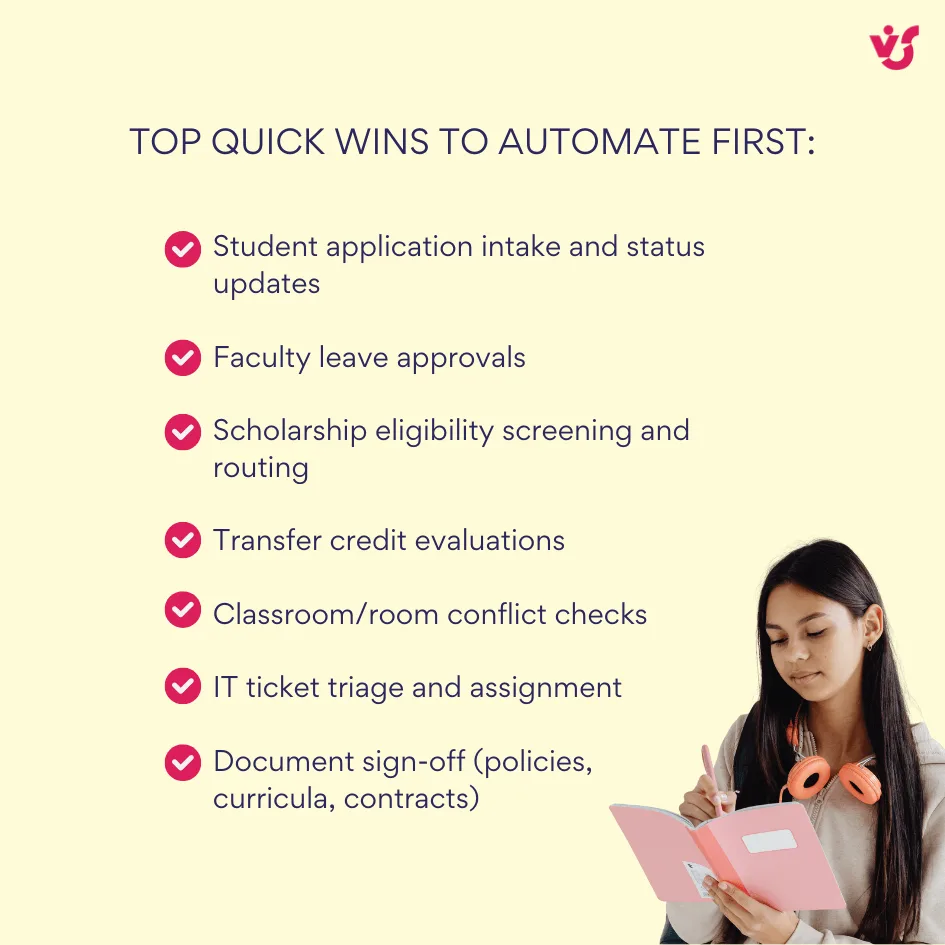
- Start with the sweet spot where automation returns value fast: multi-stage approvals (faculty leave, program changes), student-facing requests with clear SLAs, document sign-offs, and scheduling coordination across multiple stakeholders.
- Combine frequency with pain: a daily workflow that routinely misfires beats a quarterly one that’s already reliable.
Adopt a gradual rollout. Pilot one process in one department, publish simple guidance, and measure the deltas. Early wins—faster leave decisions, cleaner hand-offs, fewer “where is it?” emails—build internal momentum. As confidence grows, expand to adjacent processes, reusing components like reminder flows and approval cards.
Choosing platforms and tools
Before you pick a lane, set decision criteria. Consider data residency and compliance needs, existing Microsoft licensing, integration points (SIS/LMS/finance), team skillset, support model, and lifecycle realities (e.g., 2013-style workflow retirement in Microsoft 365). Choose a primary platform for new builds, note exceptions that truly require on-prem, and document why—so governance, training, and budgets align:
- Cloud first (Microsoft 365 + SharePoint Online + Power Automate). Power Automate is tightly integrated with SharePoint—you can launch flows directly from a list or library, start from Microsoft templates, and keep content in the same libraries people already use. Approvals can be actioned inside Teams (adaptive cards) or Outlook (actionable approval emails), reducing context switching for reviewers.
💡 Learn more about creating workflows in M365:
- Use SharePoint and Power Automate to build workflows
- Create a flow for a list or library – Microsoft Support
- Create and test an approval workflow with Power Automate
📍 Important lifecycle note. As mentioned, SharePoint 2013-style workflows in Microsoft 365 are off for new tenants since 2 Apr 2024 and will be removed for existing tenants on 2 Apr 2026. For new cloud projects, build in Power Automate; inventory any remaining 2013 workflows and plan migration.
| Item | Cloud/on-prem | Change | Effective date | Your move |
| SharePoint 2013 workflows (M365) | Cloud | Retired for new tenants; removed for existing | 2 Apr 2024 / 2 Apr 2026 | Build new in Power Automate; migrate legacy |
| SharePoint Designer 2013 | On-prem | Supported with SP Server SE until | 14 Jul 2026 | Plan future tooling; limit new SPD builds |
| Virto Online actions | Cloud | Use alongside Power Automate | Current | Use where helpful; plan beyond 2013 engine |
| Virto Activities Kit | On-prem | 270+ actions for SPD workflows | Current | Extend on-prem workflows without code |
💡 Learn more about the retirement timeline and proposed alternatives:
- SharePoint 2013 workflow retirement – Microsoft Support
- Overview of workflows included with SharePoint – Microsoft Support
- On-premises (SharePoint Server). If you must keep data on campus, target supported server versions (SharePoint Server 2016/2019/Subscription Edition). SharePoint Designer 2013 is deprecated but remains supported with SharePoint Server SE until 14 Jul 2026; afterwards, the 2013 workflow platform remains available via Visual Studio, not Designer. Use this path when policy dictates on-prem control.
💡 Learn more about deprecation in SharePoint On-Prem:
- What’s deprecated or removed from SharePoint Server Subscription Edition?
- SharePoint Designer 2013 – Microsoft Lifecycle
- VirtoSoftware add-ons:
- Cloud: Virto Workflow Automation App for SharePoint Online & Microsoft 365 adds 80+ no-code actions (list/file operations, notifications, lookups) to speed up builds when native steps get complex.
- On-prem: Virto SharePoint Workflow Activities Kit (Extensions) adds 270+ actions to SharePoint Designer workflows across SharePoint 2013/2016/2019/SE—handy for document moves, permissions, AD queries, and templated email without custom code.
Improve Your Management with VirtoSoftware

Virto Calendar
Merge events from multiple sources like Exchange, Google, and SQL into unified calendar view.

Virto Workflow Automation App
Enhance SharePoint Online with 80+ no-code workflows for streamlined processes.

Workflow Scheduler
Automatically execute SharePoint workflows at specific dates and times for process automation.
Configuring workflow and routing templates
Start with a minimal, reusable pattern: validate → route → remind/escalate → decide → publish → audit.
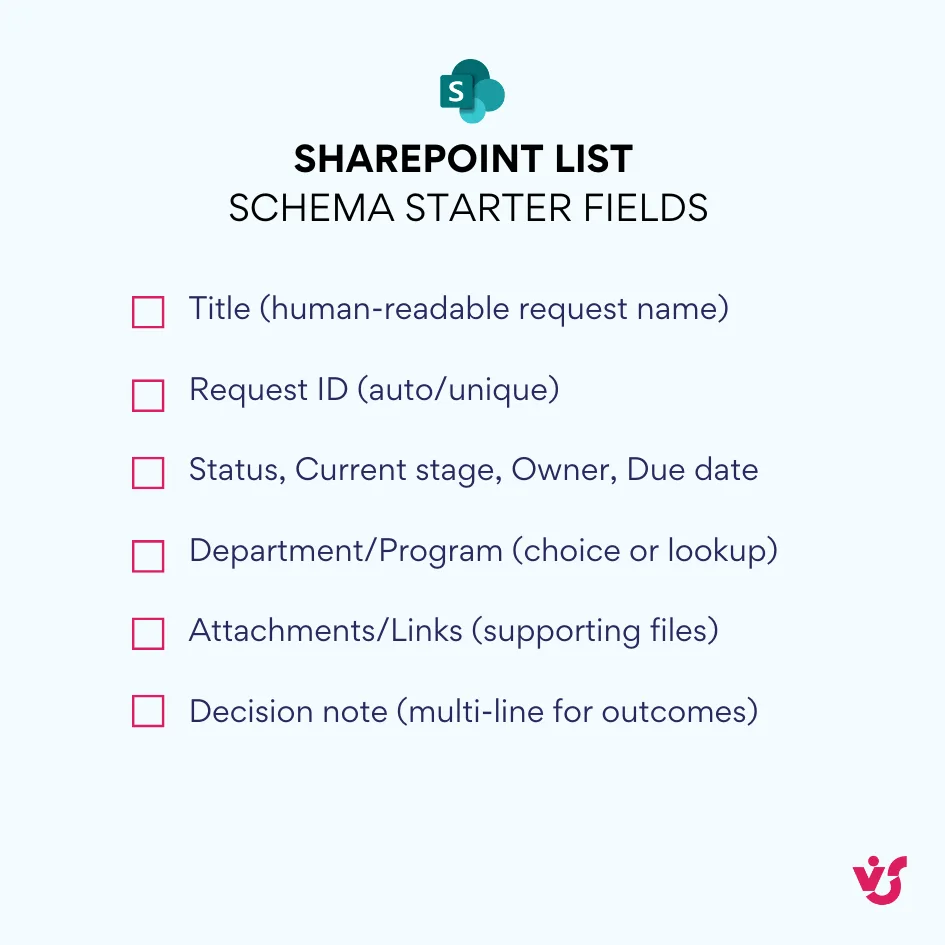
- In SharePoint, model your data with clear columns (Status, Current stage, Owner, Due date) and use views for “Due this week” and “Stalled”.
- In Power Automate, gate your main flow so it only proceeds when Status=Submitted; keep validation in one scope and approvals in another so you can tweak rules without touching routing.
Use standard patterns—sequential approvals, parallel reviews, conditional branches based on request type or dollar amount. Where you need richer checks or file operations, layer in Virto actions instead of custom code. The goal is consistent building blocks you can lift into new processes with minimal edits.
User testing and training
Pilot with a small group. Test happy paths, rework loops, due-date escalations, and mobile approvals. Validate that Teams cards and Outlook approval emails include enough context to decide quickly. Capture what confused users—ambiguous field names, missing attachments, vague rejection reasons—and fix those before you scale.
Train by role. Submitters need a short walkthrough to create requests and check status. Approvers need to understand where to review, what happens if they take no action, and how escalations work. Admins need a deeper session on troubleshooting, permissions, and how to pause/resume flows safely. Keep it practical: one-page quick-reference guides and a short video beat slide decks every time.
Process monitoring and improvement
Measure outcomes from day one. Track cycle time (submission→decision), stage-by-stage delays, rejection/rework rates, and user satisfaction. Use Power Automate analytics in the Power Platform admin center to spot failing runs, error spikes, and connector issues; pair that with site usage reports and version history in SharePoint to see who changed what and when. Schedule a monthly review to triage top failures and slowest stages, then ship small fixes rather than waiting for a big bang.
Design for observability. Add consistent error handling that posts a readable message to the run history, writes a note to an admin list, and—when appropriate—alerts the process owner. Keep a simple changelog for each flow (what changed, why, and when) so you can correlate behavior shifts to deployments during audits.
Governance, security, and compliance
Apply the same guardrails you use elsewhere in Microsoft 365.
- Use Microsoft Purview DLP to control sharing of sensitive data across SharePoint/OneDrive/Teams;
- Use Microsoft Purview Audit to retain and search activity logs—up to 10 years with Audit (Premium) where required.
Build least-privilege into every step: flow service accounts with scoped permissions, approvers with edit rights only where they must comment or attach, and read-only access for observers.
For on-prem environments, keep an eye on lifecycle risk. Older, unsupported SharePoint versions are a security liability; plan upgrades or migrations on a clear timeline, and avoid adding net-new automations to platforms approaching end of support. Where you must stay on-prem, standardize on Designer 2013 through July 2026 and maintain a migration path to supported tooling.
Process monitoring and audit readiness
Establish baseline metrics before go-live, then report the deltas after 30, 60, and 90 days. Keep dashboards simple—cycle time, aging buckets, first-pass approval rate, failures by stage. During periodic audits, compare your current flow to the latest policy; retire dead branches and update conditions when rules change. Keep artifacts—maps, changelogs, and sample approval trails—so you can demonstrate due diligence to accreditors and regulators without a fire drill.
Continuous feedback and incremental improvement
Make it easy for users to suggest changes: a short feedback form on the workflow page, a monitored mailbox, or a Teams channel pinned in the site. Log requests, look for patterns, and prioritize by impact. Ship small, regular improvements—clearer messages, better defaults, smarter deadlines—rather than infrequent overhauls. Treat your workflows as living services: governed, measured, and evolving with the institution.
Best practices that increase implementation success
Use these as guardrails from design to rollout. They’re the difference between a clever demo and a durable service—keeping workflows usable, maintainable, and compliant:
- Involve end users early. Bring faculty, admins, and IT into design reviews before you build. Their day-to-day detail surfaces edge cases you’ll miss. If you’re designing travel approvals, ask frequent travelers to validate scenarios like cancellations, multi-stop trips, or shared bookings.
- Build ownership. People who help design become advocates at rollout. Their peer-to-peer explanations carry more weight than top-down announcements and reduce resistance.
- Start simple, then expand. Ship a version that covers the common path cleanly rather than a sprawling first release. A faculty hiring flow might begin with position request → budget approval → committee formation → interviews → offer. Add extras later—auto job postings, calendar integration, diversity reporting—once the core works.
- Add complexity only when it’s real. Many “what ifs” never occur. Capture them, monitor for frequency, and implement special handling when data shows it’s worth it.
- Tune notifications, don’t flood inboxes. Strike a balance so items move without noise. A good pattern: initial alert on submission, a reminder after three business days, and an escalation at five if there’s no action. Offer preferences where feasible: email, Teams, or a daily/weekly digest.
- Test with real data and real people. Run pilots using live requests, not perfect samples. Include edge cases: month-end budget freezes, acting heads during sabbaticals, missing fields, and odd data from student systems. Fix what breaks in pilot, not in production.
- Document for each role and keep it close to the work. Provide a one-page diagram, step-by-step guides for submitters and approvers, and admin notes for configuration and troubleshooting. Link help from the form, add field-level tips, and keep everything searchable in the knowledge base. Update docs the same day you change a workflow.
- Establish governance before sprawl. Define who can create workflows, how new ones are reviewed, and the standards for naming, notifications, and documentation. Prevent duplicate or conflicting automations by different units that solve the same problem in different ways.
- Maintain a workflow catalog. List what exists, owners, scope, and access points. Include owner contacts so users know where to request enhancements or report issues.
- Plan cutover, avoid open-ended parallel runs. Set a clear go-live date after training and pilot sign-off. Provide high-touch support in week one, then taper as adoption stabilizes.
- Design for change. Route by roles or groups rather than named individuals, so personnel moves don’t break approvals. Use SharePoint groups and directory data for dynamic routing and keep maintenance low.
👉 What is the best workflow automation tool for education? “Best” depends on your stack and constraints. If your campus runs on Microsoft 365, SharePoint + Power Automate (with Teams approvals) is usually the quickest, lowest-friction choice, and you can extend it with no-code packs like VirtoSoftware. If you’re not on Microsoft 365, pick a platform that natively integrates with your SIS/LMS, supports role-based approvals and auditing, respects data-residency needs, and is easy for non-developers to maintain.
Explore Our Use Cases



Conclusion on Workflow for Higher Education
Done well, education workflow automation makes everyday processes clearer, faster, and easier to manage. Shorter turnaround times, fewer hand-offs, and timely notifications translate into better student experiences and less frustration for faculty and staff. Institutions that approach automation deliberately tend to see more than operational gains—they build a culture of accountability and continuous improvement.
Microsoft 365 and SharePoint are a strong foundation because they’re already where academic work happens. Content lives in SharePoint, conversations run through Teams and Outlook, and identity is managed in Microsoft Entra ID (formerly Azure AD). Building automation on this stack reduces training overhead and avoids “yet another system.” Approval requests land where people already work; documents move through the same libraries departments use today; access follows existing directory groups and roles.
The real advantage is integration. When workflows, files, people, and messages share one platform, data moves without brittle connectors or duplicate entry. An approval raised in SharePoint can notify in Teams, capture comments, update metadata, and file an auditable decision—end to end—without leaving the ecosystem.
VirtoSoftware extends this foundation so you can go beyond basics without custom code. Large action libraries (cloud: 80+; on-prem: 270+) cover multi-level approvals, advanced routing based on roles and policies, richer document and list operations, external system calls, and multi-channel notifications. For universities with strict data-residency or legacy-system constraints, the on-premises kit delivers comparable capability while keeping data on campus. For cloud-first institutions, the online app adds no-code actions that speed builds and simplify maintenance.
The most reliable path is incremental. Start with high-volume, high-friction workflows—student applications, faculty leave approvals, IT service requests—prove the time savings, then expand. Each new flow is quicker to deliver because you reuse patterns: validate → route → remind/escalate → decide → publish → audit. Over time, these pieces connect into an ecosystem where one completed workflow triggers the next, and leadership gains visibility across processes that was impossible with email and spreadsheets.
Looking ahead, automation will only get smarter—better document understanding, predictive routing, tighter integrations, and mobile-first participation. Teams that invest now position themselves to adopt those capabilities quickly because the groundwork (governance, patterns, data models) is already in place.
If you’re ready to see what this looks like in your environment, let’s talk. Schedule a demo to discuss VirtoSoftware apps for your scenarios, or install the free trial versions directly from the site and test them in your tenant.
In the meantime, peruse additional resources:
- Student Scheduling Software: Full Guide for Higher Education
- Master Schedule Management: Take Control of Your Team’s Planning with Virto Magic
- Virto Calendar: Ultimate Online Class Scheduling Software
- VirtoSoftware Assignment Tracker: Optimize Academic Task Management
- Organize & Manage Parent Teacher Conferences with Virto Calendar