An incident, in the digital sense, is any event that disrupts normal business operations. It might be a server outage, a failed approval workflow, an expired contract, a corrupted document, or an access permission error. What these events share is their capacity to halt productivity and cost the organisation money until someone notices and fixes them.
The financial stakes are significant. Unplanned downtime now averages $14,056 per minute, rising to $23,750 for large enterprises. Even for smaller businesses, the numbers add up quickly: in 2022 and 2024, ITIC found that over 90% of respondents estimated their cost of downtime to be over $300,000 per hour. This average held true even for small and midsize businesses up to 200 employees. Beyond direct financial loss, incidents erode customer trust, damage reputations, and consume hours of staff time that could be spent on strategic work.
Manual incident management struggles to contain these costs. When organisations rely on human vigilance alone to detect problems, route notifications, and coordinate responses, several patterns emerge. Response times stretch. Critical alerts get buried in inboxes. Tasks fall through cracks during handoffs. Operators under pressure make mistakes. And when incidents occur outside business hours, nobody responds until morning.
This article explains what automated incident management is, how it works in practice, and what benefits it delivers. You will learn how to implement automation within the Microsoft 365 and SharePoint ecosystem, see realistic examples of automated incident workflows, and receive practical recommendations for deployment. The goal is to help you move from reactive firefighting to a predictable, controlled process that keeps your business running.
What Is Automated Incident Management?
Before we get into tools and timelines, it helps to be explicit about the concept. Automated incident management is a structured way to spot, classify, and deal with problems using predefined rules and workflows instead of relying on people to keep watch manually.
At its core, automated incident management is:
A set of processes and workflows that monitor systems for specific conditions, create incident records when those conditions appear, and move those incidents toward resolution with minimal manual intervention.
The “systems” in question are whatever you already use to run the business. In a Microsoft 365 and SharePoint context, that often means:
- SharePoint lists and libraries (for issues, tickets, tasks, documents)
- Microsoft Teams channels connected to those lists
- Planner boards or other project registers
- Workflows in Power Automate that connect different apps
- Line-of-business applications that write into SharePoint or Microsoft Dataverse
| System in Microsoft 365 | Example incident signal | Why it matters |
| SharePoint list (Incidents) | High-priority item stuck in New for 30+ minutes | SLA breach and unhappy internal users or customers |
| Document library (Contracts) | High-value contract edited without legal review | Legal and revenue risk if incorrect terms are sent externally |
| Planner board / task list | Critical task still Not started after its start date | Project slip that nobody has flagged yet |
| Teams channel + connected list | New incident created but no response in the last 15 minutes | On-call team may have missed or muted notifications |
| LoB app + Dataverse/SharePoint list | Integration error logged as a record in an error list | Failed data syncs that quietly corrupt reporting or workflows |
The incident management layer sits on top of these systems rather than replacing them. It doesn’t make people redundant; it amplifies their response by:
- Detecting incidents consistently, instead of relying on someone to notice a change
- Routing those incidents to the right person or team based on simple rules
- Recording what happened and how it was solved so you can learn from it later
The aim is not to push humans out of the loop. The aim is to stop them spending hours on repetitive checks, manual triage, and “did anyone see this?” emails, and let them concentrate on actual problem-solving.
Incident management vs incident response workflows
There’s a useful distinction that reduces a lot of confusion.
- Incident management covers the entire lifecycle:
- Detection (something has gone wrong or is about to)
- Logging (capturing it as an incident record)
- Prioritisation and categorisation
- Assignment and communication
- Resolution and closure
- Incident response workflows are the specific automated steps that fire when something happens:
- Send an alert to a group
- Create or update a ticket
- Change a status or priority field
- Restart a service or call an API
- Escalate to another team if there’s no response
You can think of incident management as the playbook, and incident response workflows as the individual moves inside that playbook.
In practical Microsoft 365 terms, things often play out like this:
- A monitoring signal or list change is detected.
- An automation (a SharePoint rule, a Power Automate flow, or a third-party app) fires.
- That automation performs one or more actions that move the incident through defined stages.
For example, in Microsoft 365: “If a high-priority task in the Incident list is still ‘New’ 30 minutes after creation, send a structured email to the on-call engineer, post to a Teams channel, and bump its priority field.”
| Aspect | Incident management | Incident response workflows |
| Scope | End-to-end lifecycle: detect → log → assign → resolve | Specific actions triggered when an incident occurs |
| Time horizon | Ongoing process design and continuous improvement | Seconds-to-minutes during and immediately after an incident |
| Main owner | Service owner / operations / governance | On-call engineer, resolver group, or automation engine |
| Key artefacts | Playbooks, SLAs, queues, categories, roles | Flows, scripts, rules, runbooks |
| Typical tools | SharePoint lists, dashboards, reporting | SharePoint rules, Power Automate, Virto alerts, scripts |
| Success measure | Fewer surprise incidents and predictable handling | Faster MTTA/MTTR and fewer escalations |
Whether you implement that pattern with a Power Automate flow, a SharePoint rule, a Virto Alerts & Reminder rule, or a mix of all three is a design choice. The underlying pattern stays the same: incident signals come in, and workflows take predictable actions.
👉 What’s the difference between automated incident response and automated incident management? Automated incident response is about what happens in the moment: a specific event occurs, a rule or playbook fires, and concrete actions are taken—send an alert, create a ticket, restart a service, update a status. It’s focused on the immediate, tactical steps during an incident. Automated incident management is the bigger picture. It covers the whole lifecycle around those responses: how incidents are detected, logged, prioritised, assigned, communicated, escalated, resolved, and reviewed over time. Response is one part of that lifecycle; management is the structure that makes those responses consistent, measurable, and improvable.
Key elements of automation in incident management
At a conceptual level, most automated incident setups revolve around a few core elements. These will show up again in the step-by-step lifecycle, so it’s worth naming them clearly.
- Signal sources
First, you need to know something has happened. Typical signal sources include:
- Monitoring and log tools
- Application error logs and audit trails
- Changes in SharePoint lists or libraries
- User-submitted tickets and incident reports
- Microsoft 365 events such as file changes or permission updates
In Microsoft 365, SharePoint lists make particularly good incident queues because they are easy to query, secure, and integrate with rules, flows, and third-party apps.
- Triggers and conditions
Automation always begins with “when X happens and Y is true.” For example:
- “When an item is modified and the Status column becomes ‘Critical’”
- “When DueDate is earlier than Today and Status is not ‘Closed’”
- “When a file is added to the Contracts library and Value > 100,000”
Modern SharePoint provides rules for simple versions of this. Power Automate adds richer triggers and conditions, letting you express business logic in more detail.
- Automated responses
Once conditions are met, the system needs to do something useful. That might involve:
- Creating or updating an incident ticket
- Sending notifications via email or Teams
- Changing priority, ownership, or status fields
- Calling scripts or APIs for technical remediation
As mentioned previously, Power Automate acts as the native orchestrator, while tools like Virto Alerts & Reminder focus on notification-heavy scenarios.
- Escalation logic
Not every incident carries the same weight. You often need:
- Escalation if nobody acknowledges an incident within a time window
- Different recipients based on type, system, or region
- Summary digests for managers on a daily or weekly basis
This is where you jump from a single email per change to real incident workflows that respect SLAs.
- Feedback and learning
Finally, an effective system includes feedback loops:
- Logs of which alerts fired and who received them
- Metrics on time to acknowledge and time to resolve
- Reviews of noisy alerts so thresholds and conditions can be tuned
Over time, these loops keep the automation focused on genuinely important incidents.
| Element | Key question it answers | Typical tools and artefacts |
| Signal sources | “What tells us something might be wrong?” | Monitoring tools, SharePoint lists, audit logs, user reports |
| Triggers and conditions | “Exactly when should automation fire?” | SharePoint rules, Power Automate triggers, Virto conditions |
| Automated responses | “What happens the moment a rule is met?” | Flows, alerts, field updates, tickets, scripts |
| Escalation logic | “What if nobody responds or the issue persists?” | Timers, repeat alerts, routing to wider groups |
| Feedback and learning | “How do we tune this so it stays useful over time?” | Logs, metrics, post-incident reviews, configuration changes |
💡 Learn more about SharePoint and M365 in our dedicated articles:
- SharePoint Content Management: Features, Benefits & Best Practices
- How to Use SharePoint: Steps, Setup, and Best Practices
- SharePoint Automation: Best Practices, Use Cases and Recommended Tools
- SharePoint Workflows: How to Create and Use Them
- SharePoint Secure File Sharing: Methods, Best Practices, and Advanced Tips
- Microsoft 365 Calendars: A Practical Guide to Managing Multiple M365 Calendars
Why Automation Is Critical: Benefits and Motivation
Moving from manual to automated incident handling is not just an efficiency upgrade. It changes how reliably your organisation spots and resolves risk.
To connect this back to everyday work in Microsoft 365, think about a few common patterns:
- A project manager misses a critical status change because it was buried in a long list.
- A legal team doesn’t notice that a contract was updated because nobody remembered to add them to an alert.
- An approval task expires in a list with no notification, delaying a launch.
None of these would be classified as “major incidents” in a traditional ITIL sense, but they still cost time, revenue, and goodwill.
Reduced downtime and delay
Even without quoting specific statistics, every operations team knows that:
- The longer an incident remains invisible, the more it costs.
- The faster the right person sees it, the less damage it causes.
Automated notifications shorten the gap between “incident occurs” and “someone starts working on it.” For example:
- A SharePoint rule can immediately email a document owner when a key file is deleted.
- A Power Automate flow can post to a Teams channel when an item in an Incident list changes to “High”.
- Virto Alerts & Reminder can send both an instant alert and a scheduled digest, so nothing falls through the cracks overnight.
In each case, machines handle the “watching” so humans can focus on fixing what broke.
Less human error, more process consistency
Manual incident handling relies on:
- People remembering who to notify
- People noticing changes in busy lists
- People following the same steps every time
It’s not realistic. Automation gives you:
- Consistent triggers: rules or apps that fire the same way for every incident in a category
- Standard actions: always create a ticket, always notify specific roles, always set a due date
- Traceability: you can later review which rules or alerts fired and what they did
This is particularly important where compliance and auditability matter, like finance approvals, access changes, or legal document management.
Scalability as volumes grow
As your SharePoint usage expands, the number of potential incidents naturally rises:
- More sites, lists, and libraries
- More workflows and approvals
- More users adding, editing, and deleting content
An approach based on classic alerts and ad-hoc inbox rules simply cannot keep up. Modern automation—rules, flows, and dedicated tools like Virto Alerts & Reminder—gives you room to grow: you can add new triggers and channels without redesigning your entire process.
All of this sets us up for the next question: what does the incident lifecycle actually look like when it’s automated?
How Automated Incident Management Works in Practice
The mechanics of automation differ between tools, but most incident processes follow a predictable flow: something happens, the system decides if it matters, people are notified, action is taken, and finally you learn from what occurred.
We’ll keep the structure simple and map it to the elements mentioned previously.
Detection
Everything starts with noticing that something has changed.
“Something happens” might be:
- A service or key application goes down
- A field in a SharePoint list flips to Critical
- A deadline passes and a task is still marked New
- A high-value or sensitive document is edited, moved, or deleted
In manual setups, people spot these issues by refreshing dashboards, browsing lists, or reading inboxes. Automated incident management replaces that constant watching with sensors and rules.
As mentioned, in Microsoft 365, detection often looks like:
- A SharePoint rule watching a list or library for events such as “when an item is created” or “when a column value changes,” then sending a notification
- A Power Automate trigger such as “when an item is created or modified” on an Incident list
- A Virto Alerts & Reminder rule listening for changes in selected lists or calendar events
The important shift is that detection no longer relies on someone remembering to look. The system itself watches for defined conditions and raises a hand the moment they appear.
Classification and enrichment
Raw events are noisy. Not every list change or monitoring warning deserves incident-level attention. If you treat every minor fluctuation as critical, people quickly start ignoring alerts.
A good incident setup therefore classifies and enriches each event before it becomes a full incident:
- Does this actually matter?
- What extra context do we need (owner, region, system, previous incidents)?
- How severe is it likely to be?
As mentioned previously, much of this happens in Power Automate flows or in how you design your Virto Alerts:
- Conditions and branches filter out low-impact events
- Lookups pull in additional data from other lists
- Fields such as Severity or Category are set automatically
By the time something reaches your incident queue or inbox, it is already framed as “this is important and here’s why,” not just “something changed somewhere.”
Notification and initial routing
Once an event has been identified as an incident, the next question is: who needs to know, and how should they hear about it?
Common routing patterns include:
- Immediate email to the on-call engineer or item owner
- A Teams channel message to a dedicated incident or operations channel
- SMS or another external channel for high-criticality on-prem incidents
Good automation does two things here:
- Chooses the right channel and recipients automatically
- Presents information in a way that is clear and actionable
This is where VirtoSoftware’s tools shine. They provide:
- HTML-formatted emails with structured layouts and dynamic fields
- Routing to specific users, groups, or distribution lists
- Posts to Teams channels via webhooks, so incident updates appear where teams already collaborate
On-premises, Virto’s Alerts Web Part offers similar capabilities inside SharePoint Server.
Response and escalation
At this point, the right people have been notified. The next step is action.
Human response typically looks like:
- An engineer restarts a failing service or rolls back a deployment
- A manager approves or rejects a stuck request
- A security owner corrects incorrect access
Automation supports this by:
- Updating list items as work progresses
- Sending follow-up messages when states change
- Triggering additional steps (scripts, API calls, tasks) when conditions are met
Escalation rules ensure that incidents don’t stagnate. If a high-priority incident stays New for too long, or a task stays In Progress past its due date, the system can automatically widen the audience or raise the urgency.
Recovery and learning
Finally, you:
- Confirm that the incident is resolved
- Update status and resolution fields in your lists
- Communicate closure to affected stakeholders
- Review how quickly the incident was detected and handled
This is where you convert incident data into better automation. Over time, you fine-tune triggers, thresholds, and workflows so that the system catches issues earlier, routes them smarter, and wastes less human attention on noise.
With the lifecycle clear, we can look at what counts as an incident signal in Microsoft 365 and SharePoint.
💡 You may want to review some official resources, including the aforementioned VirtoSoftware app:
- Microsoft SharePoint Connector for Power Automate
- Run a flow when a SharePoint column is modified – Microsoft Power Platform Blog
- Create a rule to automate a list or library – Microsoft Support
- Virto Alerts & Reminder App for SharePoint Online & Microsoft 365
- Alerts and Reminders – Guides & Docs
- Microsoft SharePoint Connector for Power Automate
- Trigger flows when a row is added, modified, or deleted – Power Automate | Microsoft Learn
- Turn notifications on for list and list item changes – Microsoft Support
Incident Signals & Automation Tools in the Microsoft 365/SharePoint Ecosystem
When people hear “incident management,” they often picture data centres going dark or major security breaches. Those are certainly incidents—but inside Microsoft 365 and SharePoint, the problems that hurt most are usually quieter and closer to day-to-day work.
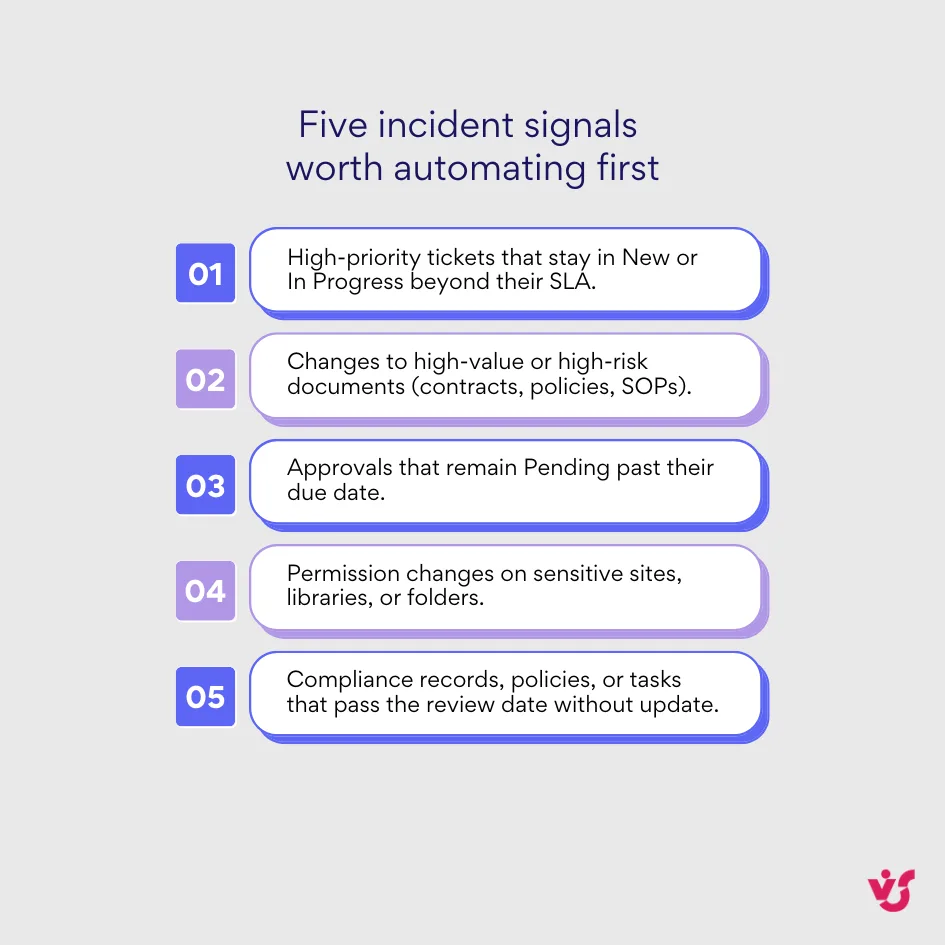
They tend to look like this:
- Missed approvals: A request sits in “Pending Approval” long after its due date. The approver is busy, nobody chases, and a product launch, hiring decision, or budget sign-off stalls for days.
- Changes to critical content: A key policy, SOP, or customer contract is updated. Without a clear alert, stakeholders are unaware that the “official version” they rely on has changed, which leads to people following outdated rules or sending out incorrect terms.
- SLA breaches: Items in an issue tracking or support list stay in “New” or “In Progress” beyond agreed response or resolution times. Customers experience delays, and managers only find out when complaints surface.
- Unexpected deletions: Someone removes a folder or document in a project or compliance library—sometimes by mistake, sometimes as part of a tidy-up. If no one is notified, that gap is only discovered at a critical moment.
- Permissions drift: Access levels on sensitive sites and libraries change gradually over time. People accumulate rights they no longer need, or external users keep access after a project ends, increasing security and compliance risk.
- Compliance tasks: Document review dates, retention checkpoints, and other recurring obligations quietly pass. A record that should have been reviewed or re-certified months ago is still marked as current.
All of these are incident signals in a Microsoft 365 context. They may not bring a system down, but they do introduce real operational risk if they go unnoticed.
The good news is that they map very naturally onto SharePoint and Microsoft 365:
- You store work items, tickets, policies, and records in lists and libraries.
- You track status, due dates, owners, and priority using columns.
- You collaborate around those objects in Teams and Outlook.
That structure is exactly what automation needs. If you define clearly what “trouble” looks like in those columns—for example, DueDate < Today and Status ≠ Closed—you can turn routine data changes into reliable incident triggers.
If you don’t automate detection and response, your teams fall back to:
- Manually checking lists and libraries
- Relying on individuals to remember to scan for issues
- Hoping someone’s personal email alert is still working and pointing at the right inbox
That last point used to be papered over by classic SharePoint alerts. Users would click “Alert me”, choose a frequency, and trust that SharePoint would tap them on the shoulder when something changed. That safety net is being deliberately removed in SharePoint Online, which brings us to an important transition.
The end of classic SharePoint alerts
For years, the built-in “Alert me” feature was the simplest way for users to stay informed. On a list or library, they could:
- Choose what to watch (list, folder, or item)
- Decide when to be emailed
- Pick a frequency and format
Those alerts were personal and quick to set up, and they became the quiet safety net for a huge number of small but important processes.
Microsoft has now committed to retiring this classic alert mechanism in SharePoint Online. The official retirement schedule introduces:
- Gradual blocking of new classic alerts for newly onboarded tenants
- An expiration mechanism for existing alerts
- A complete removal of classic alerts in SharePoint Online by July 2026
The official guidance is to replace classic alerts with:
- SharePoint rules, for simple notification patterns
- Power Automate, for richer workflows and integrations
As mentioned previously, the retirement applies to SharePoint Online only. SharePoint Server 2016, 2019, and Subscription Edition continue to support their own classic alerts under farm control, which matters for hybrid environments.
What replaces classic alerts?
With classic alerts going away in the cloud, most organisations will end up with a blend of:
- New SharePoint rules on individual lists and libraries
- Power Automate flows for complex notification and integration patterns
- One or more third-party tools for advanced alerting, such as Virto Alerts & Reminder
SharePoint rules
SharePoint rules are built directly into modern lists and libraries (including those surfaced in Teams). They allow you to:
- Trigger when items are created, modified, or deleted
- Respond to column changes or upcoming dates
- Send straightforward email notifications to chosen recipients
Rules are intentionally simple. They’re ideal for lightweight notifications, but you can’t fully customise templates or construct rich logic with them.
Power Automate
Power Automate is Microsoft’s recommended platform for modern notification workflows and cross-app integration. It lets you:
- Trigger flows on SharePoint list and library events
- Apply detailed conditions and branching
- Send emails, post to Teams, update items, and call external services
This makes it well suited to incident-style workflows where you want to enforce a sequence of steps: create a ticket, route to a queue, escalate if no response, and so on.
| Capability / question | Classic alerts (Online) | SharePoint rules | Power Automate | Virto Alerts & Reminder (Online) |
| Status in SharePoint Online | Retiring by July 2026 | Fully supported | Fully supported | Fully supported (app from Microsoft AppSource) |
| Scope | Single list/library per user | Single list/library per rule | Any connected system (Microsoft 365 and beyond) | Multiple lists, sites, and calendars |
| Trigger types | Basic create/modify events | Create, modify, delete, date triggers | Rich triggers, conditions, approvals, custom logic | Changes, dates, thresholds, schedules |
| Email template control | Very limited | Fixed system template | Custom but per-flow | Central HTML templates with branding and dynamic data |
| Teams integration | None | None | Yes, via connectors | Yes, via Teams webhooks |
| Scheduling & reminders | Basic frequency options | Immediate only | Custom logic per flow | Immediate alerts plus scheduled digests and reminders |
| Central management | Hard to discover and govern | Per list | Per flow (can sprawl quickly) | Single admin interface for all alerts |
| On-prem equivalent | Yes (Server only) | N/A (modern experience only) | Not applicable to air-gapped farms | Virto Alerts Web Part for SharePoint Server |
Why it matters for incident management
From an incident management standpoint, the retirement of classic alerts creates both a problem and a chance to improve:
- The problem: many small but important processes depend on personal alerts that will quietly break as retirement moves forward.
- The opportunity: you can use this moment to build a deliberate incident strategy using rules, flows, and specialised tools instead of a patchwork of individual settings.
This is where VirtoSoftware’s products come in.
💡 Learn more from official sources and our analysis:
- Create an alert to get notified when a file or folder changes in SharePoint – Microsoft Support
- Manage, view, or delete SharePoint alerts – Microsoft Support
- SharePoint Alerts retirement – Microsoft Support
- SharePoint List Rules: Change Sender of Notification Email – Microsoft Q&A
- SharePoint Alerts Retirement: Impact, Risks & Alternatives
- Send an email when a new item is created or modified in a SharePoint list | Microsoft Learn
👉 How to automate incident management in three easy steps? Automating incident management process is pretty straightforward. Start by identifying your most painful or high-impact incidents and making sure they’re clearly captured in SharePoint lists or other Microsoft 365 systems with sensible fields for status, priority, owner, and due dates. Next, turn those definitions into simple rules and workflows using a mix of SharePoint rules, Power Automate, and (where it helps) tools like Virto Alerts & Reminder to send structured alerts and reminders to the right people. Finally, watch how those incidents behave over a few weeks, refine the conditions and messages to cut noise, and then extend the same patterns to additional teams and use cases. We’ll walk you through these steps and practical scenarios in detail in later sections.
How VirtoSoftware App Bridge the Alert Retirement Gap & Become Your Automated Incident Management System
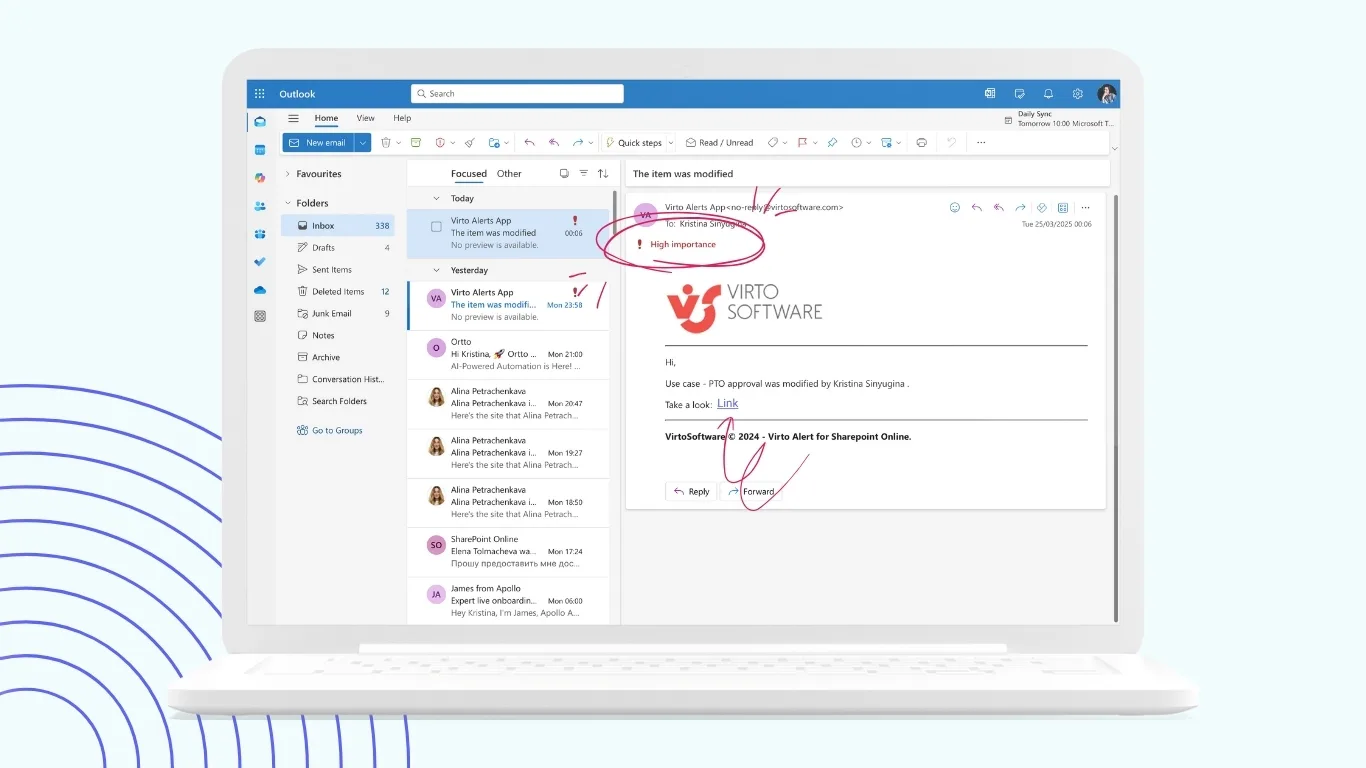
Microsoft’s own guidance and several community write-ups all repeat the same point: there is no single button that “recreates Alerts.” You choose from rules, flows, and specialised apps depending on the complexity, scale, and audience.
From an automated incident management perspective, VirtoSoftware’s tools help you turn that patchwork into something more coherent.
Centralise notification logic
Without a dedicated alerting layer, notification logic tends to scatter:
- Some teams create their own SharePoint rules.
- Others build small Power Automate flows.
- A few still rely on their personal classic alerts until they vanish.
Over time you end up with dozens of slightly different implementations of the same idea (“tell me when a high-priority ticket changes”), each with its own template and condition.
Virto Alerts & Reminder gives you a single administrative interface for creating, editing, and reviewing alerts and reminders across many lists and sites in Microsoft 365.
Check Out VirtoSoftware Apps

Virto Calendar
Consolidate events from SharePoint, Exchange, Google, and more into one calendar view for simplified planning.

Virto Alerts & Reminder
Integrated within your daily tools like Microsoft Teams, the app ensures you stay ahead of all tasks and meetings.

Virto Notifications & Alerts
Craft alerts, reminders, or notifications for any user or group, with options for email, SMS, etc.
That centralisation means:
- You can enforce the same condition sets for similar incidents (for example, one shared pattern for “overdue high-priority items”).
- You don’t have to re-create templates and schedules in multiple flows.
- When something changes—like a new SLA—you update the alert definition once instead of editing a dozen flows or rules.
On-prem, the Alerts Web Part plays the same role inside SharePoint Server: one configurable web part handling conditions, schedules, and recipients for multiple lists, rather than a sprawl of individual alerts no one can see at a glance.
Standardise content and channels
Basic SharePoint rules send plain notification emails with a simple, fixed layout. They do the job, but they’re not great at explaining complex incidents or summarising multiple items.
Virto, by contrast, is built to standardise how alerts look and where they appear:
- HTML templates – you can design structured emails with headings, tables, colours, and branding, pulling in fields from the underlying list item.
- Dynamic tags – placeholders insert values like title, status, due date, owner, and links directly into the message.
- Table-based summaries – instead of sending 20 separate emails, Virto can merge multiple triggers into one digest, listing all relevant items in a table.
- Teams integration – alerts can be posted into Microsoft Teams channels via incoming webhooks, so incident updates appear alongside chat and collaboration rather than just in email.
The upshot is that different incident types—outages, high-risk contracts, SLA breaches—can share consistent, readable notification formats. People learn what to look for in these alerts, which speeds up response and reduces “alert fatigue.”
Scale beyond per-list rules
SharePoint rules are intentionally constrained. They’re tied to a single list or library, offer a small set of triggers (“item created,” “item modified,” “date approaches,” “item deleted”), and send straightforward emails to selected people.
That’s perfect for a simple scenario like “email me whenever a file is added to this library,” but it becomes awkward when you need to:
- Target different recipients based on field values.
- Apply the same logic to multiple lists across sites.
- Combine data into summaries rather than individual pings.
- Implement reminder and escalation schedules without building full-blown flows.
Virto Alerts & Reminder is designed to handle these richer use cases without demanding that every power user becomes a Power Automate expert. It supports flexible scheduling, dynamic alert conditions, targeted notifications to users and groups, and reusable email templates—all configured through the app UI.
You still use Power Automate when you need branching logic, cross-system approvals, or integrations. Virto sits alongside it as a specialist notification layer, particularly for incident-like scenarios where the key need is “watch this data and alert people in a structured way.”
Support hybrid environments
A lot of organisations now run hybrid SharePoint:
- SharePoint Online for modern collaboration and cloud-friendly workloads.
- SharePoint Server (2016/2019/Subscription Edition) for legacy apps, sensitive content, or regulated data that must remain on-prem.
Microsoft’s retirement of classic alerts only affects the Online side. But from a user’s perspective, that distinction is artificial—they just want to be notified when something important changes, whichever farm it lives in.
Using Virto Alerts & Reminder in Microsoft 365 and Virto Alerts Web Part on-prem lets you build a coherent alerting approach across both environments:
- Similar incident types can use similar logic and templates, even though the underlying tools differ.
- Governance and design standards can be shared across cloud and on-prem teams.
- Migration over time becomes easier because you’re moving between related Virto products, rather than entirely different alerting models.
Put together, Virto becomes a very practical alerting backbone for Microsoft-centric incident management, with SharePoint rules and Power Automate providing lighter or more bespoke automation where needed.
With the architecture in view, it’s easier to appreciate what this looks like in live situations.
👉 What are the ultimate incident management automation tools within M365? And what about other than M365 systems? Inside Microsoft 365, the core automation stack is SharePoint rules for simple list-level notifications, Power Automate as the main workflow engine, and specialised apps like Virto Alerts & Reminder to handle rich, centralised alerting and reminders across sites, lists, and Teams. Outside M365, incident automation usually lives in a mix of ITSM platforms (such as ServiceNow or Jira Service Management), alerting/ops tools (like PagerDuty or Opsgenie), and monitoring stacks (for example Datadog, New Relic, or Splunk) that can raise events and drive similar rule-based responses.
Practical Automated Incident Management Scenarios & Automated Incident Management Examples
Theory only helps if you can recognise it in real work. The scenarios below mirror how teams actually use Microsoft 365 and SharePoint today, and show where Virto’s tools fit alongside native capabilities.
Each one follows the same pattern:
- Define the signals.
- Decide what counts as an incident.
- Design the automation.
- Observe the benefits.
| # | Scenario | Primary system(s) | Key trigger condition | Main tools involved | Headline benefit |
| 1 | Corporate portal outage notification | SharePoint Online + list | Service Health entry where Status = Down, Priority = Critical | Monitoring tool, Virto, Power Automate | Faster outage awareness and automatic escalation |
| 2 | High-risk contract changes in legal library | Contracts library + list | Contract edited where Value > 100,000 and Risk = High | Power Automate, Virto, Teams | No more “silent” edits on high-value agreements |
| 3 | SLA breaches in on-prem issue tracking | SharePoint Server list | Priority = High and Status = New for 30+ minutes | Virto Notifications & Alerts Web Part | SLA-driven alerts without cloud dependencies |
| 4 | Compliance tasks and periodic reviews | Policies list | NextReviewDate < Today and Status = Active | Virto (Online), optional Power Automate | Fewer missed reviews and clearer compliance oversight |
Scenario 1: Corporate portal outage notification
Context: Your organisation has a SharePoint Online-backed intranet that employees use as their starting point each day. A third-party monitoring tool checks availability and writes status updates to a SharePoint list called Service Health.
Signals: The monitoring tool posts an item to the Service Health list with fields such as:
- System = “Intranet Portal”
- Status = “Down”
- Priority = “Critical”
- DetectedTime = [timestamp]
Whenever Status = “Down” for an important system, that’s an incident.
Automation design:
- Detection
- A Power Automate flow or Virto Alerts & Reminder watches the Service Health list for new or changed items.
- Classification
- The logic filters to rows where:
- System = “Intranet Portal”
- Status = “Down”
- Priority = “Critical”
- The logic filters to rows where:
- Notification and routing
- Escalation
- A reminder rule checks after 15 minutes. If Status is still “Down,” Virto sends a second alert to a broader distribution list containing IT leadership and service owners.
Incident management benefits:
- No one has to remember to open the Service Health list on a schedule.
- The right people see a clear, structured alert as soon as monitoring detects the outage.
- Escalation is automatic if the issue lingers, without someone manually forwarding emails or pinging chat groups.
Scenario 2: High-risk contract changes in a legal library
Context: The legal team maintains a SharePoint Online library of customer contracts. Contracts above a certain value and risk level require legal review for every change, not just at signature time.
Signals: The Contracts library includes key columns:
- Value (currency)
- RiskCategory (choice: Low, Medium, High)
- LegalOwner (person or group)
Any time a file is edited where:
- Value > 100,000
- RiskCategory = “High”
that update should be treated as a legal incident.
Automation design:
- Detection and classification
- A Power Automate flow triggers “when a file is created or modified” in the Contracts library and reads the Value and RiskCategory fields.
- If the conditions are met, the flow:
- Creates or updates a record in a Legal Incidents list, capturing:
- Contract name and link
- Client/region metadata
- Old vs new version IDs
- RiskCategory and Value
- Status = “Review Required”
- Creates or updates a record in a Legal Incidents list, capturing:
- Notification and routing
- Virto Alerts & Reminder monitors the Legal Incidents list and, for items in “Review Required”:
- Sends an HTML email to LegalOwner with:
- Contract details and direct link
- A short checklist of review steps
- Links to compare versions
- Posts a message in the legal team’s Teams channel with the incident ID and link.
- Sends an HTML email to LegalOwner with:
- Virto Alerts & Reminder monitors the Legal Incidents list and, for items in “Review Required”:
- Reminders and escalation
- A scheduled Virto reminder runs daily at 9:00, summarising:
- All Legal Incidents where Status ≠ “Closed” and DueDate < Today.
- If a high-risk incident remains open past a certain age, the reminder adds the legal director to the recipient list.
- A scheduled Virto reminder runs daily at 9:00, summarising:
Incident management benefits:
- “Silent” edits on high-value contracts are no longer invisible.
- Legal gets targeted immediate alerts plus one daily digest instead of a stream of raw “file modified” emails.
- The Legal Incidents list provides a ready-made audit trail showing which contracts changed, when, and who approved them.
Scenario 3: SLA breaches in an on-premises issue tracking list
Context: An internal helpdesk runs on SharePoint Server 2019. Issues are logged in a classic list with target response times defined per priority. There’s no Power Automate, and internet access from the farm is limited.
Signals: The Helpdesk Issues list contains:
- Title, Description
- Priority (Low, Normal, High)
- Created (date/time)
- Status (New, In Progress, Resolved, Closed)
- AssignedTo (person)
An incident escalation should occur when:
- Priority = “High”
- Status remains “New” more than 30 minutes after Created
Automation design:
- Detection and classification
- Virto Alerts Web Part is configured against the Helpdesk Issues list to:
- Identify High-priority items
- Evaluate their age based on Created
- Treat “High + New for > 30 minutes” as an escalation condition
- Virto Alerts Web Part is configured against the Helpdesk Issues list to:
- Notification and routing
- When the condition is met, the web part sends:
- An email to the on-call technician, including the issue details and a link
- If Status is still “New” after another 30 minutes:
- A second alert goes to the team lead
- Optionally, an SMS is sent for after-hours incidents in configurations where SMS is enabled.
- When the condition is met, the web part sends:
- Visibility
- The same web part is placed on the IT intranet home page, showing:
- A list of High-priority issues
- How long each has been open
- The same web part is placed on the IT intranet home page, showing:
Incident management benefits:
- The team no longer depends on someone refreshing the list or running views manually.
- High-priority issues receive time-bound escalations aligned with the SLA.
- Managers see a near real-time picture of urgent incidents without needing a separate reporting tool.
Scenario 4: Compliance tasks and periodic reviews
Context: A compliance team tracks policies and procedures that must be reviewed regularly (for example, annually). Missed reviews don’t trigger alarms on their own, but they create real audit risk.
Signals: A Policies list holds:
- PolicyTitle
- Owner (person)
- NextReviewDate (date)
- Status (Active, Under Review, Archived)
An overdue incident is defined as:
- NextReviewDate < Today
- Status = “Active”
Automation design:
- Detection and scheduling
- Virto Alerts & Reminder is configured to run a scheduled job every weekday morning:
- It queries the Policies list for items where NextReviewDate is soon or past due and Status = “Active”.
- It queries the Policies list for items where NextReviewDate is soon or past due and Status = “Active”.
- Virto Alerts & Reminder is configured to run a scheduled job every weekday morning:
- Notification and routing
- For each owner:
- Virto sends a personal email listing their policies that are due or overdue, with direct links to each item.
- For the compliance manager:
- Virto sends an aggregated summary showing overall counts and the most overdue items.
- Virto sends an aggregated summary showing overall counts and the most overdue items.
- For each owner:
- Optional workflow integration
- A Power Automate flow can be layered on top to:
- Flip Status to “Under Review” when a policy becomes overdue
- Add tasks to a Planner board or create follow-up items in a separate tracking list
- A Power Automate flow can be layered on top to:
Incident management benefits:
- Compliance risk becomes a steady stream of manageable incidents, not a last-minute scramble before audits.
- Owners receive targeted reminders that point straight at the items they’re responsible for.
- The compliance manager gains a clear overview without chasing people manually.
Together, these scenarios show how Virto’s tools and Microsoft’s own automation features cover everything from obvious technical outages to low-key but critical operational risk.
👉 So, in short, what are some of the examples of automated incident management? Automated incident management can look like a SharePoint Online “Service Health” list feeding Virto Alerts & Reminder, which emails and messages the on-call team in Teams the moment a portal goes down and escalates if it stays offline. It can be a Power Automate flow that logs a “Legal Incident” when a high-value contract is edited, notifies the contract owner, and reminds them until review is complete. It can also be an on-prem SharePoint helpdesk list where Virto Notifications & Alerts Web Part automatically flags high-priority tickets that sit in “New” too long and emails both the technician and their manager if the SLA is breached.
Implementation Roadmap: Bringing Automated Incident Management to Life
Knowing that something is possible and actually embedding it into day-to-day operations are two different things. A pragmatic roadmap for Microsoft 365 and SharePoint environments usually follows six stages.
1. Inventory existing alerts and notification flows
Start with visibility. You need to understand what’s already holding things together.
- Run the Microsoft 365 Assessment tool in Alerts mode to scan your tenant for classic SharePoint alerts. Microsoft’s retirement guidance explicitly recommends this step, and the scanner produces a Power BI report listing alerts by site collection and web.
- Export or document existing Power Automate flows that send notification emails or Teams messages based on SharePoint changes.
- Talk to teams across IT, HR, finance, legal, operations and ask:
- Where do you rely on email alerts or manual checks?
- Which of those would cause real pain if they stopped working tomorrow?
Then classify what you find:
- Simple per-list notifications – candidates for SharePoint rules or Virto alerts.
- Cross-system workflows – flows that will remain in Power Automate.
- High-value or incident-like processes – ideal for centralised Virto configuration with SLA-style behaviour.
This mapping gives you a rational migration and improvement plan instead of a pile of one-off conversions.
2. Decide the tool of choice per scenario
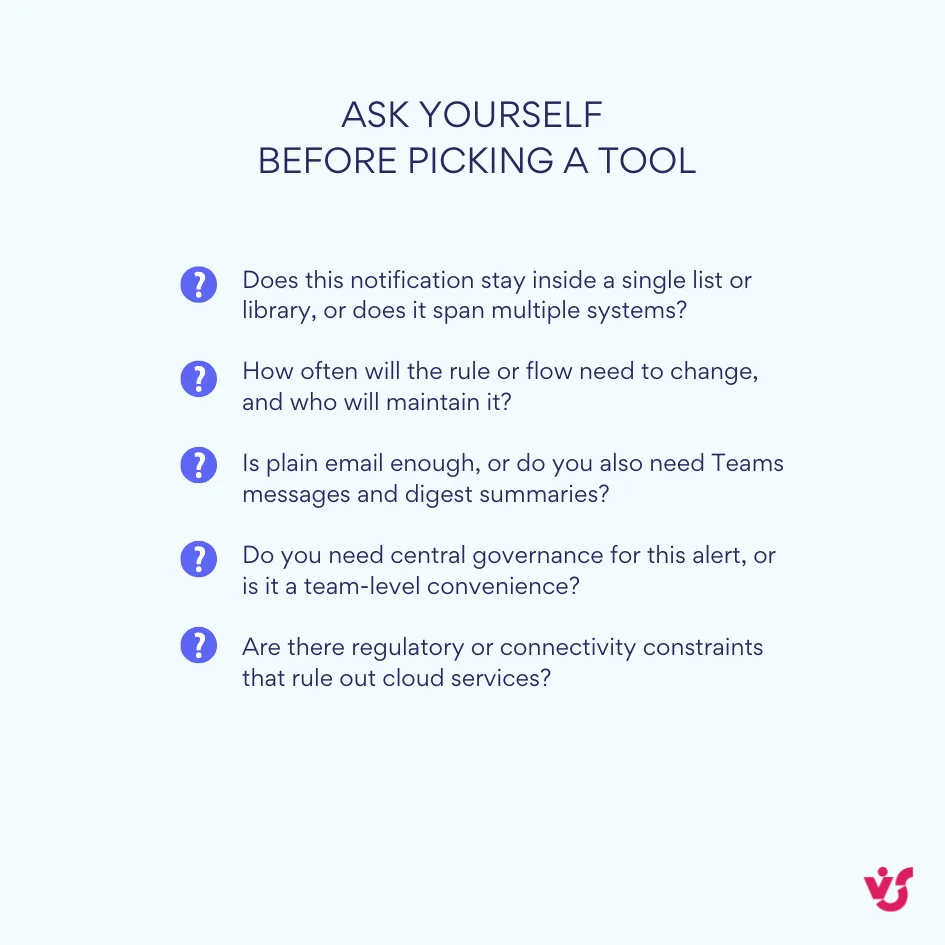
Next, you decide which tool is the default choice for each type of notification. A lightweight decision matrix helps:
- Use SharePoint rules when:
- The notification is tied to a single list or library.
- The logic is straightforward (e.g., “when an item is created” or “when a file is modified”).
- Email-only delivery is enough for the audience.
- Use Power Automate when:
- You need to coordinate actions across apps (SharePoint + Teams + Outlook, etc.).
- There is branching logic or formal approvals.
- The scenario will evolve and you’re comfortable maintaining flows.
- Use Virto Alerts & Reminder (Online) when:
- You need reusable alert patterns across many lists or sites.
- HTML templates, summaries, and schedules are important.
- You want email and Teams alerts without hand-building flows for each case.
- Use Virto Alerts Web Part (on-prem) when:
- You’re in SharePoint Server 2016/2019/SE and can’t depend on cloud services.
- You need advanced on-prem reminders and alerts beyond classic alert capabilities.
Document these choices in a short internal guide so administrators and power users know where to put new logic instead of inventing their own approach each time.
3. Design incident-centric lists and fields
Automation only behaves well if the underlying data is structured. For each area where you care about incidents:
- Make sure lists have:
- Status values (New, In Progress, Resolved, Closed, etc.).
- Priority levels (Low, Normal, High or similar).
- Owner fields (person or group).
- Due date or SLA fields where timing matters.
- Agree on what constitutes an incident condition, for example:
- Priority = High and Status = New.
- DueDate < Today and Status ≠ Closed.
- RiskCategory = High and Value > 100,000.
Once those definitions are clear, building Virto alerts, SharePoint rules, or flows becomes a more mechanical task. You are encoding business decisions, not trying to reverse-engineer them from vague descriptions.
Explore VirtoSoftware Use Cases

4. Implement and test key notifications
Start with the handful of scenarios where failures are most painful:
- Outages and availability (Service Health lists, key application status)
- High-value document changes (contracts, policies, critical SOPs)
- SLA breaches in task or issue lists
- Compliance review deadlines and retention checkpoints
For each:
- Implement the notification in the chosen tool (Virto, rule, or flow).
- Test it end-to-end with a small, representative group of users.
- Adjust the content so alerts are concise but informative—people should know what to do next from a single message.
- Refine schedules to strike a balance between immediacy and alert fatigue.
Because Virto uses reusable templates and conditions, iterating on this design is noticeably faster than editing every Power Automate flow or rule separately.
5. Communicate the retirement and the new model
Classic alerts are on a fixed retirement path, and Microsoft is already adding banners to alert emails telling users that the feature is going away and showing when a specific alert will expire.
To avoid confusion:
- Explain to users that:
- Classic alerts will gradually stop working.
- Creation of new alerts will be blocked, and existing alerts will eventually expire.
- You are putting a better-structured model in place, not just taking something away.
- Provide short “how-to” guides or videos showing:
- How to create SharePoint rules for simple, personal notifications.
- When they should instead request a Virto alert or a Power Automate flow.
Virto’s own articles on alerts retirement emphasise that user education is key: people need to know not just that classic alerts are going away, but what to use instead.
6. Monitor, refine, and extend
Once your core incident automation is live, your job shifts from “build” to “improve.”
- Review alert logs and user feedback regularly.
- Retire rules and alerts that create noise without driving action.
- Tune conditions and thresholds where incidents are being flagged too early or too late.
- Apply the same patterns to new areas such as:
- Training and certification reminders
- HR onboarding/offboarding tasks
- Finance approvals and budget monitoring
Over time, automated incident management stops feeling like a special project and becomes part of how people think about SharePoint and Microsoft 365: data goes into lists and libraries; incidents are defined in columns and rules; alerts and flows keep everyone pointed at the work that really matters.
Conclusion on Incident Management Automation
Taken as a whole, automated incident management is a deliberate way to move from constant firefighting to a process that is structured, predictable, and much easier to control. Instead of hoping someone notices a missed approval, a risky document change, or a failing service, you define the signals you care about and let the system surface them consistently.
The goal is not to sideline people. The real aim is to empower your teams by offloading the dull, repetitive tasks—watching lists, chasing deadlines, forwarding emails—and giving them timely, well-structured alerts they can act on. Automation delivers a response speed no human could sustain on their own, while experts stay focused on diagnosis, decision-making, and long-term improvements.
If you do this well, the pay-off is straightforward: minimal downtime, fewer “we didn’t see that coming” incidents, and a noticeably lighter workload on IT and operations. At the same time, your business systems feel more dependable because incidents are handled according to clear rules rather than habit and heroics. Over time, each incident feeds back into better rules, cleaner data, and increased overall reliability.
A practical way to begin is simple: start by listing the handful of incidents that hurt the most today—outages, SLA breaches, risky content changes, or missed compliance dates—and design automation around those first. From there, consider using specialised tools such as Virto Alerts & Reminder App in Microsoft 365 and SharePoint Server. These plug directly into your existing Microsoft environment, add rich templates, flexible schedules, and centralised management, and significantly lift the effectiveness of any automated incident scenarios you build.
You can explore this in more depth by scheduling a demo and installing the free trial versions of the apps from the VirtoSoftware site.
For inspiration, it’s also worth browsing our use cases and guides on related topics:
- Support shift planning made simple: Virto Customer Support Tools
- Shift Scheduling Software for Government Agencies
- Virto Availability Calendar | Smart Scheduling for Teams & Clients
- SharePoint Alerts Retirement: Impact, Risks & Alternatives
- SharePoint Alerts & Notifications: Setting Up and Managing
- Microsoft Teams Status Guide: Set, Automate, Use